Introduction
Screen capture tools help you record your screen, take annotated screenshots, and create shareable visual explanations. They are used for product demos, bug reporting, training videos, online classes, customer support, sales walkthroughs, and internal documentation. A good screen capture tool saves time because it reduces long back-and-forth messages and turns “what do you mean?” into “I see it now.”
Common real-world use cases:
- Recording product demos, feature launches, and tutorials
- Capturing bugs with steps, highlights, and annotations
- Creating training videos for onboarding, SOPs, and courses
- Sharing quick async updates with your team (status, reviews, feedback)
- Building support libraries and help-center content
What buyers should evaluate:
- Recording quality and frame stability (especially for long sessions)
- Audio tools (mic noise reduction, system audio, separate tracks, sync)
- Editing workflow (trim, captions, callouts, blur, zoom, cursor effects)
- Screenshot and annotation depth (arrows, steps, stamps, templates)
- Sharing options (links, exports, privacy controls, team spaces)
- Performance impact (CPU/GPU load, export speed, crash recovery)
- Integrations (Slack, Teams, Jira, Google Drive, Dropbox, etc.)
- Collaboration features (comments, approvals, versioning, libraries)
- Security expectations (access control, data handling, admin features)
- Pricing and licensing fit (solo creators vs teams)
Best for: creators, educators, product teams, QA, customer support, and sales teams that need fast visual communication and repeatable video workflows.
Not ideal for: users who only need a basic image crop once in a while, or teams that already rely on a fully managed enterprise meeting platform for all recordings.
Key Trends in Screen Capture Tools
- Faster “record → share” workflows for async collaboration
- More emphasis on privacy controls (workspace permissions, link settings)
- Better built-in editing for non-editors (trim, cut, zoom, highlight, blur)
- Stronger audio quality features for voice clarity and noise control
- More lightweight tools focused on speed instead of heavy timelines
- Wider use of automated captions and searchable video libraries (varies by product)
- Increased demand for standardized templates and branded assets
- Better support for high-resolution monitors and multi-display recording
- More team-oriented libraries for training and customer-facing guides
- Growing need for clear export options to match different platforms and formats
How We Selected These Tools
- Strong adoption and trust across creators and business teams
- Coverage across key needs: screenshots, quick recordings, and full editing
- Reliable performance signals for long recordings and frequent daily use
- Practical editing and annotation depth for real work (not just “record only”)
- Ecosystem fit through common integrations and export formats
- Balanced set across free, affordable, and premium tools
- Fit across segments: solo, SMB, mid-market teams, and enterprise use cases
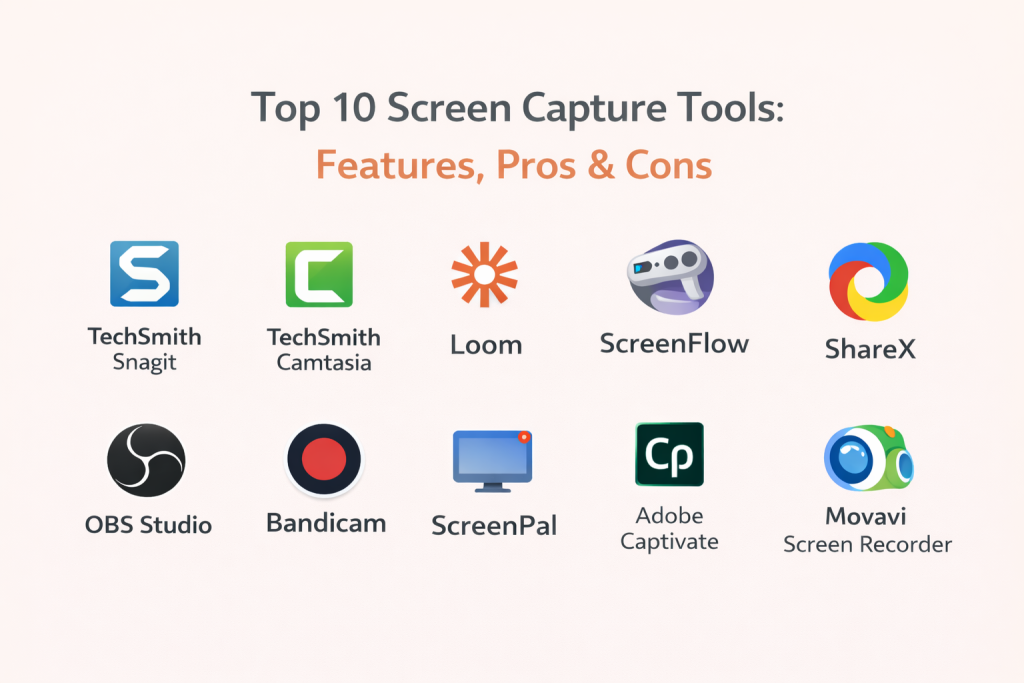
Top 10 Screen Capture Tools
1 — TechSmith Snagit
A screenshot-first tool with strong capture, annotation, and quick sharing. Often used for documentation, support, QA, and product teams.
Key Features
- High-quality screenshot capture with scrolling capture support (workflow dependent)
- Annotation tools: callouts, arrows, steps, stamps, blur, and shapes
- Screenshot templates for repeatable documentation
- Quick capture and rapid export/sharing workflow
- Simple screen recording for short clips (workflow dependent)
- Organized capture library for reuse
Pros
- Best-in-class annotation for screenshots
- Very fast for daily documentation and support work
Cons
- Deep video editing is not the main focus
- Some advanced workflows require learning capture presets
Platforms / Deployment
- Windows / macOS
- Self-hosted
Security & Compliance
- Not publicly stated
Integrations & Ecosystem
Snagit is commonly used alongside documentation and ticketing workflows.
- Common file exports (images, video clips)
- Works well with knowledge-base and documentation processes
- Sharing options depend on your storage and collaboration tools
- Capture templates help teams standardize visuals
Support & Community
Strong vendor documentation and training resources, plus an active user base for workflow tips.
2 — TechSmith Camtasia
A screen recorder plus editor designed for training videos, tutorials, courses, and polished walkthroughs with visual effects.
Key Features
- Screen recording with webcam and audio capture options
- Timeline-based editing for cutting, trimming, and sequencing
- Cursor effects, zoom/pan, highlights, and callouts
- Built-in assets like transitions and annotations (varies by version)
- Captions workflow (capabilities vary)
- Export presets for common platforms and resolutions
- Templates for consistent training content
Pros
- Excellent for turning raw recordings into polished training videos
- Editing is approachable for non-professional editors
Cons
- Heavier than lightweight “quick share” tools
- Larger projects can demand stronger hardware
Platforms / Deployment
- Windows / macOS
- Self-hosted
Security & Compliance
- Not publicly stated
Integrations & Ecosystem
Camtasia fits well into training and enablement pipelines.
- Common video export formats for LMS and internal portals
- Asset libraries for brand consistency
- Works alongside slide tools and documentation workflows
- Sharing depends on your chosen storage platforms
Support & Community
Strong tutorials, structured learning resources, and a large training-focused community.
3 — Loom
A fast “record and share” tool designed for async communication, quick walkthroughs, and team updates with minimal setup.
Key Features
- One-click screen + camera recording options
- Instant share links and viewer-friendly playback experience (workflow dependent)
- Basic trimming and simple editing workflow
- Viewer comments and reactions (workflow dependent)
- Workspace libraries for team content (plan dependent)
- Recording controls optimized for speed
- Useful for reviews, approvals, and quick demos
Pros
- Very fast for async updates and internal communication
- Easy for non-technical users to adopt
Cons
- Advanced editing is limited compared to full editors
- Best experience often depends on cloud workflow and plan tier
Platforms / Deployment
- Web / Windows / macOS
- Cloud / Hybrid (varies by workflow)
Security & Compliance
- Not publicly stated
Integrations & Ecosystem
Loom is commonly used with messaging and project workflows.
- Sharing into collaboration tools (workflow dependent)
- Embeds and previews in common team platforms (varies)
- Export options available depending on settings
- Team libraries for organized knowledge sharing
Support & Community
Good onboarding, practical guides, and strong usage patterns across teams.
4 — ScreenFlow
A macOS-focused recorder and editor popular with educators, YouTubers, and creators who want polished screen recordings with editing in one place.
Key Features
- Smooth screen recording optimized for macOS
- Timeline editing with trim, transitions, overlays, and titles
- Multi-track editing for screen, camera, and audio
- Useful annotations, highlights, and callouts for teaching
- Audio enhancement tools (workflow dependent)
- Export presets for common formats
- Media library management for recurring assets
Pros
- Great quality and editing workflow on macOS
- Strong for training content and creator videos
Cons
- macOS only
- Not designed for enterprise team libraries by default
Platforms / Deployment
- macOS
- Self-hosted
Security & Compliance
- Not publicly stated
Integrations & Ecosystem
ScreenFlow fits into creator and education workflows.
- Common export formats and presets
- Easy integration with typical publishing workflows via exports
- Works well with external audio tools when needed
- Asset reuse supports consistent branding
Support & Community
Clear documentation and a creator-driven community with tutorials and workflow guides.
5 — ShareX
A powerful free tool for screenshots and automation on Windows, popular with technical users who want deep capture workflows and flexible outputs.
Key Features
- Fast screenshot capture with hotkeys and capture rules
- Powerful annotation and post-capture workflows
- Scrolling capture and region capture options (workflow dependent)
- Automated actions after capture (rename, upload, copy, convert)
- Custom workflows and scripts (workflow dependent)
- Wide format support for images and outputs
- Highly configurable capture pipeline
Pros
- Extremely flexible and automation-friendly
- Great value for power users
Cons
- Interface and settings can be complex for beginners
- Best results require time to configure workflows
Platforms / Deployment
- Windows
- Self-hosted
Security & Compliance
- Not publicly stated
Integrations & Ecosystem
ShareX can be tailored to many environments using configurable targets.
- Multiple output destinations (workflow dependent)
- Custom naming and organization pipelines
- Works well for bug reporting and dev documentation
- Extensibility through configurable actions
Support & Community
Strong community support and guides. Best for users comfortable with configuration.
6 — OBS Studio
A robust recording and capture tool known for high flexibility. While famous for streaming, it is also widely used for screen capture and high-quality recording setups.
Key Features
- High-quality screen recording with flexible scene setup
- Multi-source capture (screen, windows, camera, audio sources)
- Audio mixer with filters (noise control varies by setup)
- Studio-style preview/program workflow (workflow dependent)
- Advanced output settings for quality and performance control
- Plugin ecosystem for extended capture workflows
- Virtual camera output for other applications
Pros
- Very flexible for complex capture setups
- Strong community resources and plugin options
Cons
- Not a simple “record and done” tool for beginners
- Built-in editing is limited (editing often done elsewhere)
Platforms / Deployment
- Windows / macOS / Linux
- Self-hosted
Security & Compliance
- Not publicly stated
Integrations & Ecosystem
OBS integrates mainly through standard outputs and community extensions.
- Common recording formats and configurable outputs
- Plugins for additional capture workflows (varies)
- Works well with external editors and audio tools
- Scene templates support repeatable recording setups
Support & Community
Very strong community support and abundant tutorials. Official support is limited compared to paid vendors.
7 — Bandicam
A Windows recorder focused on performance and high-quality capture, often used for gameplay recording, tutorials, and long sessions.
Key Features
- High-performance screen recording with quality controls
- Game capture modes and device capture options (workflow dependent)
- Webcam overlay and audio capture options
- Scheduled recording and long-session workflows (workflow dependent)
- Flexible codec and format options (workflow dependent)
- Simple UI for fast start
- Useful for high-frame-rate scenarios (hardware dependent)
Pros
- Strong performance for long recordings on Windows
- Straightforward workflow for capturing quickly
Cons
- Editing features are limited
- Some advanced use cases require tuning settings
Platforms / Deployment
- Windows
- Self-hosted
Security & Compliance
- Not publicly stated
Integrations & Ecosystem
Bandicam fits best as a capture engine feeding your editing or sharing workflow.
- Exports to common formats for editors
- Works with external microphones and audio setups
- Complements streaming or editing tools in a pipeline
- Simple workflow for consistent capture
Support & Community
Documentation is available, with moderate community resources compared to the largest platforms.
8 — ScreenPal
A screen recorder and lightweight editor that suits educators, trainers, and teams creating explainers, tutorials, and quick walkthroughs.
Key Features
- Screen recording with webcam and narration options
- Simple editing: trim, cut, captions workflow (capabilities vary)
- Annotations and callouts for instructional content
- Hosting and sharing workflow options (plan dependent)
- Content library organization (plan dependent)
- Useful for classroom and training environments
- Export options for common formats
Pros
- Easy for educators and training teams
- Good balance between capture and simple editing
Cons
- Advanced production editing is limited
- Feature set varies by plan tier
Platforms / Deployment
- Windows / macOS / Web (varies by workflow)
- Cloud / Hybrid (varies by workflow)
Security & Compliance
- Not publicly stated
Integrations & Ecosystem
ScreenPal typically supports common education and sharing workflows.
- Standard video exports and sharing options
- Works alongside LMS and internal portals via exports
- Simple asset reuse for consistent lessons
- Integrations depend on your chosen distribution method
Support & Community
Helpful onboarding and strong education-oriented documentation and tutorials.
9 — Adobe Captivate
A tool designed for interactive learning content and software simulations, often used by training teams and instructional designers.
Key Features
- Screen recording geared toward training and simulations
- Interactive elements for learning content (workflow dependent)
- Slide-style authoring for structured lessons
- Quizzes and training modules (workflow dependent)
- Templates for consistent course design
- Export formats suited for training delivery (workflow dependent)
- Useful for software walkthrough simulations
Pros
- Strong fit for instructional design workflows
- Useful for interactive training, not just video
Cons
- Can feel complex for simple capture needs
- Value depends on whether you need interactive learning features
Platforms / Deployment
- Windows / macOS (varies by version)
- Self-hosted
Security & Compliance
- Not publicly stated
Integrations & Ecosystem
Captivate is commonly used as part of training content pipelines.
- Works with common training delivery workflows via exports
- Fits into broader content creation environments (workflow dependent)
- Asset reuse supports standardization across courses
- Integrations depend on your learning platform approach
Support & Community
Large user base in instructional design, with plenty of guides and training resources.
10 — Movavi Screen Recorder
A friendly screen capture tool aimed at quick recording, basic editing, and easy exports for tutorials and presentations.
Key Features
- Screen recording with system audio and microphone options
- Scheduling and timed recording workflows (workflow dependent)
- Basic editing capabilities (trim, cut, simple enhancements)
- Capture from webcam and screen combinations
- Export presets for common formats
- Simple interface suitable for beginners
- Useful for straightforward tutorials and demos
Pros
- Easy to learn and fast to use
- Good for everyday screen recording needs
Cons
- Not built for deep enterprise workflows
- Advanced annotation and team collaboration may be limited
Platforms / Deployment
- Windows / macOS
- Self-hosted
Security & Compliance
- Not publicly stated
Integrations & Ecosystem
Movavi typically works best as a capture-and-export tool in a broader workflow.
- Exports to common formats used by editors and platforms
- Works with external microphones and webcams
- Simple workflows for repeatable recording setups
- Integrations usually depend on where you publish or store files
Support & Community
Good help content and beginner-friendly tutorials, with moderate community depth.
Comparison Table
| Tool Name | Best For | Platform(s) Supported | Deployment (Cloud/Self-hosted/Hybrid) | Standout Feature | Public Rating |
|---|---|---|---|---|---|
| TechSmith Snagit | Screenshot workflows, documentation | Windows / macOS | Self-hosted | Best-in-class screenshot annotation | N/A |
| TechSmith Camtasia | Polished tutorials and training videos | Windows / macOS | Self-hosted | Timeline editor + screen recording | N/A |
| Loom | Async updates and quick walkthroughs | Web / Windows / macOS | Cloud / Hybrid | Fast record-to-share workflow | N/A |
| ScreenFlow | Mac creators and educators | macOS | Self-hosted | High-quality macOS recording + editing | N/A |
| ShareX | Power users and automation | Windows | Self-hosted | Highly configurable capture automation | N/A |
| OBS Studio | Advanced capture setups | Windows / macOS / Linux | Self-hosted | Flexible scenes and sources | N/A |
| Bandicam | Performance-focused Windows recording | Windows | Self-hosted | Efficient high-quality capture | N/A |
| ScreenPal | Educators and trainers | Windows / macOS / Web (varies) | Cloud / Hybrid | Simple recording with light editing | N/A |
| Adobe Captivate | Instructional design and simulations | Windows / macOS (varies) | Self-hosted | Interactive training and simulations | N/A |
| Movavi Screen Recorder | Beginners and everyday recording | Windows / macOS | Self-hosted | Simple capture with easy exports | N/A |
Evaluation & Scoring of Screen Capture Tools
Weights used:
- Core features – 25%
- Ease of use – 15%
- Integrations & ecosystem – 15%
- Security & compliance – 10%
- Performance & reliability – 10%
- Support & community – 10%
- Price / value – 15%
| Tool Name | Core (25%) | Ease (15%) | Integrations (15%) | Security (10%) | Performance (10%) | Support (10%) | Value (15%) | Weighted Total (0–10) |
|---|---|---|---|---|---|---|---|---|
| TechSmith Snagit | 8 | 9 | 7 | 7 | 8 | 8 | 7 | 7.75 |
| TechSmith Camtasia | 9 | 8 | 7 | 7 | 8 | 8 | 6 | 7.70 |
| Loom | 7 | 9 | 8 | 7 | 7 | 7 | 7 | 7.45 |
| ScreenFlow | 8 | 8 | 6 | 6 | 8 | 7 | 6 | 7.10 |
| ShareX | 7 | 6 | 7 | 6 | 7 | 7 | 10 | 7.20 |
| OBS Studio | 8 | 6 | 8 | 6 | 8 | 9 | 10 | 7.90 |
| Bandicam | 7 | 7 | 5 | 6 | 8 | 6 | 7 | 6.60 |
| ScreenPal | 7 | 8 | 6 | 6 | 7 | 7 | 8 | 7.05 |
| Adobe Captivate | 8 | 6 | 7 | 7 | 7 | 7 | 5 | 6.80 |
| Movavi Screen Recorder | 7 | 8 | 5 | 6 | 7 | 6 | 7 | 6.65 |
How to interpret these scores:
- These are comparative scores to help you shortlist, not absolute “truth.”
- If you create training content, weigh editing and captions more heavily.
- If you do support and QA, prioritize annotation speed and clarity.
- If performance matters (gaming, long recordings), validate on your own hardware.
- A short pilot with real workflows is the fastest way to confirm fit.
Which Screen Capture Tool Is Right for You?
Solo / Freelancer
- For quick async walkthroughs: Loom
- For polished tutorial videos: TechSmith Camtasia or ScreenFlow (macOS)
- For flexible capture setups at low cost: OBS Studio or ShareX (Windows)
SMB
- For support and documentation teams: TechSmith Snagit
- For marketing demos and training: TechSmith Camtasia
- For internal async communication: Loom or ScreenPal (workflow dependent)
Mid-Market
- For standardized training libraries: TechSmith Camtasia or Adobe Captivate (if interactive content matters)
- For technical teams that want automation: ShareX
- For more advanced capture setups: OBS Studio
Enterprise
- For structured enablement and training programs: TechSmith Camtasia or Adobe Captivate
- For consistent visual documentation at scale: TechSmith Snagit
- For secure workflow alignment: validate admin controls, storage approach, and sharing policies based on internal requirements
Budget vs Premium
- Budget-friendly: ShareX, OBS Studio
- Premium productivity: TechSmith Snagit, TechSmith Camtasia
- Mid options for everyday recording: Movavi Screen Recorder, ScreenPal
Feature Depth vs Ease of Use
- Feature depth: TechSmith Camtasia, OBS Studio, Adobe Captivate
- Ease of use: Loom, TechSmith Snagit, Movavi Screen Recorder
Integrations & Scalability
- Team communication workflows: Loom
- Training content pipelines: TechSmith Camtasia, Adobe Captivate
- Automation-based scaling for technical teams: ShareX
- Flexible capture pipelines that fit many setups: OBS Studio
Security & Compliance Needs
- Many tools do not publicly state formal compliance in a simple way.
- If security is critical, prioritize tools where you control storage and sharing, and confirm access controls in your internal review.
- Keep a clear policy for link sharing, retention, and where recordings are stored.
Frequently Asked Questions
1) What is the difference between screenshot tools and screen recording tools?
Screenshot tools focus on capturing still images with strong markup and steps. Recording tools focus on capturing motion, voice, and workflows, often with editing.
2) Which tool is best for bug reporting and QA?
Tools with fast capture, clear annotations, and consistent templates work best. TechSmith Snagit and ShareX are popular choices depending on your team style.
3) Which tool is best for creating course-style tutorials?
If you need editing, zooms, callouts, and polished output, TechSmith Camtasia and ScreenFlow are strong options.
4) Can these tools record system audio and microphone together?
Many can, but setup differs by operating system and permissions. Always test your exact audio path before important recordings.
5) How do I keep recordings small without losing quality?
Use sensible resolution, frame rate, and bitrate settings, and choose modern export formats when available. Avoid recording at maximum settings unless needed.
6) What are the most common mistakes beginners make?
Forgetting to check audio levels, recording the wrong screen, ignoring notifications, and not doing a quick test clip. A short test prevents most issues.
7) Do I need video editing experience to use these tools?
Not always. Loom, Snagit’s basic recording, and Movavi are beginner-friendly. Timeline editors like Camtasia and ScreenFlow take more practice but are manageable.
8) Can I record multiple monitors?
Some tools support multi-display capture well, but performance can vary. Test on your hardware, especially if you record high resolution.
9) What should I choose for “record and share fast” workflows?
If speed matters most, Loom and similar quick-share workflows are usually best. For full control and customization, OBS Studio is strong.
10) How hard is it to switch from one screen capture tool to another?
It is usually easy if you keep raw exports organized. The main change is learning a new workflow for hotkeys, editing, and where files are stored.
Conclusion
Screen capture tools are all about making communication clearer and faster. The “best” tool depends on your main job: screenshots and documentation, training videos, quick async updates, or advanced multi-source capture. Shortlist two or three tools that match your daily workflow, run a small pilot using real tasks (bug report, tutorial, team update), confirm performance and audio quality on your device, and then standardize your templates and capture settings for consistent results.

Best Cardiac Hospitals Near You
Discover top heart hospitals, cardiology centers & cardiac care services by city.
Advanced Heart Care • Trusted Hospitals • Expert Teams
View Best Hospitals