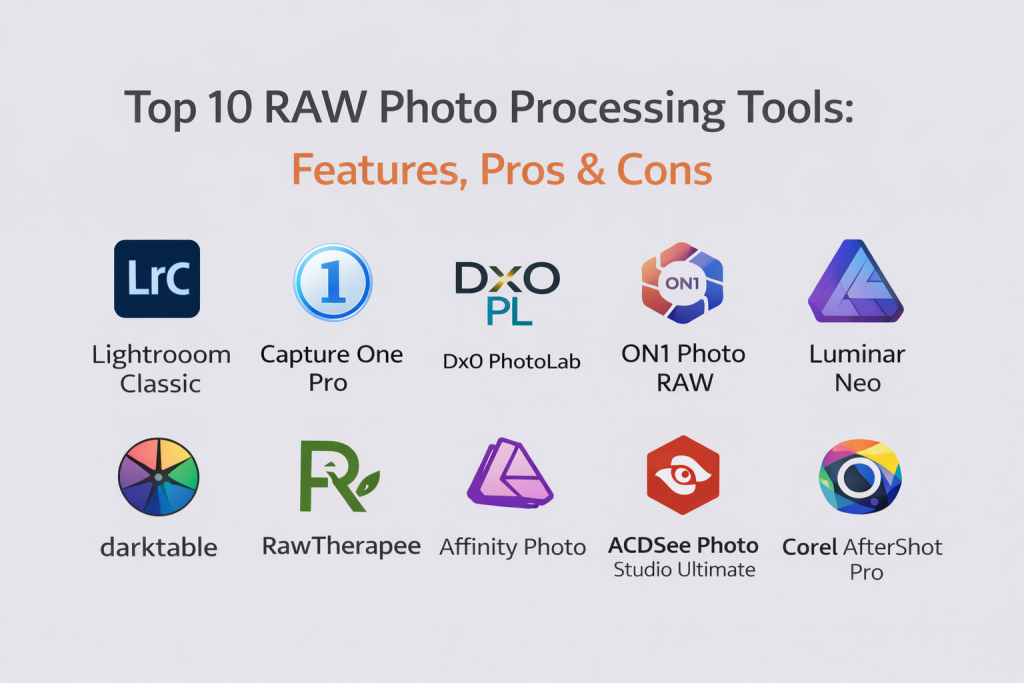
Introduction
RAW photo processing tools help photographers turn camera RAW files into finished images with accurate color, controlled exposure, clean noise reduction, and consistent style. RAW files store more sensor data than JPEGs, which means you can recover highlights, lift shadows, correct white balance, and fine-tune color with far more flexibility. That flexibility matters for modern photography workflows where you may shoot in challenging light, deliver large batches, or maintain a consistent look across an entire project.
Common real-world use cases include:
- Wedding and event batches that need fast culling, consistent edits, and reliable exports
- Landscape and travel photos needing highlight recovery, color grading, and sharpening
- Portrait retouching with skin tone control, lens corrections, and local adjustments
- Product photography requiring accurate color, tethering, and repeatable presets
- Content creation workflows needing quick edits, exports, and organization
What buyers should evaluate:
- RAW decoding quality (color, detail, highlight recovery)
- Local adjustments (masks, gradients, brush tools, subject/sky selection)
- Noise reduction and sharpening quality
- Color tools (HSL, curves, color grading, camera profiles)
- Cataloging and asset management (folders, keywords, search, ratings)
- Speed (import, browsing, preview rendering, export performance)
- Lens and camera support (profiles, corrections, updates)
- Workflow features (tethering, batch processing, presets, copy/paste settings)
- Output options (formats, resizing, watermarking, export recipes)
- Integrations (plugins, round-trip editing, external editors, mobile sync)
Best for: photographers, content teams, studios, and creators who want the highest flexibility from RAW files with repeatable editing workflows.
Not ideal for: users who only take casual phone photos and want one-tap filters, or teams that rely entirely on in-camera JPEG looks and do minimal editing.
Key Trends in RAW Photo Processing Tools
- More AI-assisted masking (subject, sky, background, object selection) to speed up local edits
- Stronger noise reduction approaches designed for high-ISO and low-light work
- Faster browsing and preview generation for large catalogs and high-resolution cameras
- Better color management workflows for consistent results across devices and output types
- More “look” workflows (presets, styles, film emulations) to speed delivery at scale
- Deeper tethering and studio features for product and portrait workflows
- Expanded GPU acceleration for exports, previews, and advanced adjustments
- Cleaner round-trip editing with layered editors and plugin ecosystems
- Increased expectation of non-destructive editing and version history
- More focus on organization features (search, filters, metadata hygiene, duplicates handling)
How We Selected These Tools
- Strong adoption across photography segments (weddings, portraits, commercial, travel)
- Solid RAW quality and reliable camera/lens support patterns
- Balance of editing depth and usability (from beginner-friendly to pro-grade)
- Stability and performance signals for large catalogs and high-volume exporting
- Ecosystem strength: presets, plugins, extensions, and workflow compatibility
- Coverage across platforms and budgets, including open-source options
- Practical workflow features like tethering, batch processing, and export recipes
- Suitable choices for solo creators, small studios, and larger teams
Top 10 RAW Photo Processing Tools
1 — Adobe Lightroom Classic
A catalog-based RAW editor designed for high-volume photo workflows with powerful organization, non-destructive edits, strong masking tools, and broad professional adoption.
Key Features
- Catalog system with keywords, collections, ratings, and smart filters
- Non-destructive editing with strong tonal controls and curves
- Local adjustments with advanced masking options (workflow dependent)
- Batch sync of edits across large sets
- Lens corrections, camera profiles, and transform tools
- Export presets for consistent delivery formats
- Round-trip workflows with external editors
Pros
- Excellent for managing large libraries and repeatable workflows
- Mature editing toolset suitable for most photography genres
Cons
- Catalog management requires discipline and good storage hygiene
- Some users prefer alternatives for tethering or certain color workflows
Platforms / Deployment
- Windows / macOS
- Self-hosted
Security & Compliance
- Not publicly stated
Integrations & Ecosystem
Lightroom Classic is commonly used as a hub in a broader workflow, with presets, plugins, and external editor round-trips.
- Presets and profiles ecosystem
- Plugin-based export and publishing workflows (varies)
- External editor round-trip (layered editors, retouching tools)
- Tethering workflows (varies by camera and setup)
- Common file format interoperability via standard exports
Support & Community
Large global community, extensive tutorials, and broad professional usage. Support experience varies by plan and region.
2 — Capture One Pro
A professional RAW editor favored for color control and studio workflows, with strong tethering features and a toolset designed for commercial and portrait work.
Key Features
- Advanced color tools (color editor, skin tone workflows, curves)
- Tethered capture workflows for studio shooting (setup dependent)
- Layers-based adjustments (non-destructive)
- Session-based workflow option alongside catalog workflow
- Robust sharpening and detail controls
- Flexible export recipes for multiple deliverables
- Customizable workspace for operator efficiency
Pros
- Excellent color and studio-oriented workflow features
- Strong tethering options for many professional setups
Cons
- Learning curve for users coming from simpler editors
- Can be expensive for hobbyists
Platforms / Deployment
- Windows / macOS
- Self-hosted
Security & Compliance
- Not publicly stated
Integrations & Ecosystem
Capture One fits well in studio pipelines and export-based delivery workflows.
- Session workflow integrates with studio file structures
- Export recipes for multiple sizes and formats
- Works alongside retouching editors via exported files
- Preset/style ecosystem (varies)
- Workflow extensions depend on your studio toolchain
Support & Community
Strong professional user base and structured learning materials. Community knowledge is deep, especially for tethering and studio setups.
3 — DxO PhotoLab
A RAW editor known for strong image quality pipelines, especially lens corrections and noise reduction, with a workflow designed for photographers who prioritize technical output.
Key Features
- Advanced noise reduction workflow (capability varies by edition)
- Automatic lens corrections (camera/lens module approach)
- Strong sharpening and detail rendering controls
- Local adjustments for targeted edits (workflow dependent)
- Color rendering options and film-like profiles (workflow dependent)
- Geometry and perspective corrections
- Efficient batch export workflows
Pros
- Excellent technical corrections and clean output for many files
- Strong results for high-ISO and challenging images
Cons
- Cataloging and DAM features may feel lighter than catalog-first tools
- Some creative workflows may require additional tools
Platforms / Deployment
- Windows / macOS
- Self-hosted
Security & Compliance
- Not publicly stated
Integrations & Ecosystem
DxO PhotoLab often sits as the “image quality” stage in a pipeline before finishing elsewhere.
- Export-based integration with retouching editors
- Presets and rendering options (workflow dependent)
- Lens module ecosystem tied to supported gear
- Batch workflows for large folders
- Optional companion workflows vary by user setup
Support & Community
Good documentation and a focused community that emphasizes image quality and technical editing.
4 — ON1 Photo RAW
A RAW editor built for photographers who want editing, effects, and organization in one place, often appealing to users who prefer a folder-based workflow and creative presets.
Key Features
- Non-destructive RAW editing with local adjustments
- Effects and styling tools integrated into the workflow
- Layer-like workflow options (feature dependent)
- Folder-based browsing plus catalog features (workflow dependent)
- Masking and selection tools (capability varies)
- Batch processing and export presets
- Portrait retouching features (workflow dependent)
Pros
- All-in-one approach reduces the need to juggle many apps
- Folder-based workflows can feel simpler for some users
Cons
- Performance can vary depending on system and project complexity
- Some advanced studio workflows may be better served elsewhere
Platforms / Deployment
- Windows / macOS
- Self-hosted
Security & Compliance
- Not publicly stated
Integrations & Ecosystem
ON1 is often used as a single “edit + effects” environment with export-based handoffs.
- Presets and effects packs (workflow dependent)
- External editor handoff via exports
- Folder-based organization integration with existing storage
- Compatibility depends on file formats and your workflow choices
Support & Community
Active user base with tutorials and learning content. Support depth varies by plan.
5 — Luminar Neo
A creative RAW editor focused on speed, simplicity, and AI-assisted edits, aimed at photographers who want strong results quickly with less manual work.
Key Features
- AI-assisted tools for common corrections (workflow dependent)
- Masking and local adjustments (capability varies)
- Preset-style workflows for consistent looks
- Noise reduction and sharpening tools (workflow dependent)
- Layer-like creative workflows (feature dependent)
- Sky and background style tools (workflow dependent)
- Export options for common delivery needs
Pros
- Very approachable for fast, good-looking edits
- Creative tools help produce a consistent style quickly
Cons
- Deep technical controls may be less comprehensive than pro-grade studios
- Large batch workflows may require careful system tuning
Platforms / Deployment
- Windows / macOS
- Self-hosted
Security & Compliance
- Not publicly stated
Integrations & Ecosystem
Luminar Neo commonly complements other tools as a creative stage or a fast editor.
- Preset ecosystem and style packs (workflow dependent)
- Export-based workflows to other editors
- Fits well for quick deliverables and social content creation
- Integration depth depends on how you structure your pipeline
Support & Community
Strong marketing-level learning resources and a wide creator community. Support experience varies by plan.
6 — darktable
A powerful open-source RAW editor with strong control over the image pipeline, popular with photographers who want deep tuning and a non-destructive workflow on multiple platforms.
Key Features
- Non-destructive editing pipeline with modules for tone and color
- Advanced masking and local adjustment tools (workflow dependent)
- Tethering support (setup dependent)
- Strong color management options for controlled output
- Batch processing with styles and presets
- Broad platform support, including Linux
- Customizable UI and workflow modules
Pros
- Very powerful for users willing to learn the module-based approach
- Strong value as a free, capable RAW editor
Cons
- Learning curve is real, especially for beginners
- Interface and workflow can feel less streamlined than commercial tools
Platforms / Deployment
- Windows / macOS / Linux
- Self-hosted
Security & Compliance
- Not publicly stated
Integrations & Ecosystem
darktable integrates mainly through file-based workflows and community extensions.
- Styles and presets for batch work
- Exports to common image formats for finishing in other editors
- Tethering and color-managed workflows (setup dependent)
- Community scripts and extensions (varies)
Support & Community
Strong open-source community, documentation, and forums. Support is community-driven.
7 — RawTherapee
An open-source RAW processor known for detailed control and high-quality results, especially for users who enjoy precision tuning and batch processing.
Key Features
- High-detail RAW processing controls with fine tuning
- Advanced sharpening and noise reduction options
- Powerful tone curves and color controls
- Batch processing with profiles
- Non-destructive workflow with sidecar-style settings
- Good support for many common RAW formats
- Export options suitable for pro workflows
Pros
- Excellent depth for technical image processing
- Strong output quality with careful tuning
Cons
- Interface can feel technical and less “guided”
- Organization/DAM features are limited compared to catalog tools
Platforms / Deployment
- Windows / macOS / Linux
- Self-hosted
Security & Compliance
- Not publicly stated
Integrations & Ecosystem
RawTherapee works best as a focused RAW processing stage.
- Profile-based batch processing
- Exports for finishing in retouching tools
- File-based workflows that pair well with folder organization
- Community presets and profiles (varies)
Support & Community
Community-driven support with strong technical discussion and learning resources.
8 — Affinity Photo
A powerful photo editor with strong RAW development capabilities plus layered editing, making it useful for photographers who want RAW processing and detailed retouching in one tool.
Key Features
- RAW development workspace with key adjustments
- Full layered editing with masks, blend modes, and selections
- Retouching tools for portraits and product work
- Advanced selection tools and refinement (workflow dependent)
- Macros and batch workflows (workflow dependent)
- Color controls suitable for creative grading
- Export options for print and digital delivery
Pros
- Combines RAW development with pro-grade layered editing
- Strong value for users who want a single editor for many tasks
Cons
- DAM/catalog workflows are not its primary focus
- Some specialized studio tethering workflows are outside its scope
Platforms / Deployment
- Windows / macOS / iOS
- Self-hosted
Security & Compliance
- Not publicly stated
Integrations & Ecosystem
Affinity Photo integrates well through standard file handoffs and layered workflows.
- PSD-like layered workflows (compatibility depends on features used)
- Batch exports and macro-driven workflows (workflow dependent)
- Works alongside catalog tools as the “retouching stage”
- Plugin use varies by platform and configuration
Support & Community
Strong community, good documentation, and many tutorial resources. Support varies by region.
9 — ACDSee Photo Studio Ultimate
A combined DAM + RAW editor that emphasizes fast browsing, organization, and editing, often preferred by users who want a single desktop tool for the full photo workflow.
Key Features
- Asset management with keywords, categories, and search
- RAW development with non-destructive edits
- Layered editing features (workflow dependent)
- Batch rename, batch export, and batch adjustments
- Face recognition and organization helpers (feature dependent)
- Noise reduction and detail tools (workflow dependent)
- Flexible workspace customization
Pros
- Strong “all-in-one desktop” workflow (browse + manage + edit)
- Efficient for organizing large local libraries
Cons
- Some advanced RAW controls may feel less specialized than top RAW-first tools
- Best experience depends on the edition and workflow configuration
Platforms / Deployment
- Windows
- Self-hosted
Security & Compliance
- Not publicly stated
Integrations & Ecosystem
ACDSee typically acts as a local library hub with file-based integrations.
- Export-based integration with other editors
- Batch workflows for delivery formats
- Metadata-centered organization compatible with many file workflows
- Extensions and add-ons vary by edition
Support & Community
Good product documentation and an established user base. Community is moderate compared to the largest ecosystems.
10 — Corel AfterShot Pro
A desktop RAW editor designed for quick browsing and batch processing, often chosen by photographers who want a straightforward, performance-focused alternative.
Key Features
- Non-destructive RAW editing workflow
- Folder-based browsing and organization
- Batch processing tools for high-volume editing
- Presets and adjustments for consistent output
- Highlight/shadow recovery and tone tools
- Noise reduction and sharpening controls
- Flexible export settings for different deliverables
Pros
- Efficient for fast batch workflows on many systems
- Simple approach for photographers who prefer folder-based organization
Cons
- Smaller ecosystem compared to the biggest platforms
- Some advanced masking and AI workflows may be limited
Platforms / Deployment
- Windows / macOS / Linux
- Self-hosted
Security & Compliance
- Not publicly stated
Integrations & Ecosystem
AfterShot Pro integrates mainly through file-based handoffs and batch exports.
- Folder-based workflow compatibility with existing storage
- Presets for repeatable looks
- Export pipelines to other editors
- Integration depth depends on your workflow tools
Support & Community
Documentation and support exist, but the community is smaller than the most widely used ecosystems.
Comparison Table
| Tool Name | Best For | Platform(s) Supported | Deployment (Cloud/Self-hosted/Hybrid) | Standout Feature | Public Rating |
|---|---|---|---|---|---|
| Adobe Lightroom Classic | High-volume catalog workflows | Windows / macOS | Self-hosted | DAM + non-destructive batch editing | N/A |
| Capture One Pro | Studio work and color control | Windows / macOS | Self-hosted | Tethering + advanced color tools | N/A |
| DxO PhotoLab | Image quality, lens corrections, noise | Windows / macOS | Self-hosted | Technical corrections and clean output | N/A |
| ON1 Photo RAW | All-in-one edit + effects workflows | Windows / macOS | Self-hosted | Creative effects integrated with RAW | N/A |
| Luminar Neo | Fast edits with AI-assisted tools | Windows / macOS | Self-hosted | Speed-focused creative workflow | N/A |
| darktable | Deep control, open-source workflows | Windows / macOS / Linux | Self-hosted | Powerful module-based pipeline | N/A |
| RawTherapee | Precision tuning and batch processing | Windows / macOS / Linux | Self-hosted | Detailed processing controls | N/A |
| Affinity Photo | RAW + layered retouching | Windows / macOS / iOS | Self-hosted | Full editor with strong RAW develop | N/A |
| ACDSee Photo Studio Ultimate | Local DAM + editing in one app | Windows | Self-hosted | Fast browsing and organization | N/A |
| Corel AfterShot Pro | Folder-based batch processing | Windows / macOS / Linux | Self-hosted | Performance-friendly batch workflow | N/A |
Evaluation & Scoring of RAW Photo Processing Tools
Weights used in scoring:
- Core features – 25%
- Ease of use – 15%
- Integrations & ecosystem – 15%
- Security & compliance – 10%
- Performance & reliability – 10%
- Support & community – 10%
- Price / value – 15%
| Tool Name | Core (25%) | Ease (15%) | Integrations (15%) | Security (10%) | Performance (10%) | Support (10%) | Value (15%) | Weighted Total (0–10) |
|---|---|---|---|---|---|---|---|---|
| Adobe Lightroom Classic | 9 | 8 | 9 | 6 | 8 | 9 | 7 | 8.2 |
| Capture One Pro | 9 | 7 | 8 | 6 | 8 | 8 | 6 | 7.6 |
| DxO PhotoLab | 8 | 7 | 7 | 6 | 8 | 7 | 7 | 7.3 |
| ON1 Photo RAW | 7 | 7 | 7 | 6 | 7 | 7 | 7 | 7.0 |
| Luminar Neo | 7 | 8 | 6 | 6 | 7 | 7 | 7 | 7.0 |
| darktable | 8 | 6 | 6 | 6 | 7 | 7 | 10 | 7.3 |
| RawTherapee | 8 | 6 | 5 | 6 | 7 | 6 | 10 | 7.1 |
| Affinity Photo | 8 | 7 | 6 | 6 | 8 | 7 | 8 | 7.4 |
| ACDSee Photo Studio Ultimate | 7 | 7 | 6 | 6 | 7 | 7 | 7 | 6.9 |
| Corel AfterShot Pro | 6 | 7 | 5 | 6 | 7 | 6 | 7 | 6.3 |
How to interpret these scores:
- The totals are comparative and reflect overall balance, not a universal “best.”
- If you do heavy cataloging, weight organization and batch tools more than creative effects.
- If you shoot high ISO often, prioritize noise reduction and detail rendering.
- If you do studio product work, prioritize tethering and consistent color workflows.
- Always test with your own camera files to confirm speed, color, and highlight recovery.
Which RAW Photo Processing Tool Is Right for You?
Solo / Freelancer
- If you need a strong all-rounder with cataloging: Adobe Lightroom Classic
- If you want a simple, fast creative workflow: Luminar Neo
- If you want powerful free tools and don’t mind learning: darktable or RawTherapee
- If you want RAW plus serious retouching in one app: Affinity Photo
SMB
- For team-friendly consistency and repeatable delivery: Adobe Lightroom Classic
- For portrait/product studio setups: Capture One Pro
- For “one tool for browsing + editing” on local storage: ACDSee Photo Studio Ultimate
- For mixed editing and creative presets in one place: ON1 Photo RAW
Mid-Market
- For studio-grade pipelines with tethering and color control: Capture One Pro
- For technical image quality (lens + noise workflows): DxO PhotoLab
- For standardized, high-volume catalog workflows: Adobe Lightroom Classic
Enterprise
- Standardize on a predictable workflow: consistent presets, export naming, storage policy, backup policy, and review steps
- If the workflow is catalog-heavy across large archives: Adobe Lightroom Classic
- If the workflow is studio-led with tethering and controlled color: Capture One Pro
- If image quality correction is a top priority before finishing: DxO PhotoLab (often paired with a DAM)
Budget vs Premium
- Budget-friendly: darktable, RawTherapee, Affinity Photo (value-focused)
- Premium workflow depth: Adobe Lightroom Classic, Capture One Pro
- Mid-range all-in-one: ON1 Photo RAW, DxO PhotoLab, ACDSee Photo Studio Ultimate
Feature Depth vs Ease of Use
- Deep controls: Capture One Pro, darktable, RawTherapee
- Easier learning curve: Luminar Neo, ON1 Photo RAW
- Balanced for most users: Adobe Lightroom Classic, DxO PhotoLab
Integrations & Scalability
- Strong ecosystem and workflow maturity: Adobe Lightroom Classic
- Studio pipeline scalability: Capture One Pro
- File-based integration in open workflows: darktable and RawTherapee
- Retouching scalability for complex edits: Affinity Photo (as a finishing stage)
Security & Compliance Needs
- Many desktop photo tools do not publicly position themselves with formal compliance claims, so treat compliance as “Not publicly stated.”
- For sensitive work, use local storage controls, encrypted backups, and strict access policies regardless of tool.
- Validate any cloud sync behavior carefully if your workflow requires it.
Frequently Asked Questions
1) What is RAW, and why should I edit it instead of JPEG?
RAW keeps more sensor data, giving you better highlight recovery, white balance correction, and color control. JPEG is faster but less flexible when you need serious adjustments.
2) Do these tools permanently change my original RAW file?
Most use non-destructive editing, storing changes as instructions or sidecar data. Your original RAW stays unchanged unless you export a new edited image.
3) Which tool is best for beginners?
Luminar Neo and ON1 Photo RAW are often easier to start with because they guide you with presets and simpler workflows. Lightroom Classic is also approachable once you learn catalog basics.
4) Which tool is best for studio tethering?
Capture One Pro is widely chosen for tethered studio workflows. Your exact experience depends on camera support, cables, and the specific setup.
5) How important is my computer hardware for RAW editing?
Very important for speed. Fast SSD storage, enough RAM, and a capable CPU/GPU improve browsing, masking, and export times—especially with high-resolution cameras.
6) Can I move my edits from one tool to another?
You can usually export finished images and move those. Moving editable settings is harder; standardized formats may help in some workflows, but results vary.
7) What causes slow browsing and lag in large photo libraries?
Common causes include slow drives, huge previews, heavy noise reduction previews, and massive catalogs. Using SSDs, building previews, and simplifying workflows helps.
8) Which tools are best for noise reduction?
DxO PhotoLab is often chosen for strong noise workflows. Lightroom Classic, Capture One Pro, and others can also produce excellent results depending on settings and file type.
9) Do I need a separate tool for retouching and composites?
If you do advanced skin work, composites, or object removal, a layered editor helps. Affinity Photo is a common choice for that “finishing” stage.
10) How should I choose between free and paid tools?
If you edit occasionally and enjoy learning, darktable or RawTherapee can be enough. If you deliver work to clients at scale, paid tools often save time through smoother workflows and ecosystem support.
Conclusion
RAW photo processing tools all aim to turn camera files into strong final images, but the “best” choice depends on your workflow. If you need deep catalog management and repeatable batch editing, Adobe Lightroom Classic is often a practical hub. If you prioritize studio tethering and precise color control, Capture One Pro stands out. If technical corrections and clean output matter most, DxO PhotoLab is a strong option. For budget-friendly power, darktable and RawTherapee deliver serious capability with more learning required. The smartest next step is to shortlist two or three tools, test them on your real RAW files, verify speed on your hardware, and confirm that the organization and export workflow matches how you deliver work.

Best Cardiac Hospitals Near You
Discover top heart hospitals, cardiology centers & cardiac care services by city.
Advanced Heart Care • Trusted Hospitals • Expert Teams
View Best Hospitals