Introduction
Web design software helps you plan, design, prototype, and sometimes publish websites and web interfaces. These tools support everything from simple landing pages to complex product interfaces, including layout, typography, responsive behavior, design systems, and collaboration. Some are design-first, some are code-first, and some sit in the middle with visual design that can be turned into real websites.
They matter now because users judge trust and quality in seconds. A clean, responsive design improves conversion, reduces bounce, and makes products easier to use. Also, teams are moving faster than ever, so modern web design software must support collaboration, reusable components, and smooth handoff to development.
Real-world use cases:
- Designing a startup website with consistent branding and reusable sections
- Creating responsive product UI screens and design systems
- Prototyping a user flow before development starts
- Collaborating with marketing and product teams on revisions
- Sharing developer-ready specs and assets for implementation
What buyers should evaluate before choosing a tool:
- Design flexibility and quality of layout controls
- Ease of collaboration and feedback workflows
- Component reuse and design system support
- Prototyping depth and interactive flows
- Handoff capabilities for developers (specs, exports, tokens)
- Performance and stability for large files
- Multi-platform support and offline workflow needs
- Integration with asset libraries and workflow tools
- Access control and team permissions
- Value and pricing fit for individuals and teams
Best for: UI designers, product teams, agencies, marketers, and founders who need to design modern websites, build consistent layouts, and collaborate with others without friction.
Not ideal for: teams that only need basic image editing or simple poster-style graphics. Also not ideal if you want full custom code output with strict framework control as the primary workflow, where code-first tools may fit better.
Key Trends in Web Design Software
- AI assistance for layout suggestions, copy drafts, and rapid design exploration, with increasing focus on brand consistency
- Design systems becoming the default approach, not optional, with stronger component and token workflows
- Prototyping becoming more realistic, including micro-interactions, transitions, and shared libraries
- Collaboration moving closer to real-time, with comments, approvals, and version history as standard expectations
- Better developer handoff: design tokens, inspect tools, and cleaner export patterns
- More responsive design tooling, including breakpoints and flexible layout systems
- Growth of hybrid design-to-site workflows where designs can be published directly
- Stronger asset management with shared libraries, organization, and governance controls
- Increased focus on accessibility checks and inclusive design workflows
- Pricing and licensing shifting toward team scale, editor count, and collaboration features
How We Selected These Tools
- Widely recognized adoption across designers, agencies, and product teams
- Strong core feature sets for web UI design, layout, and prototyping
- Practical performance and reliability signals for long-term use
- Collaboration strength for modern team workflows
- Design system support for reusable components and consistency
- Developer handoff capability and ecosystem fit
- Coverage across different workflows: design-first, prototype-heavy, and publish-ready tools
- Value across individuals, SMB teams, and larger organizations
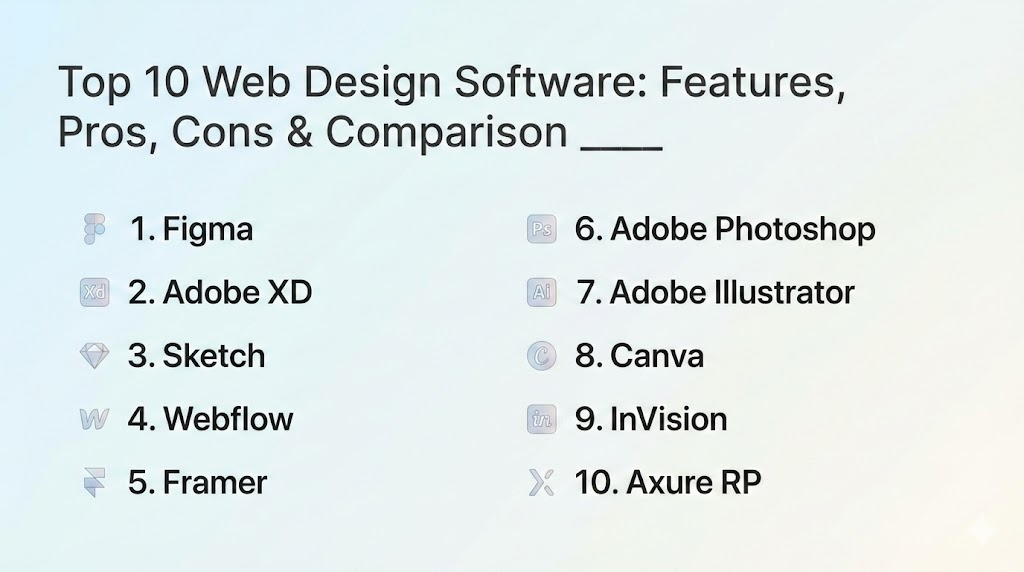
Top 10 Web Design Software
1 — Figma
Figma is a collaborative design tool widely used for web and product UI design. It supports real-time teamwork, design systems, and interactive prototyping, making it a common standard for modern design workflows.
Key Features
- Real-time collaboration with comments and version history
- Component libraries and design system workflows
- Auto layout and responsive layout patterns
- Prototyping with interactive flows and transitions
- Developer handoff tools for inspect and asset export
- Plugin ecosystem for extended workflows
Pros
- Best-in-class collaboration for teams
- Strong design system support for consistency
- Large ecosystem and broad industry adoption
Cons
- Heavy files can require disciplined structure
- Offline workflows are limited compared to desktop-first tools
- Some advanced workflows depend on plugins
Platforms / Deployment
Web, Windows, macOS
Security and Compliance
Not publicly stated
Integrations and Ecosystem
Figma typically fits into product and marketing workflows through integrations and plugins. It often connects with project management tools, asset libraries, and developer pipelines depending on the team setup.
- Plugin ecosystem for automation and checks
- Integrations with collaboration tools (varies)
- Design system tooling support (varies)
- Developer workflow connections (varies / not publicly stated)
Support and Community
Very strong community with extensive tutorials and templates. Support tiers vary by plan.
2 — Adobe XD
Adobe XD focuses on UI design and prototyping with a clean interface and workflow aligned to other Adobe tools. It is often used by designers who prefer an Adobe ecosystem for assets and creative workflows.
Key Features
- UI design tools with grid and layout support
- Prototyping with interactions and transitions
- Component and repeat grid workflows
- Asset export and developer handoff features
- Integration with Adobe asset workflows (varies)
- Collaboration and sharing options (varies)
Pros
- Familiar experience for Adobe users
- Good prototyping and basic system building
- Useful for teams working across creative assets
Cons
- Ecosystem momentum varies by market
- Some teams may prefer more collaboration-native tools
- Plugin ecosystem breadth varies
Platforms / Deployment
Windows, macOS
Security and Compliance
Not publicly stated
Integrations and Ecosystem
Adobe XD is often used alongside other creative tooling, and teams typically connect it into feedback and asset workflows.
- Integration with creative asset workflows (varies)
- Sharing and review links (varies)
- Collaboration tool integration (varies)
- Export workflows for development (varies / not publicly stated)
Support and Community
Community is solid, especially among Adobe users. Support depends on subscription plan.
3 — Sketch
Sketch is a macOS-focused design tool known for UI design and component workflows. It remains popular for teams that want a desktop-first approach and structured design systems.
Key Features
- Vector-based UI design with precision tools
- Symbols and shared libraries for design systems
- Layout grids and responsive design patterns (varies by workflow)
- Prototyping features (varies by plan)
- Export and asset management tools
- Collaboration and handoff features (varies)
Pros
- Strong design system workflows for macOS users
- Desktop-first performance for many use cases
- Mature UI design tooling
Cons
- macOS-only limits cross-platform teams
- Collaboration workflows can be less native than browser-first tools
- Some advanced needs rely on integrations
Platforms / Deployment
macOS
Security and Compliance
Not publicly stated
Integrations and Ecosystem
Sketch has a long-standing ecosystem of plugins and integrations that support handoff, prototyping extensions, and workflow improvements.
- Plugin ecosystem for extended workflows
- Developer handoff integrations (varies)
- Asset and version management workflows (varies)
- Collaboration connections (varies / not publicly stated)
Support and Community
Strong design community, especially among experienced UI designers. Support varies by plan.
4 — Webflow
Webflow is a visual design platform that can publish real websites. It is often used when teams want design control plus the ability to launch production pages without traditional development for every update.
Key Features
- Advanced visual layout and responsive controls
- Reusable components and style systems
- CMS support for structured content (varies by plan)
- Hosting and publishing workflow (varies)
- Interactions for animations and page effects
- Collaboration and team workflows (varies)
Pros
- Combines design and publishing in one platform
- Strong control for responsive layouts
- Useful for marketing teams and agencies
Cons
- Learning curve for layout systems and settings
- Some advanced workflows depend on plan tier
- Not a complete replacement for custom apps
Platforms / Deployment
Web, Cloud
Security and Compliance
Not publicly stated
Integrations and Ecosystem
Webflow commonly integrates with analytics, automation, and CMS workflows. Many teams treat it as the front-end while connecting marketing automation elsewhere.
- Analytics and measurement integrations (varies)
- Automation and CRM connections (varies)
- CMS workflows (native plus integrations, varies)
- Developer options (varies / not publicly stated)
Support and Community
Very strong community, many tutorials, and active agency ecosystem. Support varies by plan.
5 — Framer
Framer is a modern design and publishing tool for building responsive websites and interactive pages. It is often chosen for startup sites, product marketing pages, and design-forward web experiences.
Key Features
- Visual design tools for responsive web pages
- Components and reusable patterns (varies by workflow)
- Interactions and motion for modern UI feel
- Hosting and publishing workflow (varies)
- Collaboration tools for teams (varies)
- Templates for fast creation
Pros
- Great for modern, design-forward sites
- Quick publishing and iteration
- Strong for marketing and product pages
Cons
- Enterprise governance may be limited for large orgs
- Some advanced marketing needs require external tools
- Best results often depend on design skill
Platforms / Deployment
Web, Cloud
Security and Compliance
Not publicly stated
Integrations and Ecosystem
Framer typically works with analytics and forms through integrations and embed-based approaches depending on team needs.
- Analytics integrations (varies)
- Form and automation connections (varies)
- Embed support for extensions (varies)
- API options (varies / not publicly stated)
Support and Community
Growing design-focused community. Support levels vary by plan.
6 — Adobe Photoshop
Photoshop is primarily an image editing tool, but it remains widely used in web design for creating and refining graphics, hero images, banners, and visual assets that support websites.
Key Features
- Advanced image editing and compositing tools
- Layer-based design workflows
- Export options for web assets and formats
- Typography and text styling controls
- Smart objects and non-destructive edits
- Integration with creative workflows (varies)
Pros
- Best-in-class for image and asset creation
- Strong for brand visuals and web graphics
- Mature tool with deep capability
Cons
- Not a dedicated web UI layout tool
- Collaboration workflows depend on external processes
- Can be complex for beginners
Platforms / Deployment
Windows, macOS
Security and Compliance
Not publicly stated
Integrations and Ecosystem
Photoshop sits inside many creative pipelines and connects to asset libraries, file formats, and creative tooling.
- Integration with asset workflows (varies)
- Export pipelines for web assets (varies)
- Shared libraries (varies)
- Collaboration workflows (varies / not publicly stated)
Support and Community
Huge global community and tutorials. Support depends on subscription plan.
7 — Adobe Illustrator
Illustrator is a vector design tool widely used for logos, icons, illustrations, and scalable graphics for websites. It is valuable when you need clean vector assets that remain sharp at any size.
Key Features
- Vector drawing and shape tools
- Typography and text styling workflows
- Icon and illustration design support
- Export workflows for web-ready SVG and assets
- Brand asset creation and refinement
- Integration with creative pipelines (varies)
Pros
- Excellent for vector graphics and scalable assets
- Strong for logos, icons, and illustrations
- Mature tool with professional-grade output
Cons
- Not a page layout tool for responsive web UI
- Can be complex for non-designers
- Collaboration depends on external workflows
Platforms / Deployment
Windows, macOS
Security and Compliance
Not publicly stated
Integrations and Ecosystem
Illustrator works best as part of a design pipeline where vector assets are shared into UI tools and publishing workflows.
- Export and asset pipeline support (varies)
- Shared libraries (varies)
- Integration with creative workflows (varies)
- Collaboration tools (varies / not publicly stated)
Support and Community
Very large community and strong learning resources. Support depends on subscription plan.
8 — Canva
Canva is a simple design platform used for quick web graphics, social assets, and basic layouts. While it is not a full UI design tool, it is widely used for marketing visuals that support web pages and campaigns.
Key Features
- Template-based design for banners and marketing assets
- Brand kit and consistent styling options (varies by plan)
- Easy export for common web formats
- Collaboration tools for teams (varies)
- Asset library and stock content options (varies)
- Quick resizing and format adaptation (varies)
Pros
- Very easy for non-designers
- Fast creation for marketing visuals
- Strong template ecosystem
Cons
- Not built for complex web UI design and systems
- Limited precision compared to professional UI tools
- Handoff to development is minimal
Platforms / Deployment
Web, Windows, macOS, iOS, Android
Security and Compliance
Not publicly stated
Integrations and Ecosystem
Canva commonly integrates into marketing workflows through exports, shared libraries, and collaboration tools depending on team setup.
- Brand asset workflows (varies)
- Collaboration and sharing features (varies)
- Export-based integrations (varies)
- Workflow connections (varies / not publicly stated)
Support and Community
Large global community and strong learning content. Support varies by plan.
9 — InVision
InVision is known for prototyping and collaboration workflows, especially for design review and feedback. It has been widely used for presenting designs and gathering comments from stakeholders.
Key Features
- Prototyping and interactive presentation workflows
- Commenting and feedback support
- Collaboration features for design review cycles
- Handoff and sharing workflows (varies)
- Integrations for product workflows (varies)
- Asset presentation tools (varies)
Pros
- Good for stakeholder review and feedback
- Strong presentation-style prototyping
- Useful for structured design discussions
Cons
- Some teams prefer all-in-one design tools for fewer handoffs
- Feature depth can vary by product area
- Ecosystem and workflow fit depends on team habits
Platforms / Deployment
Web, Cloud
Security and Compliance
Not publicly stated
Integrations and Ecosystem
InVision typically fits into a broader design workflow with integrations to project tracking and collaboration tools.
- Collaboration tool integrations (varies)
- Project workflow integrations (varies)
- Presentation and review workflows (varies)
- Export and handoff support (varies / not publicly stated)
Support and Community
Community is present among design teams familiar with review workflows. Support tiers vary by plan.
10 — Axure RP
Axure RP is a powerful prototyping tool used for creating detailed interactive prototypes, especially for complex flows, enterprise apps, and advanced UI logic demonstrations.
Key Features
- Advanced prototyping with conditional logic
- Interactive components and dynamic panels
- Wireframing and documentation workflows
- Collaboration and sharing options (varies)
- Specification-style outputs for detailed handoff
- Large prototype projects with structured organization
Pros
- Best for complex prototypes and UI logic
- Strong for enterprise and workflow-heavy applications
- Useful for documenting and validating interactions
Cons
- Can feel heavy for simple landing page design
- Learning curve is higher than lighter tools
- Not a direct website publishing platform for many teams
Platforms / Deployment
Windows, macOS
Security and Compliance
Not publicly stated
Integrations and Ecosystem
Axure is commonly used where prototypes need to be detailed and shared across product, UX, and stakeholder teams.
- Collaboration sharing workflows (varies)
- Documentation and spec workflows (varies)
- Team review patterns (varies)
- Integration options (varies / not publicly stated)
Support and Community
Strong community among UX professionals who build complex prototypes. Support varies by plan.
Comparison Table
| Tool Name | Best For | Platform(s) Supported | Deployment | Standout Feature | Public Rating |
|---|---|---|---|---|---|
| Figma | Collaborative UI design and prototyping | Web, Windows, macOS | Cloud | Real-time collaboration and systems | N/A |
| Adobe XD | UI design and prototyping for Adobe users | Windows, macOS | Desktop | Clean UI and prototyping workflow | N/A |
| Sketch | Desktop-first UI design on macOS | macOS | Desktop | Symbols and shared libraries | N/A |
| Webflow | Design plus publish real websites | Web | Cloud | Visual design to production publishing | N/A |
| Framer | Modern design-forward web publishing | Web | Cloud | Motion and modern design workflow | N/A |
| Adobe Photoshop | Web graphics and image creation | Windows, macOS | Desktop | Advanced image editing | N/A |
| Adobe Illustrator | Logos, icons, scalable vector assets | Windows, macOS | Desktop | Professional vector design | N/A |
| Canva | Quick marketing visuals for web | Web, Windows, macOS, iOS, Android | Cloud | Templates and fast creation | N/A |
| InVision | Design review and feedback workflows | Web | Cloud | Stakeholder review and commenting | N/A |
| Axure RP | Complex interactive prototypes | Windows, macOS | Desktop | Advanced logic and dynamic prototypes | N/A |
Evaluation and Scoring of Web Design Software
Scoring model notes:
- Scores are comparative and help you shortlist based on your priorities
- Weighted totals show overall balance across criteria for common web design needs
- If your team has a non-negotiable requirement, validate it directly in a pilot
- Use the scorecard to guide selection, then confirm with real workflow testing
Weights used:
- Core features 25 percent
- Ease of use 15 percent
- Integrations and ecosystem 15 percent
- Security and compliance 10 percent
- Performance and reliability 10 percent
- Support and community 10 percent
- Price and value 15 percent
| Tool Name | Core (25%) | Ease (15%) | Integrations (15%) | Security (10%) | Performance (10%) | Support (10%) | Value (15%) | Weighted Total (0–10) |
|---|---|---|---|---|---|---|---|---|
| Figma | 9 | 9 | 9 | 7 | 8 | 9 | 8 | 8.60 |
| Adobe XD | 7 | 8 | 7 | 6 | 7 | 7 | 7 | 7.05 |
| Sketch | 8 | 7 | 7 | 6 | 8 | 7 | 7 | 7.25 |
| Webflow | 8 | 7 | 8 | 7 | 8 | 8 | 7 | 7.65 |
| Framer | 7 | 8 | 6 | 6 | 7 | 7 | 7 | 6.95 |
| Adobe Photoshop | 8 | 6 | 7 | 6 | 8 | 9 | 6 | 7.10 |
| Adobe Illustrator | 7 | 6 | 6 | 6 | 8 | 9 | 6 | 6.75 |
| Canva | 5 | 10 | 6 | 5 | 7 | 8 | 9 | 6.95 |
| InVision | 6 | 7 | 6 | 6 | 6 | 7 | 6 | 6.30 |
| Axure RP | 8 | 5 | 6 | 6 | 7 | 7 | 6 | 6.65 |
How to interpret the scores:
- Higher “Core” favors deep UI design, prototyping, and systems capability
- Higher “Ease” favors quick adoption and daily speed for teams
- Higher “Integrations” favors broader workflow fit in product and marketing stacks
- If compliance is a strict requirement, treat it as a validation checklist item
Which Web Design Software Is Right for You
Solo / Freelancer
If you work alone, you want speed, easy templates, and simple collaboration.
- Need quick marketing visuals: Canva plus a UI tool can work well
- Need professional UI design with smooth sharing: Figma is often the easiest option
- Prefer macOS desktop workflows: Sketch can be a solid fit
Key tip: choose a tool you can use consistently without heavy setup.
SMB
SMBs need reliable collaboration, brand consistency, and faster production.
- Need web UI design and collaboration: Figma is a strong default
- Need design plus publish websites: Webflow or Framer can fit well
- Need high-quality brand visuals: Photoshop and Illustrator help for assets
Key tip: define whether your priority is designing interfaces or publishing websites.
Mid-Market
Mid-market teams need design systems, structured collaboration, and stable handoff.
- Strong design systems and team workflows: Figma
- Desktop-first design system workflows for macOS teams: Sketch
- Complex flows that need detailed prototypes: Axure RP
Key tip: prioritize reusable components and version discipline to avoid design drift.
Enterprise
Enterprise teams need governance, consistency, and advanced prototyping for complex workflows.
- Collaborative system-driven design: Figma
- Advanced UI logic prototypes for enterprise workflows: Axure RP
- Design review cycles with stakeholders: InVision can help depending on workflow style
Key tip: treat security and access control as a checklist requirement during tool selection.
Budget vs Premium
- Budget-friendly for marketing assets: Canva
- Mid-range for professional design: Figma, Sketch (depending on team size)
- Premium needs for complex prototypes: Axure RP
- Creative asset suite cost considerations: Photoshop and Illustrator
Key tip: cost is not just licensing, it is also time spent in design and handoff.
Feature Depth vs Ease of Use
- Highest ease for visuals: Canva
- Balanced depth and ease for UI design: Figma
- High depth for complex prototypes: Axure RP
- Design plus publish: Webflow and Framer
Key tip: match the tool to your workflow rather than trying to force one tool for everything.
Integrations and Scalability
- Strongest ecosystem and plugins for UI workflows: Figma
- Strong for publishing and site workflows: Webflow
- Strong asset creation in creative pipelines: Photoshop and Illustrator
- Lightweight marketing workflows: Canva
Key tip: list your must-have outputs, such as design tokens, specs, or exports, and test them early.
Security and Compliance Needs
If your organization requires strict access control, approvals, or specific compliance standards, validate requirements directly during a pilot. Many tools have plan-based differences, and public details are not always clear. Create a requirement checklist for permissions, audit trails, and data handling expectations before finalizing.
Frequently Asked Questions
Q1. What is the difference between UI design tools and website builders
UI design tools focus on designing screens, components, and prototypes for products and websites. Website builders focus on publishing real websites with hosting and content management.
Q2. Which tool is best for teams working together in real time
Figma is commonly chosen for real-time collaboration with shared libraries and fast feedback workflows. The best fit still depends on your team’s design system needs.
Q3. Do I need Photoshop for web design
You do not always need Photoshop for layout design, but it helps for advanced image editing, banners, and visual assets. Many teams use it alongside UI tools.
Q4. What is the best tool for responsive layout work
Figma, Webflow, and Framer support responsive thinking in different ways. For pure design collaboration, Figma is strong. For publishing responsive pages, Webflow and Framer are practical.
Q5. Which tool is best for complex interactive prototypes
Axure RP is often used when prototypes need logic, conditional flows, and dynamic panels. For simpler prototypes, many teams use Figma or Adobe XD.
Q6. How do I pick the right tool if I am a beginner
Start with a tool that is easy to learn and has lots of tutorials. Canva helps for quick visuals, and Figma is a common starting point for UI design that scales with your skills.
Q7. Can one tool cover design, prototyping, and publishing
Some tools cover parts of all three, especially Webflow and Framer for publishing. But many teams still use a combination: UI design tool plus asset tools plus publishing platform.
Q8. What common mistakes cause slow design delivery
Common issues include weak component reuse, messy layers, inconsistent naming, unclear handoff, and skipping design system basics. A clean structure saves time every week.
Q9. How important are integrations for web design teams
Integrations matter when you need smooth handoff, asset workflows, and collaboration across tools. Plugins and exports can reduce repetitive work and keep teams aligned.
Q10. What should I test before selecting a tool for my team
Build a pilot project with real screens, set up a small component library, run a handoff to developers, and test collaboration workflows. This reveals fit better than reading feature lists.
Conclusion
Web design software helps teams create modern, responsive experiences with better collaboration and consistency. The best tool depends on whether you focus on UI systems, prototyping depth, asset creation, or publishing speed. Pick two or three tools, run a small pilot with real workflows, and choose the one that improves daily delivery. The right tool depends on whether you need deep UI systems, realistic prototypes, or fast publish-ready pages. Teams move faster when they use reusable components, consistent spacing rules, and shared libraries. Before choosing, test real collaboration, handoff to developers, and how the tool performs on a larger project.

Best Cardiac Hospitals Near You
Discover top heart hospitals, cardiology centers & cardiac care services by city.
Advanced Heart Care • Trusted Hospitals • Expert Teams
View Best Hospitals