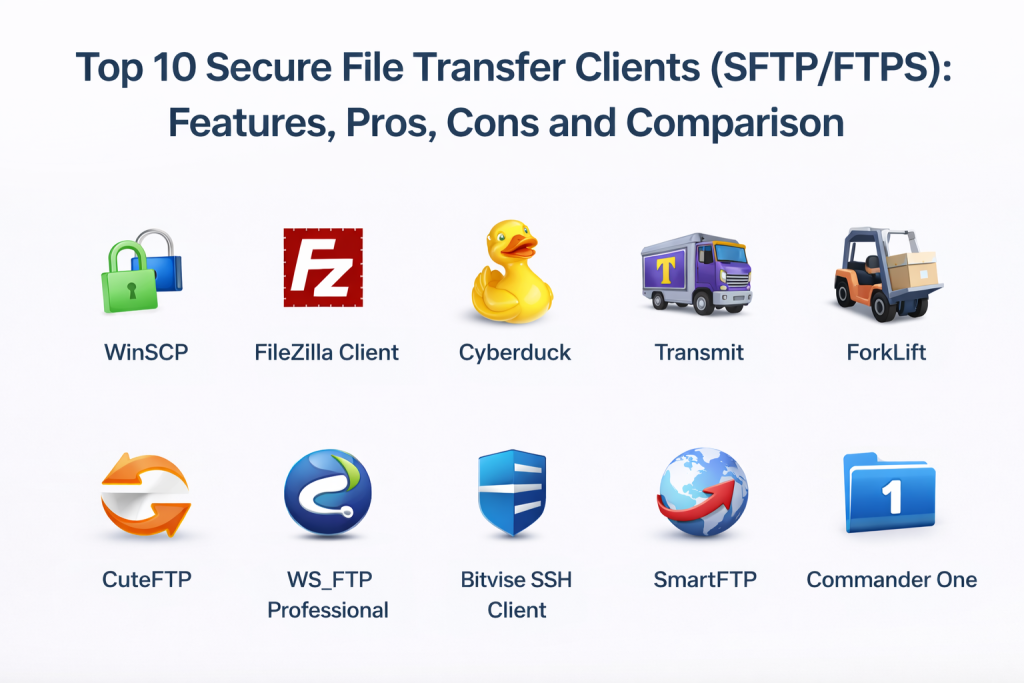
Introduction
Secure file transfer clients are desktop or web tools that help users connect to remote servers and move files safely using protocols such as SFTP and FTPS. They are used by IT teams, developers, web admins, designers, and operations teams to upload website files, exchange logs, move configuration backups, deliver data extracts, and handle vendor uploads. Unlike basic file copy tools, secure transfer clients provide encrypted connections, saved session profiles, folder sync options, transfer queues, integrity checks, and visibility into what was transferred. A strong client reduces human error, speeds up routine uploads, and improves accountability through logs.
Common real-world use cases include uploading builds to servers, syncing website content, sending data exports to partners, retrieving logs for incident analysis, moving large media files reliably, scheduling routine downloads, managing multiple environments like dev and production, validating server connectivity during migrations, and standardizing file transfer for teams with shared procedures. Buyers should evaluate protocol support, encryption handling, credential safety, session management, transfer reliability, resume support, folder sync behavior, automation options, logging, and usability for both beginners and power users.
Best for: sysadmins, DevOps teams, web developers, support engineers, IT operations, and organizations that still rely on SFTP or FTPS servers for partner exchanges.
Not ideal for: large enterprise partner automation workflows that require managed file transfer platforms, or teams that primarily share files through cloud sync and share tools.
Key Trends in Secure File Transfer Clients
- Stronger focus on credential safety and secure key handling
- More expectations for multi-factor and identity-aware access patterns
- Better file sync features for repeated uploads and downloads
- Increased demand for scripting and automation for repeatable tasks
- Cleaner support for large files with resume and reliability controls
- More visibility into logs and transfer history for troubleshooting
- Wider adoption of cross-platform clients for mixed device teams
- Stronger governance needs for shared credentials and access control
- Improved UI designs that reduce mistakes in production uploads
- Higher preference for tools that support both SFTP and FTPS cleanly
How We Selected These Tools (Methodology)
- Real-world adoption across IT, developer, and operations teams
- Reliable support for SFTP and FTPS in common environments
- Transfer stability, queue handling, resume support, and error recovery
- Credential handling patterns and security-related capabilities
- Session management, site profiles, and usability for repeat workflows
- Automation options through scripting, CLI, or scheduling where available
- Logging quality for troubleshooting and operational clarity
- Cross-platform coverage and scalability for teams
- Value fit for both individuals and organizations
- Documentation quality, community presence, and support options
Top 10 Secure File Transfer Clients
1 — WinSCP
WinSCP is a widely used secure file transfer client for Windows with strong support for SFTP and practical session management. It is commonly chosen by sysadmins and developers who need reliable transfers, folder sync, and scripting-friendly workflows.
Key Features
- SFTP support with saved sessions and profiles
- Transfer queue management for large and repeated uploads
- Folder sync features for maintaining consistent directories
- Resume and retry behavior for unreliable networks (varies)
- Transfer logging for troubleshooting and audit-like visibility
- Automation options through scripting patterns (varies)
Pros
- Strong reliability for repeatable admin workflows
- Practical UI for minimizing mistakes during production uploads
Cons
- Primarily focused on Windows environments
- Advanced automation requires discipline and careful scripting
Platforms and Deployment
Platforms: Windows
Deployment: Desktop
Security and Compliance
SSO, MFA, audit logs: Varies / Not publicly stated
Encryption, key support: Varies / Not publicly stated
Certifications: Not publicly stated
Integrations and Ecosystem
Often used alongside admin tooling and automation scripts for routine file operations.
- Scripting and automation patterns: Varies / N/A
- External editor integration: Varies / N/A
- Team workflow alignment: Varies / N/A
Support and Community
Strong documentation and community usage. Support depends on edition and organizational needs.
2 — FileZilla Client
FileZilla Client is a popular cross-platform file transfer client used for basic and intermediate secure transfers. It is commonly chosen for its familiar interface, transfer queue handling, and broad protocol support including SFTP and FTPS.
Key Features
- Support for SFTP and FTPS connections
- Transfer queue with multiple concurrent transfers (varies)
- Saved site profiles for repeat connections
- Resume support and transfer reliability features (varies)
- Simple UI suitable for beginners and power users
- Logging view for connection and transfer troubleshooting
Pros
- Easy to learn and widely used across teams
- Cross-platform support for mixed device organizations
Cons
- Some teams prefer stronger enterprise governance features
- UI and settings need careful review to avoid unsafe defaults
Platforms and Deployment
Platforms: Windows / macOS / Linux
Deployment: Desktop
Security and Compliance
Security features and certifications: Not publicly stated
Integrations and Ecosystem
Often used as a standalone transfer client in web and IT workflows.
- External editor workflows: Varies / N/A
- Automation patterns: Varies / N/A
- Team usage consistency: Varies / N/A
Support and Community
Large community and many learning resources. Support depends on edition and plan.
3 — Cyberduck
Cyberduck is a popular file transfer client known for a user-friendly interface and support for secure transfer protocols. It is commonly used by developers and IT teams who want a simple but capable client for secure connections.
Key Features
- SFTP and FTPS support for secure transfers
- Bookmark and profile management for repeat sessions
- Transfer queue and progress visibility
- Integration-friendly workflows for file editing (varies)
- Reliable connection and retry behavior (varies)
- Connection logs for troubleshooting
Pros
- Simple UI that works well for frequent transfers
- Good fit for users who want low friction secure transfers
Cons
- Advanced automation capabilities may be limited compared to scripting-first clients
- Some features depend on platform and configuration
Platforms and Deployment
Platforms: Windows / macOS
Deployment: Desktop
Security and Compliance
Security features and certifications: Not publicly stated
Integrations and Ecosystem
Often fits into developer and operations workflows for quick secure uploads and downloads.
- Editor integration patterns: Varies / N/A
- Credential storage behaviors: Varies / N/A
- Workflow automation: Varies / N/A
Support and Community
Strong user base and clear documentation. Support options vary depending on usage model.
4 — Transmit
Transmit is a macOS-focused file transfer client known for speed and a polished user experience. It is often chosen by web developers and creative teams who need reliable transfers and folder sync workflows.
Key Features
- SFTP and FTPS support for secure transfers
- Sync features for keeping local and remote folders aligned (varies)
- Transfer queue management with clear progress visibility
- Site profiles for repeat connections and environments
- Fast browsing and file operations for daily work
- Logging for connection and transfer troubleshooting
Pros
- Excellent usability and speed for macOS users
- Strong for repeated website and server upload workflows
Cons
- macOS-only, not ideal for cross-platform teams
- Premium tool choice may not fit all budgets
Platforms and Deployment
Platforms: macOS
Deployment: Desktop
Security and Compliance
Security features and certifications: Not publicly stated
Integrations and Ecosystem
Often used with web development and creative workflows where fast uploads matter.
- External editor integration: Varies / N/A
- Workflow efficiency features: Varies / N/A
- Team standardization: Varies / N/A
Support and Community
Strong documentation and professional support for the product. Community usage is common among macOS developers.
5 — ForkLift
ForkLift is a macOS file manager with strong remote connection features, often used for secure file transfers and server browsing. It is commonly chosen by users who want file management and transfer in one tool.
Key Features
- SFTP and FTPS support for secure remote connections
- Dual-pane file management for efficient transfers
- Sync features for folder comparison and updates (varies)
- Saved connections for multiple environments
- Transfer queues and progress visibility
- Logging and troubleshooting views
Pros
- Combines file management and secure transfer in one tool
- Efficient workflow for repeated transfers and comparisons
Cons
- macOS-only, not ideal for cross-platform teams
- Some advanced features require learning the workflow style
Platforms and Deployment
Platforms: macOS
Deployment: Desktop
Security and Compliance
Security features and certifications: Not publicly stated
Integrations and Ecosystem
Often fits into admin workflows where local file management and server transfers are combined.
- File management workflow alignment: Strong
- Editor integrations: Varies / N/A
- Automation patterns: Varies / N/A
Support and Community
Good documentation and macOS-focused user community. Support depends on product plan.
6 — CuteFTP
CuteFTP is a long-standing FTP client that supports secure transfer options including FTPS. It is often used in legacy workflows where teams want a familiar client for controlled file movement.
Key Features
- FTPS support for encrypted file transfers
- Site manager for saved connections and environments
- Transfer queue handling for batch uploads and downloads
- Basic scheduling and automation features (varies)
- Connection logs for troubleshooting
- UI patterns familiar to long-time FTP users
Pros
- Familiar tool for organizations with legacy FTP workflows
- Useful site management features for repeat transfers
Cons
- May feel dated compared to modern clients
- Not always the best fit for teams needing SFTP-first workflows
Platforms and Deployment
Platforms: Windows
Deployment: Desktop
Security and Compliance
Security features and certifications: Not publicly stated
Integrations and Ecosystem
Often used as a standalone client for established FTP and FTPS workflows.
- Scheduling integration: Varies / N/A
- Automation behaviors: Varies / N/A
- Team usage patterns: Varies / N/A
Support and Community
Documentation exists and support depends on edition. Often used in environments with established procedures.
7 — WS_FTP Professional
WS_FTP Professional is a file transfer client often used in business environments where secure transfers and operational controls matter. It is commonly chosen for managed workflows and features aimed at professional IT use.
Key Features
- SFTP and FTPS support for secure transfers
- Transfer scheduling and automation options (varies)
- Site management and session profile controls
- Transfer logging for troubleshooting and tracking
- File integrity and transfer reliability options (varies)
- Administrative-friendly UI for consistent workflows
Pros
- Strong for professional IT workflows and repeatable transfers
- Useful scheduling and logging for operational consistency
Cons
- May be heavier than needed for simple occasional transfers
- Value depends on the organization’s workflow needs
Platforms and Deployment
Platforms: Windows
Deployment: Desktop
Security and Compliance
Security features and certifications: Not publicly stated
Integrations and Ecosystem
Often fits into IT operations workflows where scheduling and consistent transfer patterns matter.
- Scheduling workflows: Varies / N/A
- Logging and reporting alignment: Varies / N/A
- Credential management: Varies / N/A
Support and Community
Business-focused support and documentation. Adoption is common in IT environments.
8 — Bitvise SSH Client
Bitvise SSH Client is used for secure remote access and file transfer features commonly tied to SSH workflows. It is often chosen by sysadmins who want a strong SSH experience combined with secure file transfer capabilities.
Key Features
- Strong SSH-based connection workflows (SFTP aligned)
- Key management and session profiles (varies)
- Secure file transfer capabilities via SSH-based workflows
- Logging for troubleshooting and connection insight
- Useful for admin workflows involving remote systems
- Stable operation for repeated secure sessions
Pros
- Strong choice for SSH-centric admin workflows
- Useful for teams that need both remote access and file movement
Cons
- UI and workflow may be less friendly for casual users
- Focus is SSH-first rather than a pure transfer client experience
Platforms and Deployment
Platforms: Windows
Deployment: Desktop
Security and Compliance
Security features and certifications: Not publicly stated
Integrations and Ecosystem
Often used alongside SSH operations, scripts, and admin tools for system work.
- SSH workflow alignment: Strong
- Key-based auth support: Varies / Not publicly stated
- Automation patterns: Varies / N/A
Support and Community
Practical documentation and a focused admin user base. Support depends on licensing and usage.
9 — SmartFTP
SmartFTP is a Windows file transfer client used for secure transfers and structured site management. It is often chosen by users who want a professional client with good session organization and transfer control.
Key Features
- Support for SFTP and FTPS secure transfers
- Site manager and favorite profiles for multiple environments
- Transfer queue control and file browsing features
- Resume and retry behaviors for reliability (varies)
- Logging and activity visibility for troubleshooting
- Multi-connection management for complex workflows (varies)
Pros
- Useful for users managing many sites and environments
- Strong transfer control with organized session handling
Cons
- Windows-only, not ideal for mixed-device teams
- Some advanced features require configuration discipline
Platforms and Deployment
Platforms: Windows
Deployment: Desktop
Security and Compliance
Security features and certifications: Not publicly stated
Integrations and Ecosystem
Often used in web and IT workflows where multiple remote environments must be handled consistently.
- Session profile workflows: Strong
- External editor integration: Varies / N/A
- Automation options: Varies / N/A
Support and Community
Documentation exists and support options vary. Often adopted by power users needing many profiles.
10 — Commander One
Commander One is a macOS file manager that supports remote connections and secure transfers. It is commonly chosen by macOS users who want local file management plus secure transfer features.
Key Features
- SFTP and FTPS support for remote transfers
- Dual-pane file management for efficient operations
- Saved connections for repeat sessions
- Transfer progress visibility and queue behaviors (varies)
- Folder comparison and organization workflows (varies)
- Connection logs for troubleshooting
Pros
- Good fit for macOS users who want file manager plus transfers
- Efficient workflow for repeated uploads and downloads
Cons
- macOS-only, not ideal for cross-platform teams
- Advanced automation may be limited compared to scripting-first clients
Platforms and Deployment
Platforms: macOS
Deployment: Desktop
Security and Compliance
Security features and certifications: Not publicly stated
Integrations and Ecosystem
Often used as a productivity tool for file operations and server transfers in one place.
- File management alignment: Strong
- Editor integrations: Varies / N/A
- Automation patterns: Varies / N/A
Support and Community
Documentation exists and support depends on plan. Community usage is common among macOS power users.
Comparison Table
| Tool Name | Best For | Platform(s) Supported | Deployment | Standout Feature | Public Rating |
|---|---|---|---|---|---|
| WinSCP | Reliable SFTP workflows on Windows | Windows | Desktop | Strong session management and folder sync | N/A |
| FileZilla Client | Cross-platform SFTP and FTPS transfers | Windows, macOS, Linux | Desktop | Familiar UI with broad usage | N/A |
| Cyberduck | Simple secure transfers for Windows and macOS | Windows, macOS | Desktop | Easy bookmarks and clean workflow | N/A |
| Transmit | Fast, polished secure transfers on macOS | macOS | Desktop | Speed and strong usability | N/A |
| ForkLift | File manager plus secure transfers on macOS | macOS | Desktop | Dual-pane file management and sync | N/A |
| CuteFTP | Legacy-friendly FTPS workflows on Windows | Windows | Desktop | Familiar interface for established workflows | N/A |
| WS_FTP Professional | Business-grade secure transfers with scheduling | Windows | Desktop | Practical automation and logging | N/A |
| Bitvise SSH Client | SSH-centric admin workflows with secure transfer | Windows | Desktop | Strong SSH experience and secure sessions | N/A |
| SmartFTP | Managing many environments with SFTP and FTPS | Windows | Desktop | Organized profiles and transfer control | N/A |
| Commander One | macOS file manager with secure transfer support | macOS | Desktop | Local file management plus transfers | N/A |
Evaluation and Scoring
Weights used:
- Core features – 25%
- Ease of use – 15%
- Integrations and ecosystem – 15%
- Security and compliance – 10%
- Performance and reliability – 10%
- Support and community – 10%
- Price and value – 15%
| Tool Name | Core (25%) | Ease (15%) | Integrations (15%) | Security (10%) | Performance (10%) | Support (10%) | Value (15%) | Weighted Total |
|---|---|---|---|---|---|---|---|---|
| WinSCP | 8 | 8 | 7 | 7 | 8 | 8 | 9 | 7.95 |
| FileZilla Client | 8 | 8 | 6 | 6 | 8 | 8 | 9 | 7.65 |
| Cyberduck | 7 | 8 | 6 | 6 | 7 | 7 | 8 | 7.05 |
| Transmit | 8 | 9 | 6 | 6 | 8 | 7 | 7 | 7.40 |
| ForkLift | 7 | 8 | 6 | 6 | 7 | 7 | 7 | 6.85 |
| CuteFTP | 6 | 7 | 5 | 6 | 7 | 6 | 6 | 6.25 |
| WS_FTP Professional | 7 | 7 | 6 | 6 | 7 | 7 | 6 | 6.70 |
| Bitvise SSH Client | 7 | 6 | 6 | 7 | 7 | 7 | 7 | 6.80 |
| SmartFTP | 7 | 7 | 6 | 6 | 7 | 6 | 6 | 6.55 |
| Commander One | 7 | 8 | 6 | 6 | 7 | 6 | 7 | 6.85 |
How to interpret these scores:
- Use totals to shortlist, then validate by testing your real servers and workflows.
- If you need reliable repeat transfers, focus on Core, Performance, and logging quality.
- If your team is mixed skill, Ease matters more than power features you will not use.
- If credentials and keys are sensitive, prioritize security controls and key management options.
- Always test a large file transfer with retries and a failure scenario.
Which Secure File Transfer Client Is Right for You?
Solo or Freelancer
Choose a client that is easy, reliable, and matches your operating system. For Windows users, WinSCP is a common practical choice. For macOS users, Transmit and ForkLift are often used for smooth workflows. If you want cross-platform familiarity, FileZilla Client is a common option.
SMB
SMBs should prioritize ease of onboarding, saved profiles, reliable transfers, and clear logs. A standard client across the team reduces mistakes. FileZilla Client works for mixed devices. WinSCP works well for Windows-focused teams. If you do a lot of customer exchanges, scheduling and logging features may matter more.
Mid-Market
Mid-market teams often need consistent procedures, better logging, and a mix of power users and casual users. Standardize on one or two tools, define naming conventions for site profiles, and use key-based access where possible. WS_FTP Professional can be useful where scheduling and audit-like logs help operations.
Enterprise
Enterprises should treat transfer clients as part of a secure process. Standardize approved clients, enforce safe credential handling, separate access roles, and keep transfer logs. Power users might use WinSCP or Bitvise SSH Client for admin workflows, while cross-platform teams may standardize on FileZilla Client with strict configuration guidelines.
Budget vs Premium
Free tools can work well for basic transfers if configured safely. Premium tools often improve speed, UI safety, and workflow efficiency, which matters when frequent production uploads are part of daily work.
Feature Depth vs Ease of Use
If transfers are occasional, a simpler tool reduces errors. If transfers are frequent, queue management, sync features, and scripting can save hours and reduce mistakes.
Integrations and Scalability
Integration is usually lighter for clients than platforms, but you should still consider external editor support, scripting, and shared configuration standards. Scalability is about how well the client handles many site profiles and repeat transfers reliably.
Security and Compliance Needs
Use key-based authentication when possible, avoid sharing passwords across teams, keep credentials stored securely, and define rules for production environments. The tool matters, but your operational controls matter even more.
Frequently Asked Questions
1. What is the difference between SFTP and FTPS?
SFTP uses SSH for secure transfers, while FTPS uses FTP with TLS. Both encrypt data in transit but have different connection behaviors and firewall considerations.
2. Should I choose SFTP or FTPS when both are available?
Choose based on your server requirements and security policy. Many teams prefer SFTP for simplicity of ports and SSH-based management, but real choice depends on your environment.
3. Are secure file transfer clients safe to store passwords?
It depends on how the client stores credentials and how your device is secured. Use key-based auth where possible and protect device access with strong security controls.
4. What features matter most for daily production uploads?
Saved profiles, transfer queues, reliable resume support, logging, and clear visual separation between dev and production environments matter most.
5. How can I reduce mistakes when transferring files to production?
Use separate profiles, clear naming conventions, read-only access where possible, and defined procedures. Avoid manual drag-and-drop into the wrong server.
6. Do these clients support automation?
Some offer scripting or scheduling features. If automation is critical, validate it in a pilot and consider whether you really need an MFT platform instead.
7. What is the best client for Windows?
WinSCP is a common choice for reliable SFTP workflows on Windows. The best fit still depends on your team workflow needs.
8. What is the best client for macOS?
Transmit is often chosen for speed and usability. ForkLift can be useful if you want file management and transfers together.
9. Can a secure transfer client replace an MFT tool?
Not usually. Clients are for user-driven transfers. MFT tools handle system-to-system automation, governance, and large partner exchange workflows.
10. What should I test before standardizing a tool?
Test connection reliability, large file resume behavior, transfer logging, key-based authentication support, and how quickly new team members can use it safely.
Conclusion
Secure file transfer clients are simple tools on the surface, but they can become high-risk points if profiles and credentials are not managed carefully. The best client depends on your operating system mix, how often you transfer files, and whether you need power features like folder sync and scripting. Start by shortlisting two or three clients from this list, then test them with your real servers using SFTP and FTPS, including a large file transfer, a forced network interruption, and a recovery scenario. Standardize on the tool your team can use consistently, and pair it with clear procedures to reduce mistakes and protect sensitive data.

Best Cardiac Hospitals Near You
Discover top heart hospitals, cardiology centers & cardiac care services by city.
Advanced Heart Care • Trusted Hospitals • Expert Teams
View Best Hospitals