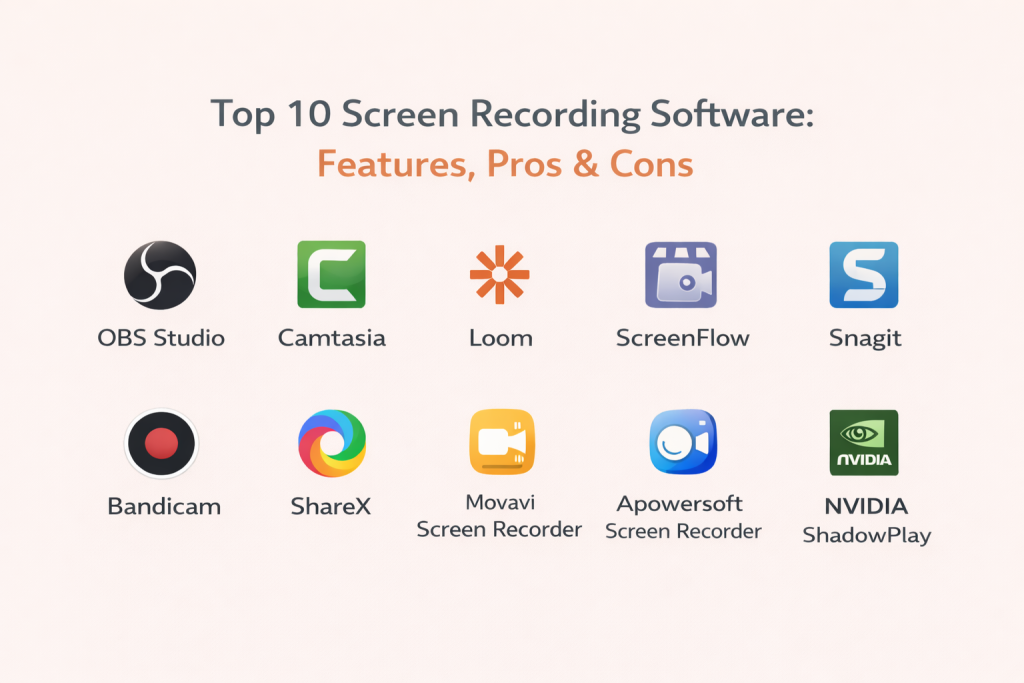
Introduction
Screen recording software helps you capture what happens on your screen with audio, webcam, and system sound, then export it as a video for sharing, training, troubleshooting, or content creation. It is used everywhere—from quick bug reports and product demos to full courses and professional tutorials. A good recorder does more than “hit record.” It should stay stable during long sessions, keep audio in sync, handle high resolution smoothly, and make editing and exporting simple.
Common real-world use cases include:
- Training videos and step-by-step tutorials
- Product demos and feature walkthroughs
- Support troubleshooting and bug reproduction
- Online classes, coaching, and internal enablement
- Gaming highlights, commentary, and reaction videos
What buyers should evaluate:
- Capture quality (resolution, frame rate, bitrate control)
- Audio options (mic + system audio, noise handling, sync reliability)
- Webcam and picture-in-picture support
- Editing workflow (trim, cut, annotations, callouts, zoom)
- Export options (formats, presets, compression, upload workflows)
- Performance impact (CPU/GPU usage, stability, long-session reliability)
- Multi-screen capture and window-level capture accuracy
- Automation (hotkeys, scheduled recording, profiles, templates)
- Integrations (cloud sharing, team workflows, project tools)
- Privacy and security expectations (permissions, storage, access control)
Best for: educators, creators, product teams, support engineers, and businesses that need reliable capture plus fast editing and sharing.
Not ideal for: users who only need occasional screenshots (not video), or teams that already use dedicated hardware recorders and only need basic trimming.
Key Trends in Screen Recording Software
- More focus on “share-first” workflows (instant links, viewer analytics, team libraries)
- AI-assisted editing helpers (noise cleanup, silence removal, auto captions) in some tools
- Better screen capture accuracy for multi-monitor and high-DPI displays
- Higher demand for lightweight recorders that do not overload CPU during meetings/games
- Stronger emphasis on privacy controls (workspace access, retention, permissions)
- More “annotation while recording” features (cursor highlights, click effects, callouts)
- Improved audio pipelines to reduce sync drift during long recordings
- Growing adoption of templates for consistent branding (intros, lower-thirds, styles)
- More GPU-accelerated encoding options for smooth high-resolution recording
- Wider use of browser-based recorders for quick team communication
How We Selected These Tools
- Strong adoption and mindshare across creators, education, and business teams
- Coverage of different needs: tutorial editing, instant sharing, lightweight capture, gaming highlights
- Feature depth across video, audio, webcam, and multi-screen workflows
- Practical stability signals for long sessions and frequent use
- Integration options for sharing, collaboration, or post-production workflows
- A balanced mix of premium, budget-friendly, and free/open-source options
- Fit across segments: solo users, SMB teams, mid-market enablement, enterprise training
Top 10 Screen Recording Software Tools
1 — OBS Studio
A powerful recording and production studio for users who want deep control over sources, audio, and output. Commonly used by creators, educators, and technical teams that value flexibility.
Key Features
- Capture display, window, apps, browser sources, and multiple scenes
- Advanced audio mixer with per-source filters and levels
- Hotkeys, scene switching, and reusable profiles
- Local recording with detailed output controls
- Supports high-resolution recording with configurable bitrate
- Plugin ecosystem for extended features (varies by setup)
- Virtual camera output for meeting and webinar tools
Pros
- Extremely flexible for many recording styles
- Strong community knowledge and troubleshooting resources
Cons
- Setup complexity can feel heavy for simple “record and send” needs
- Advanced audio routing can take time to learn
Platforms / Deployment
- Windows / macOS / Linux
- Self-hosted
Security & Compliance
- Not publicly stated
Integrations & Ecosystem
OBS fits well into many workflows through standard formats and extensibility.
- Exports in common video formats (workflow dependent)
- Works alongside video editors and audio tools
- Plugin ecosystem for automation and overlays (varies)
- Plays well with capture cards and external devices (varies)
Support & Community
Very strong community, guides, and tutorials. Official vendor support is limited compared to paid products.
2 — Camtasia
A screen recorder plus editor designed for training, tutorials, and professional instructional content. Great for educators, enablement teams, and creators who want recording and editing in one place.
Key Features
- Screen + webcam + audio capture with reliable sync workflows
- Built-in editor for trimming, cutting, transitions, and multi-track timelines
- Callouts, annotations, arrows, highlights, and blur tools
- Cursor effects, zoom/pan, and focus controls for tutorials
- Audio editing basics with leveling and cleanup options (tool dependent)
- Templates and themes for consistent brand styling
- Export presets optimized for common sharing needs
Pros
- Strong “record → edit → publish” flow for tutorial content
- Excellent annotation and callout toolset
Cons
- Premium pricing may be high for casual users
- Heavy projects can require strong hardware for smooth editing
Platforms / Deployment
- Windows / macOS
- Self-hosted
Security & Compliance
- Not publicly stated
Integrations & Ecosystem
Camtasia is often used in training pipelines and pairs well with learning workflows.
- Exports to common formats for LMS and internal portals
- Works well with external audio tools and media libraries
- Template-driven production helps teams standardize style
- Integration depth depends on how your org distributes videos
Support & Community
Good documentation and training content. Widely used in education and corporate enablement, so community help is easy to find.
3 — Loom
A sharing-first screen recorder made for fast communication. Often used by product teams, sales, support, and remote teams that want “record, send, done.”
Key Features
- Fast screen + camera recording with simple controls
- Instant share workflow with hosted playback (plan dependent)
- Viewer-friendly pages for feedback and collaboration (workflow dependent)
- Basic trimming and simple edits (capabilities vary)
- Team libraries and workspace organization (plan dependent)
- Recording modes for screen, camera, or both
- Easy link-style sharing without large file handling
Pros
- Very fast for asynchronous team communication
- Low friction to share and collect feedback
Cons
- Deep editing features are limited compared to full editors
- Privacy and retention controls depend on plan and workspace setup
Platforms / Deployment
- Web / Windows / macOS
- Cloud
Security & Compliance
- Not publicly stated
Integrations & Ecosystem
Loom commonly fits into team collaboration workflows.
- Works well alongside team chat and project tracking workflows
- Sharing and embedding options vary by platform and plan
- Best when “speed of sharing” is the main goal
- Export needs depend on how you archive or republish content
Support & Community
Easy onboarding and widely used by teams. Support quality can vary by plan.
4 — ScreenFlow
A macOS-focused recorder and editor popular with creators, educators, and marketers who want professional results with a smooth Mac editing experience.
Key Features
- High-quality screen capture with webcam and audio
- Multi-track editing timeline with transitions and effects
- Strong annotation tools for teaching and demos
- Audio editing tools suited for voice-heavy content
- Motion and text elements for polished tutorials
- Media library support for reusable assets (workflow dependent)
- Export presets for common distribution formats
Pros
- Excellent editing workflow for macOS users
- Good balance of power and usability
Cons
- macOS only
- Complex projects still need good hardware for smooth editing
Platforms / Deployment
- macOS
- Self-hosted
Security & Compliance
- Not publicly stated
Integrations & Ecosystem
ScreenFlow is often used with creator and education pipelines on macOS.
- Exports to common formats used by platforms and LMS tools
- Fits well with external audio enhancement workflows
- Great for consistent tutorial production using reusable assets
- Integrations depend on how you publish and distribute videos
Support & Community
Solid documentation and a strong creator community, especially for tutorial-style content.
5 — Snagit
A capture tool designed for quick screen videos and high-quality screenshots, widely used by support teams, documentation writers, and business users.
Key Features
- Quick screen recording for short clips and walkthroughs
- Excellent screenshot capture and markup tools
- Annotation tools: arrows, callouts, blur, steps, and stamps
- Scrolling capture for long pages (screenshot workflow dependent)
- Simple trimming and basic clip edits
- Easy sharing workflows via common export formats
- Presets for repeatable capture styles
Pros
- Fast for documentation and support workflows
- Best-in-class screenshot markup plus solid short video capture
Cons
- Not built for advanced video editing or long productions
- Power users may outgrow the video feature set
Platforms / Deployment
- Windows / macOS
- Self-hosted
Security & Compliance
- Not publicly stated
Integrations & Ecosystem
Snagit is often used in knowledge-base and support pipelines.
- Exports to common formats for docs and ticket systems
- Pairs well with documentation tools and internal wikis
- Templates help keep captures consistent across teams
- Integration depends on where your organization stores and shares media
Support & Community
Strong documentation and training materials. Commonly adopted in business environments.
6 — Bandicam
A Windows screen recorder known for performance-focused capture and lightweight operation, often used for gameplay, software demos, and high-resolution recording.
Key Features
- Screen, window, and game capture modes (workflow dependent)
- Hardware-accelerated encoding options (system dependent)
- High-quality recording controls for resolution and frame rate
- Audio recording for mic and system sound
- Scheduled recording options (feature dependent)
- Simple UI aimed at fast recording tasks
- Good for long sessions when configured well
Pros
- Often performs well on Windows for high-resolution capture
- Straightforward setup for recording-focused users
Cons
- Editing features are limited compared to full editor suites
- Advanced workflows may require a separate editor
Platforms / Deployment
- Windows
- Self-hosted
Security & Compliance
- Not publicly stated
Integrations & Ecosystem
Bandicam is typically used as a capture tool feeding into other editors.
- Exports to common formats for editing or upload
- Works well with separate editors for post-production
- Fits gaming capture workflows with performance settings
- Integration is mainly file-based rather than team-collaboration driven
Support & Community
Documentation is generally available. Community knowledge exists, but not as broad as the largest platforms.
7 — ShareX
A free Windows tool focused on capture and automation. It’s popular with power users who want configurable workflows, hotkeys, and fast sharing.
Key Features
- Screen recording and capture utilities (capabilities vary by setup)
- Hotkeys and automation workflows for repeated tasks
- Image, GIF, and video capture options (workflow dependent)
- Annotation and quick editing tools (tool dependent)
- Flexible output actions (save, copy, workflow automation)
- Region capture, window capture, and scrolling capture options
- Highly configurable settings for advanced users
Pros
- Powerful automation for frequent capture needs
- Free and flexible for power users
Cons
- UI and options can feel complex for beginners
- Video editing is not the main strength
Platforms / Deployment
- Windows
- Self-hosted
Security & Compliance
- Not publicly stated
Integrations & Ecosystem
ShareX is strong for automated capture pipelines.
- Output actions can streamline internal workflows
- Great for teams that standardize capture steps via presets
- Often used alongside editors for advanced video polishing
- Integration depth depends on how you configure actions
Support & Community
Active community and lots of configuration examples. Best for users comfortable with tools and settings.
8 — Movavi Screen Recorder
A recorder designed for everyday users who want a clean interface, reliable capture, and simple edits without the complexity of pro production tools.
Key Features
- Screen + webcam capture with simple controls
- System audio and microphone capture (capability dependent)
- Basic trimming and quick cleanup tools
- Scheduled recording options (feature dependent)
- Highlight mouse clicks and cursor (workflow dependent)
- Export presets for common needs
- Designed for fast onboarding and easy use
Pros
- Beginner-friendly and quick to learn
- Good balance for simple tutorials and internal recordings
Cons
- Advanced editing and production features are limited
- Power users may need additional tools for complex projects
Platforms / Deployment
- Windows / macOS
- Self-hosted
Security & Compliance
- Not publicly stated
Integrations & Ecosystem
Movavi commonly works as a simple capture tool in small workflows.
- Exports to common formats for sharing or editing
- Fits well for internal training clips and short demos
- Works alongside separate editors if needed
- Integration is mostly through file export
Support & Community
Generally clear documentation and tutorials. Community is moderate.
9 — Apowersoft Screen Recorder
A screen recording option often used for flexible capture scenarios, including browser-friendly workflows and quick recording needs (exact features vary by edition).
Key Features
- Screen capture with audio and webcam options (varies)
- Recording modes for different capture targets (workflow dependent)
- Basic editing and export tools (capabilities vary)
- Simple sharing workflows for quick distribution (workflow dependent)
- Useful for quick demonstrations and presentations
- Supports common output formats
- Designed for accessibility and ease of use
Pros
- Convenient for quick recording needs
- Often easy to start without deep configuration
Cons
- Feature set varies by edition and plan
- Advanced production and collaboration features may be limited
Platforms / Deployment
- Web / Windows / macOS
- Cloud / Self-hosted (varies)
Security & Compliance
- Not publicly stated
Integrations & Ecosystem
Apowersoft is typically used for quick capture and export workflows.
- Exports to common formats for sharing
- Fits lightweight tutorial and demo use cases
- Works alongside other editors for polishing
- Integration depth depends on edition and workflow
Support & Community
Documentation is available, but community depth varies compared to larger platforms.
10 — NVIDIA ShadowPlay
A GPU-assisted capture option commonly used for gameplay and performance-focused recording on supported NVIDIA hardware.
Key Features
- Low-overhead recording using supported GPU acceleration
- Instant replay style capture for highlights (workflow dependent)
- Configurable recording quality settings (system dependent)
- Captures gameplay and full screen (workflow dependent)
- Useful for high frame rate capture scenarios
- Quick start/stop workflows via hotkeys (feature dependent)
- Good for creators who prioritize performance
Pros
- Efficient capture when supported hardware is available
- Great for quick highlights and gaming workflows
Cons
- Hardware-dependent and not universal
- Not a full tutorial editor or annotation tool
Platforms / Deployment
- Windows
- Self-hosted
Security & Compliance
- Not publicly stated
Integrations & Ecosystem
ShadowPlay is mainly a capture layer feeding into other workflows.
- Exports recordings for editing in other tools
- Commonly used with creator pipelines for highlights
- Integration is file-based rather than team-based
- Best when performance and simplicity are the priority
Support & Community
Strong community knowledge among gamers and creators. Support depends on the broader NVIDIA ecosystem.
Comparison Table
| Tool Name | Best For | Platform(s) Supported | Deployment (Cloud/Self-hosted/Hybrid) | Standout Feature | Public Rating |
|---|---|---|---|---|---|
| OBS Studio | Power users and flexible capture setups | Windows / macOS / Linux | Self-hosted | Highly configurable scenes and audio control | N/A |
| Camtasia | Training and tutorial production | Windows / macOS | Self-hosted | Built-in editing and annotations for instruction | N/A |
| Loom | Fast team communication by video | Web / Windows / macOS | Cloud | Share-first workflow with hosted playback | N/A |
| ScreenFlow | Mac-based tutorial creators | macOS | Self-hosted | Smooth macOS editor + high-quality capture | N/A |
| Snagit | Documentation and quick walkthroughs | Windows / macOS | Self-hosted | Best-in-class capture + markup for teams | N/A |
| Bandicam | High-performance Windows recording | Windows | Self-hosted | Lightweight capture with strong quality controls | N/A |
| ShareX | Automated capture workflows | Windows | Self-hosted | Hotkeys and automation for repeated capture | N/A |
| Movavi Screen Recorder | Easy everyday recording | Windows / macOS | Self-hosted | Simple UI for quick recording and export | N/A |
| Apowersoft Screen Recorder | Flexible quick recording | Web / Windows / macOS | Cloud / Self-hosted (varies) | Accessible recording modes (edition dependent) | N/A |
| NVIDIA ShadowPlay | Gameplay and low-overhead capture | Windows | Self-hosted | GPU-assisted capture for performance | N/A |
Evaluation & Scoring of Screen Recording Software
Weights used in scoring:
- Core features – 25%
- Ease of use – 15%
- Integrations & ecosystem – 15%
- Security & compliance – 10%
- Performance & reliability – 10%
- Support & community – 10%
- Price / value – 15%
| Tool Name | Core (25%) | Ease (15%) | Integrations (15%) | Security (10%) | Performance (10%) | Support (10%) | Value (15%) | Weighted Total (0–10) |
|---|---|---|---|---|---|---|---|---|
| OBS Studio | 9 | 7 | 8 | 6 | 8 | 9 | 10 | 8.3 |
| Camtasia | 9 | 8 | 7 | 6 | 8 | 8 | 6 | 7.6 |
| Loom | 7 | 9 | 8 | 7 | 7 | 7 | 7 | 7.5 |
| ScreenFlow | 8 | 8 | 7 | 6 | 8 | 7 | 7 | 7.5 |
| Snagit | 7 | 9 | 7 | 6 | 8 | 8 | 7 | 7.5 |
| Bandicam | 7 | 8 | 6 | 6 | 8 | 6 | 7 | 7.0 |
| ShareX | 7 | 6 | 7 | 6 | 7 | 7 | 10 | 7.3 |
| Movavi Screen Recorder | 7 | 9 | 6 | 6 | 7 | 6 | 7 | 7.1 |
| Apowersoft Screen Recorder | 6 | 8 | 6 | 6 | 6 | 6 | 7 | 6.5 |
| NVIDIA ShadowPlay | 6 | 8 | 5 | 6 | 9 | 7 | 9 | 7.1 |
How to interpret these scores:
- Scores are comparative across this list, not universal “best overall” ratings.
- If you produce tutorials, prioritize Core features, Ease, and Support.
- If you capture long sessions or high-resolution footage, prioritize Performance.
- Cloud-first tools can win on sharing speed, while desktop tools often win on control.
- A short pilot recording on your real setup usually reveals the best fit quickly.
Which Screen Recording Software Tool Is Right for You?
Solo / Freelancer
- If you want maximum control and don’t mind setup: OBS Studio
- If you need polished tutorial editing in one workflow: Camtasia
- If you want a fast “record and share” loop: Loom
- If you are macOS-only and edit often: ScreenFlow
SMB
- For internal training content and consistent tutorials: Camtasia or Snagit
- For quick async team updates: Loom
- For budget-friendly automation and capture workflows: ShareX
- For simple everyday recording without complexity: Movavi Screen Recorder
Mid-Market
- For enablement teams producing structured learning videos: Camtasia
- For documentation-heavy teams: Snagit plus a shared content process
- For technical teams needing flexible capture and advanced audio: OBS Studio
- For multi-team sharing workflows: Loom (plan-dependent features may matter)
Enterprise
- For standardized training pipelines: Camtasia (template-based production helps)
- For support and knowledge-base capture at scale: Snagit
- For specialized recording setups and repeatable profiles: OBS Studio
- Validate retention, access controls, and workspace governance for cloud workflows (tool capabilities vary)
Budget vs Premium
- Budget-friendly: OBS Studio, ShareX
- Premium tutorial production: Camtasia, ScreenFlow
- Fast sharing focus: Loom
- Performance capture for gaming: NVIDIA ShadowPlay (hardware dependent)
Feature Depth vs Ease of Use
- Deep control: OBS Studio
- Easy learning: Snagit, Movavi Screen Recorder, Loom
- Best “editor included” approach: Camtasia, ScreenFlow
Integrations & Scalability
- Best extensibility: OBS Studio (plugins/workflow dependent)
- Best team sharing: Loom
- Best structured training outputs: Camtasia
- Best documentation pipeline: Snagit
Security & Compliance Needs
- If you require formal certifications, many consumer tools are “Not publicly stated.”
- For sensitive internal content, prefer controlled storage, clear retention rules, and restricted access.
- Confirm workspace roles and permissions before rolling out cloud sharing broadly.
Frequently Asked Questions
- What should I choose for making training and tutorial videos?
If you need strong editing, callouts, and polished production, Camtasia is usually a safe choice. If you want maximum control and already have an editor, OBS Studio is strong. - Can I record both system audio and microphone audio?
Most tools support both, but quality and sync can vary. Test a short clip to confirm voice clarity and check if audio stays aligned after exporting. - Why does my recording lag or look blurry?
Common causes include high resolution settings, high frame rate, or insufficient CPU/GPU resources. Lower bitrate and resolution, close heavy apps, and use hardware encoding if available. - What is the easiest tool for quick “explain this” videos?
Loom is often the fastest for recording and sharing. Movavi Screen Recorder and Snagit are also easy for quick capture without complex setup. - How do I avoid audio and video getting out of sync?
Use a consistent recording device setup, keep drivers updated, avoid switching audio devices mid-recording, and record a short test before long sessions. - Can I record multiple monitors at the same time?
Many tools can capture full displays or specific windows. Multi-monitor recording is usually possible, but performance depends on resolution and your hardware. - Is a free tool good enough for professional use?
Yes, OBS Studio can produce professional results when configured well. ShareX is excellent for automation. The trade-off is usually setup time and fewer built-in editing features. - Which tool is best for screenshots and short walkthrough clips?
Snagit is a strong choice for combined screenshots, markups, and short video walkthroughs—especially for documentation and support. - What is best for gaming highlights and low-overhead capture?
NVIDIA ShadowPlay is designed for efficient gameplay capture on supported hardware. For broader creator workflows, OBS Studio is widely used. - How hard is it to switch from one screen recorder to another?
Switching is usually simple if you keep assets organized (overlays, intros, presets). The biggest change is learning shortcuts and rebuilding your preferred recording profile.
Conclusion
The best screen recording software depends on your goal: polished tutorials, fast sharing, lightweight capture, or performance gaming highlights. Start by selecting two or three tools that match your most common use case, record a short test with your actual hardware and audio setup, validate export quality and sync, and then standardize your settings (resolution, frame rate, mic levels) so every recording looks consistent and professional.

Best Cardiac Hospitals Near You
Discover top heart hospitals, cardiology centers & cardiac care services by city.
Advanced Heart Care • Trusted Hospitals • Expert Teams
View Best Hospitals