Introduction
Task management tools help individuals and teams plan work, assign responsibilities, track progress, and deliver outcomes with fewer missed steps. In simple terms, they replace scattered to-do lists, chat reminders, and spreadsheet trackers with a shared system where tasks have owners, due dates, priorities, comments, files, and clear status.
This category matters because most teams now work across time zones, tools, and changing priorities. Without a structured task system, work becomes invisible: important items get buried, handoffs fail, and managers only discover risks when deadlines are near. A good task management tool creates clarity by showing who is doing what, what is blocked, and what needs attention next.
Real-world use cases:
- Product launches with cross-team dependencies and milestone tracking
- Marketing campaigns with approvals, content calendars, and deliverables
- Software development planning with backlogs, sprints, and triage
- Operations checklists for recurring work and incident follow-ups
- Personal productivity: daily planning, routines, and goal tracking
What buyers should evaluate before choosing:
- Task views (list, board, calendar, timeline) and filtering depth
- Collaboration (comments, mentions, attachments, approvals, activity history)
- Work structure (projects, folders, spaces, tags, templates)
- Automation (rules, recurring tasks, reminders, dependencies)
- Reporting (dashboards, workload, cycle time, progress visibility)
- Permission controls (roles, access levels, external guests)
- Integrations (email, chat, docs, storage, dev tools, CRM)
- Scalability (many teams, many projects, performance under load)
- Ease of adoption (learning curve, onboarding, templates)
- Cost and maintainability (licensing, admin overhead, governance needs)
Best for: teams that need visibility, accountability, and repeatable execution across projects, as well as individuals who want a consistent planning routine.
Not ideal for: organizations that only need simple note-taking, or teams whose work is entirely handled inside a specialized platform and does not require separate task coordination.
Key Trends in Task Management Tools
- More “work hub” behavior: tasks, docs, goals, and updates living in one place
- Stronger automation to reduce manual status updates and reminders
- Better portfolio views for managers: workload, blockers, progress, risk signals
- Deeper permission controls for external collaboration with vendors and clients
- More templates and playbooks for repeatable processes and onboarding
- Increased demand for flexible views: switching between list, board, calendar, timeline
- Improved integration patterns: connecting tasks with chat, email, docs, and dev workflows
- More structured intake: forms and request queues to reduce ad-hoc work chaos
- Emphasis on clarity and focus: prioritization, “my work” views, and personal planning
- Higher expectations for reliability and search: fast navigation across large workspaces
How We Selected These Tools
- Broad adoption and credibility across different team types
- Strong core task management: assign, track, collaborate, and deliver
- View flexibility: ability to match multiple work styles without heavy setup
- Practical integrations and ecosystem fit for common business stacks
- Reporting and visibility suitable for teams, not just individuals
- Good balance across segments: personal, SMB, mid-market, and enterprise
- Track record of being used for real project delivery, not only note-taking
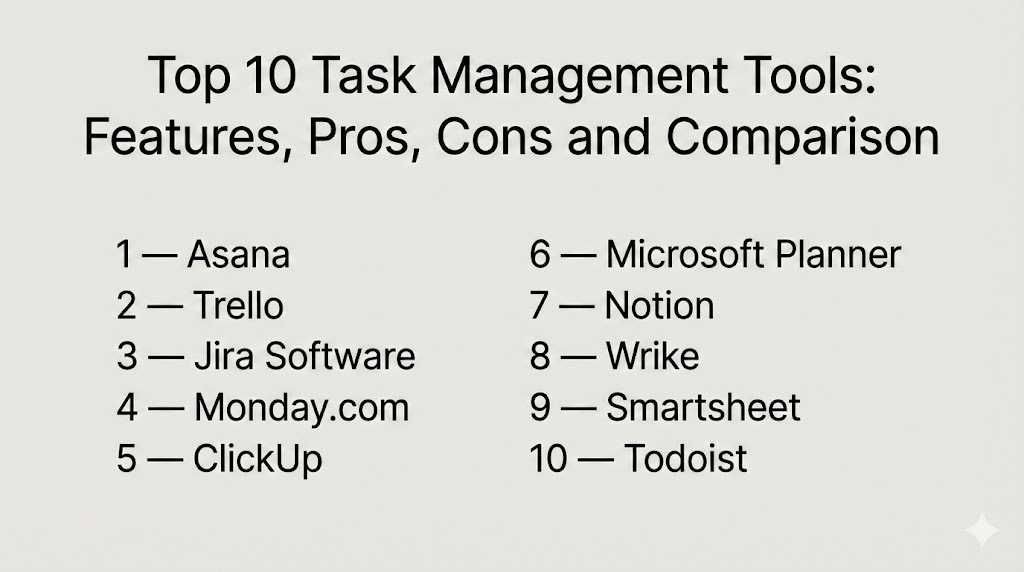
Top 10 Task Management Tools
1 — Asana
Overview
Asana is a widely used team task platform focused on clarity, accountability, and project execution. It is often chosen by teams that want strong structure without turning the tool into a complex system.
Key Features
- Multiple views: list, board, calendar, timeline-style planning
- Task dependencies and milestones for delivery planning
- Templates for repeatable projects and workflows
- Rules and automation for reminders and routine actions
- Reporting dashboards for project and team visibility
- Workload-style visibility concepts (Varies / N/A)
- Strong collaboration with comments, mentions, and activity history
Pros
- Strong balance of usability and structured execution
- Great for cross-functional work where visibility matters
Cons
- Advanced setups can require governance to avoid workspace clutter
- Some teams may want deeper developer-style backlog controls
Platforms / Deployment
- Web, iOS, Android (Varies / N/A)
- Cloud
Security and Compliance
- Not publicly stated
Integrations and Ecosystem
Asana fits well in cross-functional stacks where tasks connect to communication and documents.
- Email and calendar integrations (Varies / N/A)
- Chat and collaboration integrations (Varies / N/A)
- File storage and document workflows (Varies / N/A)
- API and automation connections (Varies / N/A)
Support and Community
Strong documentation and onboarding guidance. Support depth varies by plan and organization size.
2 — Trello
Overview
Trello is a simple, board-first task tool that works well for lightweight project tracking. It is often chosen for visual workflows and quick adoption.
Key Features
- Board and card model with flexible lists and labels
- Simple collaboration: comments, mentions, attachments
- Checklists inside tasks for step-by-step execution
- Automations for common board actions (Varies / N/A)
- Templates for common workflows and team patterns
- Easy sharing for small teams and personal use
- Fast setup with low learning curve
Pros
- Very easy to adopt and start using quickly
- Great for visual task flow and lightweight planning
Cons
- Complex portfolios and reporting can be limited without add-ons
- Scaling to large org structures may require stricter standards
Platforms / Deployment
- Web, iOS, Android (Varies / N/A)
- Cloud
Security and Compliance
- Not publicly stated
Integrations and Ecosystem
Trello is commonly used with lightweight add-ons and integrations.
- Chat and collaboration integrations (Varies / N/A)
- Calendar, email, and notification connections (Varies / N/A)
- File attachments via common storage tools (Varies / N/A)
- Extensions and automation connectors (Varies / N/A)
Support and Community
Large user community and many templates. Support options vary by plan.
3 — Jira Software
Overview
Jira Software is commonly used by product and engineering teams for backlog tracking, sprint planning, and issue-based delivery. It can also be used for structured task tracking beyond software when configured carefully.
Key Features
- Backlogs, sprints, and issue workflows with statuses
- Custom fields, screens, and workflow rules (Varies / N/A)
- Boards for sprint and Kanban-style tracking
- Strong reporting for throughput and work progress (Varies / N/A)
- Permissions and roles suitable for multi-team environments
- Automation rules for workflow transitions and notifications (Varies / N/A)
- Strong fit for technical teams with structured delivery practices
Pros
- Powerful for structured work tracking and team governance
- Strong ecosystem for engineering collaboration
Cons
- Can feel complex for non-technical teams without a simplified setup
- Requires admin discipline to avoid messy configurations
Platforms / Deployment
- Web
- Cloud, Self-hosted (Varies / N/A)
Security and Compliance
- Not publicly stated
Integrations and Ecosystem
Jira Software is often used as the backbone for technical work planning.
- Integrations with code hosting and CI tools (Varies / N/A)
- Links to documentation and collaboration platforms (Varies / N/A)
- Marketplace add-ons for specialized workflows (Varies / N/A)
- APIs for automation and reporting pipelines (Varies / N/A)
Support and Community
Very large community and marketplace. Support varies by plan and deployment.
4 — Monday.com
Overview
Monday.com is a work management platform that combines tasks, tracking tables, and visual dashboards. It is often used by business teams that want flexible work tracking with strong visibility.
Key Features
- Multiple views: boards, tables, calendars, timelines (Varies / N/A)
- Automation rules for assignments, reminders, and status updates
- Templates for marketing, ops, HR, and delivery workflows
- Dashboards for progress, workload signals, and milestones (Varies / N/A)
- Forms and structured intake patterns (Varies / N/A)
- Collaboration features for updates and approvals (Varies / N/A)
- Flexible fields for tracking metrics and workflow states
Pros
- Great for business teams that want visibility and structure
- Flexible setup for many workflow styles
Cons
- Without governance, workspaces can become inconsistent across teams
- Some advanced setups can increase maintenance overhead
Platforms / Deployment
- Web, iOS, Android (Varies / N/A)
- Cloud
Security and Compliance
- Not publicly stated
Integrations and Ecosystem
Often used as a central hub connected to communication and reporting tools.
- Email, calendar, and chat integrations (Varies / N/A)
- File and document integrations (Varies / N/A)
- Automation integrations across business systems (Varies / N/A)
- APIs and connectors for custom workflows (Varies / N/A)
Support and Community
Good onboarding resources and templates. Support and guidance vary by plan.
5 — ClickUp
Overview
ClickUp aims to combine tasks, docs, goals, and dashboards in one platform. It is often chosen by teams that want a feature-rich tool and are willing to invest in standardizing how they use it.
Key Features
- Tasks with statuses, priorities, dependencies, and custom fields
- Multiple views: list, board, calendar, timeline-style planning (Varies / N/A)
- Docs and shared notes linked to tasks (Varies / N/A)
- Dashboards for progress and team reporting (Varies / N/A)
- Templates and recurring task automation
- Strong organization layers: spaces, folders, lists (Varies / N/A)
- Collaboration tools for comments, approvals, and updates
Pros
- Very feature-rich for teams wanting an all-in-one workspace
- Flexible enough to fit many different team workflows
Cons
- Can feel overwhelming without a clear setup standard
- Best results require governance and consistent naming practices
Platforms / Deployment
- Web, Windows, macOS, iOS, Android (Varies / N/A)
- Cloud
Security and Compliance
- Not publicly stated
Integrations and Ecosystem
ClickUp commonly connects to communication, storage, and developer workflows.
- Chat, email, and calendar integrations (Varies / N/A)
- Storage and document integrations (Varies / N/A)
- Automation connections and API-based extensions (Varies / N/A)
- Import and migration paths from other tools (Varies / N/A)
Support and Community
Good template ecosystem and active user community. Support tiers vary by plan.
6 — Microsoft Planner
Overview
Microsoft Planner is a task tool that fits teams already using Microsoft collaboration and productivity tools. It is often used for team tasks, lightweight projects, and structured internal work.
Key Features
- Simple boards for team tasks and assignments
- Integration with Microsoft productivity workflows (Varies / N/A)
- Basic scheduling and due-date tracking
- Collaboration tied to Microsoft identity and permissions (Varies / N/A)
- Useful for department-level task coordination
- Lightweight structure with low setup overhead
- Fits organizations standardizing on Microsoft tools
Pros
- Smooth fit for Microsoft-centered environments
- Easy to adopt for everyday team task coordination
Cons
- Advanced reporting and portfolio features can be limited
- Not always ideal for complex project dependency management
Platforms / Deployment
- Web, iOS, Android (Varies / N/A)
- Cloud
Security and Compliance
- Not publicly stated
Integrations and Ecosystem
Best used when your organization already runs Microsoft collaboration as the backbone.
- Identity and permission alignment through Microsoft accounts
- Connections to documents and meetings (Varies / N/A)
- Automation patterns through Microsoft ecosystem tools (Varies / N/A)
Support and Community
Strong documentation ecosystem and admin familiarity. Support depends on enterprise agreements.
7 — Notion
Overview
Notion blends tasks with documents and databases, making it popular for teams that want flexible workspaces. It is often used for planning, documentation, and lightweight task tracking in one place.
Key Features
- Databases that can represent tasks, projects, and knowledge
- Flexible views: tables, boards, calendars (Varies / N/A)
- Docs and wiki-style content directly connected to work items
- Templates for planning, product docs, and team operating systems
- Collaboration and comments for shared planning
- Powerful linking between tasks, notes, and context
- Suitable for teams building custom workflows
Pros
- Excellent for combining planning, docs, and tasks together
- Highly flexible for teams with unique work styles
Cons
- Task workflow rigor may require careful setup
- Scaling governance needs strong internal conventions
Platforms / Deployment
- Web, Windows, macOS, iOS, Android (Varies / N/A)
- Cloud
Security and Compliance
- Not publicly stated
Integrations and Ecosystem
Notion typically sits at the center of documentation plus planning.
- Integration with chat and calendar tools (Varies / N/A)
- Imports and sync patterns depending on workflows (Varies / N/A)
- APIs for connecting custom pipelines and reporting (Varies / N/A)
Support and Community
Large community and many templates. Support depends on plan. Best results come from consistent workspace conventions.
8 — Wrike
Overview
Wrike is often used for structured project execution where teams want stronger workflow control, approvals, and reporting. It can fit marketing operations, PMOs, and cross-functional delivery teams.
Key Features
- Projects and tasks with statuses and structured workflows
- Approvals and review concepts for deliverables (Varies / N/A)
- Reporting dashboards and workload-style visibility (Varies / N/A)
- Templates for repeatable delivery processes
- Collaboration features suitable for multi-team execution
- Permissions and access patterns for controlled sharing (Varies / N/A)
- Suitable for teams needing structured delivery governance
Pros
- Strong for structured work with clear workflows and oversight
- Good reporting orientation for managers and PM roles
Cons
- Can feel heavy for small teams needing only basic task lists
- Setup requires thoughtful structure to avoid complexity
Platforms / Deployment
- Web, iOS, Android (Varies / N/A)
- Cloud
Security and Compliance
- Not publicly stated
Integrations and Ecosystem
Wrike is often used with business collaboration and file workflows.
- Integrations with communication and storage tools (Varies / N/A)
- Links to calendars and reporting workflows (Varies / N/A)
- Extensibility through APIs and add-ons (Varies / N/A)
Support and Community
Support tiers vary by plan. Onboarding is smoother when teams define a standard workflow model early.
9 — Smartsheet
Overview
Smartsheet is a spreadsheet-like work management tool that many teams use for tracking tasks, projects, and operational workflows. It is often chosen by teams that like structured tables and reporting from structured data.
Key Features
- Grid-style tracking with task rows, owners, and due dates
- Automation rules for reminders and status changes (Varies / N/A)
- Dashboards for reporting and progress visibility (Varies / N/A)
- Templates for project plans and operational trackers
- Collaboration via comments and attachments (Varies / N/A)
- Useful for teams migrating from spreadsheets to governed tracking
- Supports structured work reporting across many teams
Pros
- Comfortable for teams already used to spreadsheet planning
- Strong for structured tracking and reporting patterns
Cons
- Some teams may prefer board-first task experiences
- Advanced setups need governance to keep sheets consistent
Platforms / Deployment
- Web, iOS, Android (Varies / N/A)
- Cloud
Security and Compliance
- Not publicly stated
Integrations and Ecosystem
Smartsheet is often used for operational reporting and structured coordination.
- Integrations with file storage and collaboration tools (Varies / N/A)
- Automation connections to business systems (Varies / N/A)
- APIs for building custom reporting pipelines (Varies / N/A)
Support and Community
Helpful templates and documentation. Support options vary by plan and organization size.
10 — Todoist
Overview
Todoist is a task tool popular for personal productivity and small-team task lists. It is often chosen for fast capture, clean daily planning, and simple collaboration.
Key Features
- Personal task lists with priorities and labels
- Recurring tasks and reminders for routines
- Projects for grouping tasks and goals
- Cross-device sync for consistent daily planning
- Lightweight collaboration for shared lists (Varies / N/A)
- Filters for focused views like “today” and “next” (Varies / N/A)
- Low-friction experience suitable for individuals and small teams
Pros
- Excellent for personal productivity and quick task capture
- Easy to maintain without heavy admin overhead
Cons
- Portfolio reporting and complex project planning can be limited
- Not designed for large-scale cross-team governance
Platforms / Deployment
- Web, Windows, macOS, iOS, Android (Varies / N/A)
- Cloud
Security and Compliance
- Not publicly stated
Integrations and Ecosystem
Todoist often fits as a personal layer connected to daily workflows.
- Integrations with calendar and email patterns (Varies / N/A)
- Automation connections for reminders and capture (Varies / N/A)
- Works best when scope is personal or small-team coordination
Support and Community
Strong usability and documentation. Community is active, and support depends on plan.
Comparison Table
| Tool Name | Best For | Platform(s) Supported | Deployment (Cloud/Self-hosted/Hybrid) | Standout Feature | Public Rating |
|---|---|---|---|---|---|
| Asana | Cross-functional project execution with strong clarity | Web, iOS, Android (Varies / N/A) | Cloud | Structured projects with multiple planning views | N/A |
| Trello | Lightweight visual workflows and quick adoption | Web, iOS, Android (Varies / N/A) | Cloud | Simple boards and cards with low learning curve | N/A |
| Jira Software | Backlogs and structured delivery for technical teams | Web | Cloud, Self-hosted (Varies / N/A) | Powerful workflows and issue tracking | N/A |
| Monday.com | Flexible business work tracking with dashboards | Web, iOS, Android (Varies / N/A) | Cloud | Visual tracking with automation and dashboards | N/A |
| ClickUp | All-in-one work hub for teams willing to standardize | Web, Windows, macOS, iOS, Android (Varies / N/A) | Cloud | Rich features across tasks, docs, and reporting | N/A |
| Microsoft Planner | Team tasks inside Microsoft-centered environments | Web, iOS, Android (Varies / N/A) | Cloud | Simple coordination aligned with Microsoft identity | N/A |
| Notion | Combined docs and tasks with flexible databases | Web, Windows, macOS, iOS, Android (Varies / N/A) | Cloud | Tasks plus knowledge in one workspace | N/A |
| Wrike | Structured delivery with oversight and reporting | Web, iOS, Android (Varies / N/A) | Cloud | Workflow control and manager visibility | N/A |
| Smartsheet | Spreadsheet-style tracking with structured reporting | Web, iOS, Android (Varies / N/A) | Cloud | Grid-based planning with dashboards | N/A |
| Todoist | Personal productivity and small-team task lists | Web, Windows, macOS, iOS, Android (Varies / N/A) | Cloud | Fast capture and daily focus views | N/A |
Evaluation and Scoring of Task Management Tools
Scoring model:
- Each criterion is scored from 1 to 10 to support shortlisting.
- Weighted Total is comparative across this list, not an absolute truth.
- Use scores to narrow options, then run a pilot with real work and real users.
- If security or governance is a strict requirement, treat it as a hard filter, not only a score.
Weights:
- Core features – 25%
- Ease of use – 15%
- Integrations & ecosystem – 15%
- Security & compliance – 10%
- Performance & reliability – 10%
- Support & community – 10%
- Price / value – 15%
| Tool Name | Core (25%) | Ease (15%) | Integrations (15%) | Security (10%) | Performance (10%) | Support (10%) | Value (15%) | Weighted Total (0–10) |
|---|---|---|---|---|---|---|---|---|
| Asana | 8 | 9 | 8 | 7 | 7 | 8 | 7 | 7.80 |
| Trello | 6 | 9 | 7 | 6 | 7 | 7 | 9 | 7.25 |
| Jira Software | 8 | 7 | 8 | 7 | 8 | 8 | 7 | 7.60 |
| Monday.com | 8 | 8 | 8 | 7 | 7 | 7 | 7 | 7.55 |
| ClickUp | 8 | 8 | 8 | 6 | 7 | 7 | 8 | 7.60 |
| Microsoft Planner | 6 | 8 | 7 | 7 | 7 | 7 | 8 | 7.05 |
| Notion | 7 | 8 | 7 | 6 | 7 | 7 | 8 | 7.20 |
| Wrike | 8 | 7 | 7 | 7 | 7 | 7 | 6 | 7.10 |
| Smartsheet | 7 | 7 | 7 | 7 | 7 | 7 | 6 | 6.85 |
| Todoist | 6 | 9 | 6 | 6 | 7 | 7 | 9 | 7.10 |
How to interpret these scores:
- Core favors depth in views, dependencies, automation, and team execution.
- Ease matters when adoption speed and daily usability decide success.
- Integrations matter when tasks must connect to chat, docs, calendars, and dev tools.
- Value depends on team size, feature needs, and how much admin overhead you can support.
Which Task Management Tool Is Right for You?
Solo / Freelancer
If you work alone or run small client projects, you need speed, focus, and low maintenance. Todoist is strong for personal planning and routines. Trello works well for visual project tracking. Notion is useful when you want tasks tied directly to notes, briefs, and client documentation. Keep your system simple: a small number of lists, clear priorities, and weekly reviews.
SMB
SMBs typically need one shared place to track work across marketing, sales ops, delivery, and admin. Asana and Monday.com are common fits for cross-functional execution with visibility. ClickUp can work well if you invest in standard templates so every team does not reinvent structures. If most work is basic coordination, Trello can be enough and easier to maintain.
Mid-Market
Mid-market teams often need reporting, workload visibility, and consistent operating practices across multiple teams. Asana, Monday.com, Wrike, and Smartsheet can fit well depending on whether you prefer board-style, dashboard-driven, or grid-style planning. If you have engineering-heavy coordination, Jira Software may become a shared backbone for delivery planning, especially with consistent workflows.
Enterprise
Enterprises usually care about governance, permissions, standard templates, and performance at scale. Jira Software is strong for structured engineering delivery. Wrike can support controlled workflows and manager reporting. Microsoft Planner can fit well when the organization standardizes around Microsoft identity and collaboration workflows. For enterprise adoption, the biggest requirement is not features but consistency: shared templates, naming conventions, and clear ownership of workspace structure.
Budget vs Premium
- Budget-first teams should pick a tool that requires minimal admin effort and delivers immediate visibility.
- Premium tooling is justified when reporting, governance, and cross-team coordination reduce real delivery risk.
- The most expensive choice is often the tool that becomes messy and requires constant cleanup, so plan governance early.
Feature Depth vs Ease of Use
- If your team struggles with adoption, choose ease first, then add structure gradually.
- If you manage complex dependencies and deadlines, prioritize stronger planning views and automation.
- Many teams succeed by standardizing one simple workflow and only adding custom fields when they solve a real reporting problem.
Integrations and Scalability
Integrations matter most when tasks must match how work happens in reality. If your team lives in chat and email, prioritize tools that capture updates and link conversations to tasks. If your work is tied to documents and approvals, prioritize strong attachment handling and structured templates. For scalability, validate search speed, permissions, and reporting across many projects.
Security and Compliance Needs
Security capabilities vary by plan and deployment. Focus on role-based access, audit history visibility, guest access control, and workspace segmentation. Also define internal rules for what should not be stored in tasks or attachments, and enforce consistent permissions to avoid accidental exposure of sensitive work.
Frequently Asked Questions
1.What is the difference between task management and project management?
Task management focuses on individual work items and day-to-day execution. Project management adds timelines, dependencies, milestones, reporting, and governance for delivery across many contributors.
2.How do we choose between a board view and a list view?
Boards work well for stage-based workflows like “to do, doing, done.” Lists work better for prioritization, due dates, and long task backlogs. The best tools let you use both without duplicating work.
3.What is the most common reason task tools fail in teams?
Lack of standardization. If every team uses different statuses, naming, and templates, reporting breaks and users lose trust. A simple shared model usually works best.
4.Should we track everything as a task?
No. Track work that needs ownership, a deadline, or a clear handoff. Avoid turning the tool into a dumping ground by using intake rules and prioritization reviews.
5.How do we keep tasks from becoming stale?
Use recurring review habits: daily quick check, weekly planning, and monthly cleanup. Automation for reminders and due-date nudges also helps keep work moving.
6.Can task management tools replace email updates?
They can reduce email by keeping updates inside the task record. The key is enforcing a habit: progress updates go to the task, not only in chat or email.
7.How do we handle dependencies without creating a lot of overhead?
Use dependencies only for truly critical handoffs that can block delivery. Keep the dependency chain short and review blocked tasks frequently.
8.What should we test in a pilot before standardizing a tool?
Test real workflows, templates, permissions, reporting needs, and integrations. Also test how fast new users can learn the system without constant training.
9.How do we migrate from one tool to another safely?
Start with one team, migrate a small set of active projects, and standardize templates first. Keep the old tool read-only during transition and validate reporting before full cutover.
10.What are good alternatives if we do not want a full task platform?
For individuals, a simple to-do app may be enough. For teams, lightweight boards can work. The trade-off is usually weaker reporting, governance, and cross-team visibility.
Conclusion
Task management tools succeed when they create daily clarity, not when they add more complexity. The right choice depends on how your team works, how much reporting you need, and how disciplined you want to be with templates and governance. If you need cross-functional visibility and structured delivery, tools like Asana, Monday.com, Wrike, and Smartsheet can fit well. If your work is engineering-led with backlogs and structured workflows, Jira Software can be a strong backbone. If you want lightweight adoption for visual workflows, Trello can be enough. For personal productivity, Todoist works well when you value speed and focus. A practical next step is to shortlist two or three tools, run a small pilot using a real project, validate adoption and reporting, and then standardize templates and permissions before scaling.

Best Cardiac Hospitals Near You
Discover top heart hospitals, cardiology centers & cardiac care services by city.
Advanced Heart Care • Trusted Hospitals • Expert Teams
View Best Hospitals