Introduction
UI (User Interface) design tools are specialized software applications that allow designers to create the visual layout and interactive elements of digital products. These tools move beyond static drawing by offering features for vector manipulation, typography control, and interactive prototyping. Unlike general photo editing software, UI design tools are built to handle the unique requirements of web and mobile screens, focusing on pixel perfection, reusable components, and the bridge between design and development.
In the current digital era, the quality of a user interface directly correlates with business success. As we move further into an age of multi-device experiences and complex design systems, these tools have become the central hub for collaboration. They allow teams to visualize a product’s look and feel before a single line of code is written, reducing development waste and ensuring that the final product meets the high expectations of modern users.
Real-World Use Cases
- Mobile App Prototyping: Designing the screens and transitions for iOS and Android applications to test user flow.
- Web Design: Creating responsive layouts for desktop, tablet, and mobile views using grid systems.
- Design Systems: Building a library of reusable buttons, icons, and input fields to maintain consistency across large corporate websites.
- High-Fidelity Wireframing: Mapping out the structure of a complex software dashboard with interactive elements.
- Handoff to Development: Providing developers with accurate CSS values, assets, and spacing measurements directly from the design file.
Evaluation Criteria for Buyers
- Collaboration Features: The ability for multiple designers to work in the same file at the same time.
- Prototyping Capabilities: How well the tool can simulate real-world interactions and animations.
- Developer Handoff: The ease with which developers can extract code snippets and assets from the designs.
- Platform Availability: Whether the tool runs on a browser, macOS, or Windows.
- Plugin Ecosystem: The availability of third-party extensions to automate repetitive tasks.
- Learning Curve: How quickly a new designer can become productive with the interface.
- Pricing Model: The cost per user and whether it fits within a freelance or enterprise budget.
Best for: UI/UX designers, product managers, frontend developers, and creative agencies focused on building modern digital interfaces.
Not ideal for: Professional photo retouching, complex 3D modeling, or high-end video editing, where specialized creative software is more appropriate.
Key Trends in UI Design Tools
- AI-Assisted Layouts: Tools are increasingly using artificial intelligence to suggest color palettes, generate placeholder text, and automate the resizing of components.
- Design-to-Code Automation: A massive shift toward tools that generate production-ready React or CSS code directly from design files.
- Variable Components: The rise of advanced “variables” that allow designers to toggle themes (like dark mode) across an entire project with one click.
- Real-Time Collaborative Editing: Browser-based tools have made real-time multi-user editing the industry standard for design teams.
- Advanced Prototyping Logic: The inclusion of conditional logic and variables within prototypes, making them feel like actual working applications.
- Standardization via Design Tokens: Using centralized “tokens” for colors and spacing to ensure design and code stay perfectly in sync.
- Spatial Design for AR/VR: New feature sets specifically designed for creating interfaces in three-dimensional environments.
- Integrated User Testing: Built-in tools that allow designers to record user sessions directly on their prototypes for instant feedback.
How We Selected These Tools
Our methodology for choosing the top ten UI design tools is centered on professional industry adoption and the efficiency of the design-to-development workflow. We analyzed tools based on their ability to handle large-scale design systems and their performance during real-time collaboration. We prioritized software that offers a balance between ease of use for beginners and deep functionality for advanced specialists. The list includes the dominant market leaders alongside specialized tools that excel in high-fidelity animation or specific operating systems. Reliability during handoff and the strength of the community ecosystem were also significant factors in our final evaluation.
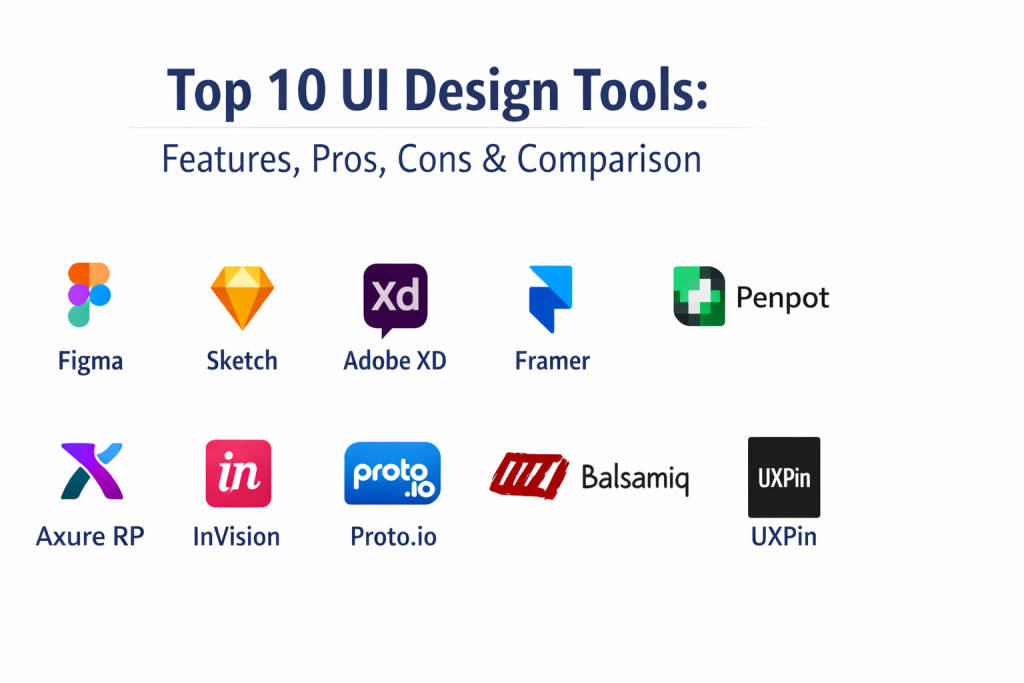
Top 10 UI Design Tools
1. Figma
Figma is currently the industry leader in UI design, recognized for being the first professional-grade tool to run entirely in the browser. It revolutionized the industry by making real-time collaboration the core of the design process, allowing entire teams to work together in a single workspace.
Key Features
- Real-Time Collaboration: Multiple users can edit the same file simultaneously with live cursors.
- Auto Layout: A powerful feature that allows elements to resize and rearrange themselves automatically like code.
- Advanced Components: Create reusable UI elements with “variants” for different states like hover or active.
- FigJam Integration: An integrated whiteboarding tool for brainstorming and user journey mapping.
- Dev Mode: A dedicated workspace for developers to inspect designs and copy code snippets.
Pros
- Runs on any operating system via a web browser.
- Exceptional collaboration and version control features.
Cons
- Requires a stable internet connection for the best experience.
- Performance can lag in extremely large files with thousands of layers.
Platforms / Deployment
Web / Windows / macOS — Cloud
Security & Compliance
SOC 2 Type 2, ISO 27001, and GDPR compliant.
Integrations & Ecosystem
Figma has the most robust plugin community in the design world, with thousands of tools for icons, accessibility checks, and data population.
Support & Community
A massive global community with endless free resources, templates, and professional training programs.
2. Sketch
Sketch was the original pioneer of modern UI design software. While it is exclusive to macOS, it remains a favorite for many veteran designers due to its clean interface, native performance, and powerful local file management.
Key Features
- Native macOS Performance: Optimized specifically for Apple hardware, providing a smooth and responsive experience.
- Symbols & Overrides: A mature system for creating reusable components and managing design consistency.
- Shared Libraries: Easily share design assets and styles across multiple team members.
- Prototyping: Built-in tools for creating simple, clickable flow representations.
- Workspaces: A web-based cloud platform for sharing designs with stakeholders and developers.
Pros
- Fast and reliable for offline work on macOS.
- One of the most intuitive interfaces for traditional designers.
Cons
- Exclusively available for macOS users.
- Real-time collaboration is not as seamless as browser-native tools.
Platforms / Deployment
macOS — Hybrid
Security & Compliance
Standard industry data protection and licensing controls.
Integrations & Ecosystem
Sketch boasts a long-standing library of professional plugins and integrations with tools like Zeplin and Abstract.
Support & Community
A very loyal and professional community with deep roots in the product design industry.
3. Adobe XD
Adobe XD is a part of the Creative Cloud ecosystem, designed for speed and precision. It focuses heavily on the interaction design aspect, offering unique features for voice prototyping and advanced animations.
Key Features
- Repeat Grid: A unique tool that allows designers to replicate lists or galleries with a single click.
- Auto-Animate: Automatically creates smooth transitions between artboards for high-fidelity prototypes.
- Voice Prototyping: Create and test interfaces using voice commands and speech playback.
- Creative Cloud Sync: Seamlessly import assets from Photoshop and Illustrator.
- Responsive Resize: Automatically adjusts elements when artboards are resized.
Pros
- Extremely fast performance, even with complex files.
- Included in many existing Adobe Creative Cloud subscriptions.
Cons
- Fewer collaborative features compared to Figma.
- Plugin ecosystem is smaller and less active than competitors.
Platforms / Deployment
Windows / macOS — Cloud
Security & Compliance
Meets standard Adobe enterprise security and compliance protocols.
Integrations & Ecosystem
Deeply integrated with the Adobe suite, making it ideal for teams already using Photoshop and Illustrator.
Support & Community
Strong corporate support and a large user base within the traditional design community.
4. Framer
Framer has transitioned from a prototyping tool into a powerful “site builder” that allows designers to go from canvas to a live website without developers. It is favored by those who want their designs to behave exactly like real code.
Key Features
- High-Fidelity Interaction: The most advanced animation and logic capabilities in the industry.
- CMS Integration: Built-in content management system for designing and publishing live sites.
- React-Based Components: Uses the same logic as modern web development.
- Site Publishing: One-click deployment to turn your design into a live, hosted website.
- Responsive Breakpoints: Visually manage how designs look across different screen sizes.
Pros
- The highest level of fidelity for prototypes in the market.
- Allows designers to build and launch real websites independently.
Cons
- A steeper learning curve due to its code-like logic.
- Can be overkill for simple UI mockups.
Platforms / Deployment
Web / macOS — Cloud
Security & Compliance
Standard cloud security and data encryption practices.
Integrations & Ecosystem
Strong focus on web technologies and integrations with modern marketing tools.
Support & Community
A growing community of “design-engineers” and high-end creative professionals.
5. Penpot
Penpot is the first open-source UI design tool. It is built for cross-team collaboration and uses SVG as its native file format, making it a favorite for teams that value transparency and open standards.
Key Features
- Open-Source Foundations: Free to use and can be self-hosted on your own servers.
- SVG Native: Designs are stored in a standard format that any developer can understand.
- Flex Layout: A layout engine based on CSS Flexbox, ensuring designs translate perfectly to code.
- Web-Based: Accessible from any browser on any operating system.
- Shared Libraries: Centralized management of components and design assets.
Pros
- No vendor lock-in due to its open-source nature and SVG format.
- Completely free for the hosted version, with self-hosting options.
Cons
- Feature set is still maturing compared to Figma or Sketch.
- Smaller community and plugin library.
Platforms / Deployment
Web — Self-hosted / Cloud
Security & Compliance
High security for self-hosted instances; standard cloud security for the hosted version.
Integrations & Ecosystem
Focuses on developer-friendly standards and open-source integrations.
Support & Community
A passionate open-source community focused on design and development collaboration.
6. Axure RP
Axure RP is a specialized tool for UX professionals who need to build complex prototypes with conditional logic, dynamic content, and data-driven interactions. It is the powerhouse for functional documentation.
Key Features
- Conditional Logic: Create prototypes that respond differently based on user input.
- Dynamic Panels: Manage complex states like carousels and tabs within a single element.
- Adaptive Views: Design once and specify how the layout changes for different devices.
- Data-Driven Prototypes: Use variables and datasets to simulate real application behavior.
- Detailed Documentation: Automatically generate functional specifications from your design.
Pros
- Unrivaled for building high-fidelity, functional prototypes.
- Excellent for complex enterprise software and dashboard design.
Cons
- The interface is complex and has a high learning curve.
- Visual design tools are not as modern as Figma or Sketch.
Platforms / Deployment
Windows / macOS — Cloud / Hybrid
Security & Compliance
Robust enterprise security and on-premises hosting options for sensitive data.
Integrations & Ecosystem
Integrates with Jira and Slack for better project management and feedback.
Support & Community
Professional enterprise support and a community of veteran UX specialists.
7. InVision (Legacy & Studio)
InVision was once the standard for clickable prototypes. While the industry has shifted, InVision remains a key player for many enterprise teams who use its “Cloud” platform to manage feedback and project stakeholders.
Key Features
- Craft Plugin: Connects Photoshop or Sketch to the InVision ecosystem.
- Freehand: A collaborative digital whiteboard for initial ideation and feedback.
- Spec-Based Handoff: Tools for developers to inspect designs and download assets.
- Boards: A way to organize mood boards and design inspiration.
- Prototyping: Simple, hotspot-based clickable prototypes for user testing.
Pros
- Excellent for stakeholder management and presenting designs.
- The Freehand tool is highly intuitive for non-designers.
Cons
- The stand-alone design tool (Studio) has struggled to gain market share.
- Requires external tools (like Sketch) for the best workflow.
Platforms / Deployment
Web / Windows / macOS — Cloud
Security & Compliance
Enterprise-grade security with advanced user management.
Integrations & Ecosystem
Strong integrations with Slack, Microsoft Teams, and Jira.
Support & Community
Wide professional adoption and a wealth of educational content for designers.
8. Proto.io
Proto.io is a high-fidelity prototyping tool that allows designers to create fully interactive mobile app simulations that look and feel like the real product without writing code.
Key Features
- Native UI Libraries: Libraries of ready-to-use components for iOS and Android.
- Interaction Design: Deep control over gestures, touch events, and transitions.
- Animation Timeline: Fine-tune every movement within your prototype.
- Device Testing: View and test your prototypes directly on mobile devices via a dedicated app.
- Asset Management: Centralized hub for icons, images, and videos.
Pros
- Best for creating realistic mobile app prototypes for stakeholder pitches.
- No coding skills required for advanced interactions.
Cons
- Primarily focused on prototyping rather than original vector design.
- Pricing is higher than some general-purpose design tools.
Platforms / Deployment
Web — Cloud
Security & Compliance
Standard industry data encryption and secure hosting.
Integrations & Ecosystem
Integrates with Photoshop and Sketch to import existing designs for prototyping.
Support & Community
Strong customer support and detailed tutorials for interaction design.
9. Balsamiq
Balsamiq is the industry standard for low-fidelity wireframing. It intentionally uses a “hand-drawn” look to keep the focus on structure and usability rather than visual polish or colors.
Key Features
- Sketch-Style UI: Intentionally rough aesthetics to discourage focusing on pixels early on.
- Drag-and-Drop Editor: Hundreds of built-in UI components for rapid layout creation.
- Quick Add: Search and add components via keyboard for maximum speed.
- Linking: Create simple clickable paths between wireframe screens.
- Export Options: High-quality PDF and image exports for sharing.
Pros
- Fastest tool for initial ideation and structural planning.
- Prevents teams from getting distracted by visual design too early.
Cons
- Not for high-fidelity or visual UI design.
- Interaction capabilities are very limited.
Platforms / Deployment
Web / Windows / macOS — Cloud / Self-hosted
Security & Compliance
Varies / N/A.
Integrations & Ecosystem
Integrates with Google Drive, Confluence, and Jira.
Support & Community
A very large community of product managers and developers who value simplicity.
10. UXPin
UXPin is a design tool that uses “code-backed” components. It allows designers to use actual production code to build designs, ensuring a perfect match between the design file and the final developed product.
Key Features
- Merge Technology: Import and use actual React components directly in your design.
- Conditional Logic: Built-in variables and logic for functional prototyping.
- Design Systems: Advanced tools for managing enterprise-scale design libraries.
- Form Inputs: Real working inputs and checkboxes for realistic user testing.
- Live Spec: Detailed specs for developers that are based on the code components used.
Pros
- Eliminates the “translation” error between design and development.
- The most accurate representation of a final product during the design phase.
Cons
- Requires more setup and technical knowledge than standard tools.
- Higher cost for the Merge technology tiers.
Platforms / Deployment
Web / Windows / macOS — Cloud
Security & Compliance
Enterprise-ready with advanced security and permissioning.
Integrations & Ecosystem
Strong focus on Git, Storybook, and React ecosystems.
Support & Community
A professional community of UX engineers and design systems experts.
Comparison Table (Top 10)
| Tool Name | Best For | Platform(s) Supported | Deployment | Standout Feature | Public Rating |
| 1. Figma | Team Collaboration | Web, Windows, macOS | Cloud | Dev Mode / Auto Layout | 4.7/5 |
| 2. Sketch | Native macOS Design | macOS | Hybrid | Local File Performance | 4.5/5 |
| 3. Adobe XD | Creative Cloud Users | Windows, macOS | Cloud | Voice Prototyping | 4.3/5 |
| 4. Framer | Design to Live Site | Web, macOS | Cloud | Code-Based Production | 4.5/5 |
| 5. Penpot | Open-Source Teams | Web | Self-hosted | Native SVG Format | 4.4/5 |
| 6. Axure RP | Complex Logic UX | Windows, macOS | Hybrid | Conditional Reasoning | 4.4/5 |
| 7. InVision | Stakeholder Feedback | Web | Cloud | Freehand Whiteboarding | 4.2/5 |
| 8. Proto.io | Mobile Simulations | Web | Cloud | High-Fidelity Logic | 4.3/5 |
| 9. Balsamiq | Fast Wireframing | Web, Windows, macOS | Cloud | Sketch-style UI | 4.5/5 |
| 10. UXPin | Code-Backed Design | Web, Windows, macOS | Cloud | Merge Technology | 4.4/5 |
Evaluation & Scoring of UI Design Tools
| Tool Name | Core (25%) | Ease (15%) | Integrations (15%) | Security (10%) | Perf (10%) | Support (10%) | Value (15%) | Total |
| 1. Figma | 10 | 8 | 10 | 9 | 8 | 10 | 8 | 8.9 |
| 2. Sketch | 9 | 9 | 8 | 7 | 10 | 8 | 7 | 8.2 |
| 3. Adobe XD | 8 | 8 | 9 | 9 | 9 | 8 | 6 | 7.7 |
| 4. Framer | 8 | 5 | 7 | 7 | 8 | 8 | 7 | 7.1 |
| 5. Penpot | 7 | 7 | 6 | 8 | 8 | 7 | 10 | 7.4 |
| 6. Axure RP | 9 | 3 | 7 | 9 | 8 | 8 | 6 | 7.0 |
| 7. InVision | 6 | 9 | 8 | 8 | 8 | 8 | 7 | 7.5 |
| 8. Proto.io | 7 | 7 | 7 | 7 | 8 | 7 | 6 | 6.8 |
| 9. Balsamiq | 5 | 10 | 7 | 7 | 10 | 8 | 9 | 7.9 |
| 10. UXPin | 9 | 4 | 8 | 9 | 8 | 7 | 6 | 7.2 |
The scoring here represents professional utility. A high “Core” score indicates the tool’s ability to manage a professional design-to-code pipeline. “Ease” scores reflect how quickly a beginner can produce results, while “Value” scores consider the return on investment for freelancers and small teams.
Which UI Design Tool Is Right for You?
Solo / Freelancer
For individuals, Figma is almost always the best starting point due to its generous free tier and browser access. If you prefer working offline on a Mac, Sketch remains a classic and reliable choice for solo production.
SMB
Small teams need to move fast and collaborate. Figma or Adobe XD are the top choices here, as they allow multiple team members and clients to provide feedback easily in one place.
Mid-Market
For growing companies building their own design systems, Figma is the current standard. However, if your product is highly technical with many logical states, Axure RP can save months of development time by clarifying complex requirements.
Enterprise
Large organizations with strict data sovereignty needs often look at Penpot (for self-hosting) or Figma Enterprise. Teams that want a perfect bridge between their design system and their React code will find UXPin invaluable at this scale.
Budget vs Premium
Penpot is the winner for those on a zero budget, while Figma and Adobe XD offer the most feature depth for the price. UXPin and Axure RP are premium specialized tools for high-level UX engineering.
Feature Depth vs Ease of Use
Balsamiq and InVision are the easiest to use but have the least depth. Framer and Axure RP offer incredible depth for interaction and logic but require a significant investment in learning.
Integrations & Scalability
Figma has the best scalability for large design teams due to its library management. Adobe XD is best for teams already integrated into the Creative Cloud ecosystem.
Security & Compliance Needs
Enterprises requiring SOC 2 and advanced identity management should prioritize Figma, Adobe XD, or the enterprise versions of Sketch.
Frequently Asked Questions (FAQs)
1. Is Figma free for individuals?
Yes, Figma offers a robust free tier for individual designers that includes unlimited files in your personal draft and three collaborative projects.
2. Do I need a Mac to be a UI designer?
No. While Sketch is Mac-exclusive, the industry has shifted toward browser-based tools like Figma and Penpot, which work on any operating system.
3. What is the difference between UI and UX design?
UI (User Interface) focuses on the visual look and feel, while UX (User Experience) focuses on the overall logic, usability, and how the user feels during the journey.
4. Can I build a website directly from these tools?
Only Framer allows you to publish a live, production website directly from your design. Most other tools require a developer to turn the design into code.
5. How long does it take to learn these tools?
You can learn the basics of Figma or Adobe XD in a few days, but mastering design systems and advanced prototyping logic can take several months.
6. Do I need to know how to code?
While not required, understanding basic CSS and HTML will make you a much better UI designer and help you communicate better with developers.
7. Which tool is best for mobile app design?
Figma and Adobe XD are currently the leaders for mobile app design, while Proto.io is excellent for creating high-fidelity mobile prototypes.
8. What is a “Design System”?
A design system is a collection of reusable components and standards (colors, fonts, spacing) that ensure consistency across a large digital product.
9. Is Adobe XD being discontinued?
Adobe has shifted its focus after its attempt to acquire Figma, but XD remains a supported part of the Creative Cloud for many professional users.
10. Can I work offline?
Sketch and Adobe XD offer strong offline support. Figma and Framer are primarily cloud-based but offer limited offline functionality via their desktop apps.
Conclusion
The landscape of UI design tools has moved from simple drawing software to sophisticated collaborative platforms that act as the source of truth for entire product teams. Whether you are choosing the open-source freedom of Penpot, the industry-standard collaborative power of Figma, or the code-backed precision of UXPin, the goal remains the same: to create clear, beautiful, and functional interfaces. As these tools continue to integrate AI and real-world code logic, the gap between a designer’s vision and a developer’s reality is finally closing. Selecting the right tool is about more than just features; it is about choosing a workflow that empowers your team to innovate.

Best Cardiac Hospitals Near You
Discover top heart hospitals, cardiology centers & cardiac care services by city.
Advanced Heart Care • Trusted Hospitals • Expert Teams
View Best Hospitals