Introduction
Vector illustration tools help you create artwork using shapes, paths, curves, and mathematically defined lines instead of pixels. That means your designs stay sharp at any size—tiny app icons, large billboards, product packaging, or full brand systems. These tools matter for designers, marketers, product teams, and illustrators who need scalable, editable assets that work across print and digital workflows.
Real-world use cases include:
- Brand identity design (logos, icons, guidelines)
- UI assets and product illustration (icons, badges, diagrams)
- Marketing graphics (social banners, ads, infographics)
- Print design (packaging, signage, brochures)
- Technical and editorial illustration (maps, charts, documentation visuals)
What buyers should evaluate:
- Core vector capabilities (pen tool precision, boolean ops, path editing)
- Typography and layout tools (text on path, styles, variable fonts support)
- Color workflows (swatches, gradients, meshes, global colors)
- Export formats and fidelity (SVG, PDF, EPS, AI, DXF as needed)
- Performance on large files and complex shapes
- Collaboration and versioning (comments, sharing, handoff)
- Plugin ecosystem and automation (extensions, scripting, APIs)
- Interop with design stacks (UI tools, print workflows, prototyping, DAM)
- Asset management (symbols, components, libraries)
- Support and learning resources (docs, tutorials, community)
Best for: brand designers, illustrators, product teams, and marketing teams that need scalable assets for multi-channel design.
Not ideal for: people primarily doing photo editing, painterly raster art, or heavy 3D work—those workflows are better served by raster editors or 3D suites.
Key Trends in Vector Illustration Tools
- More cross-platform design expectations (desktop + web + tablet workflows)
- Stronger collaboration and sharing features for teams and clients
- Increased focus on SVG-first workflows for modern product and web design
- Smarter alignment, snapping, and “auto tidy” layout helpers
- Improved performance on complex files (many nodes, gradients, effects)
- More reusable design systems (components, symbols, shared libraries)
- More automation via plugins and lightweight scripting
- Cleaner export pipelines for UI handoff and responsive scaling
- Better accessibility for beginners (templates, guided tools, learning modes)
- More attention to file compatibility for mixed toolchains
How We Selected These Tools
- Broad market adoption and credibility among designers and teams
- Strong coverage of core vector workflows: pen, paths, shapes, typography, export
- Real-world fit across segments: solo creators, SMBs, agencies, enterprise teams
- Reliability signals for large files and production deadlines
- Ecosystem and interoperability with common file formats and workflows
- Depth of learning resources and community support
- Balanced mix of premium, mid-tier, and accessible/free options
- Practical day-to-day productivity features (libraries, templates, reuse, export)
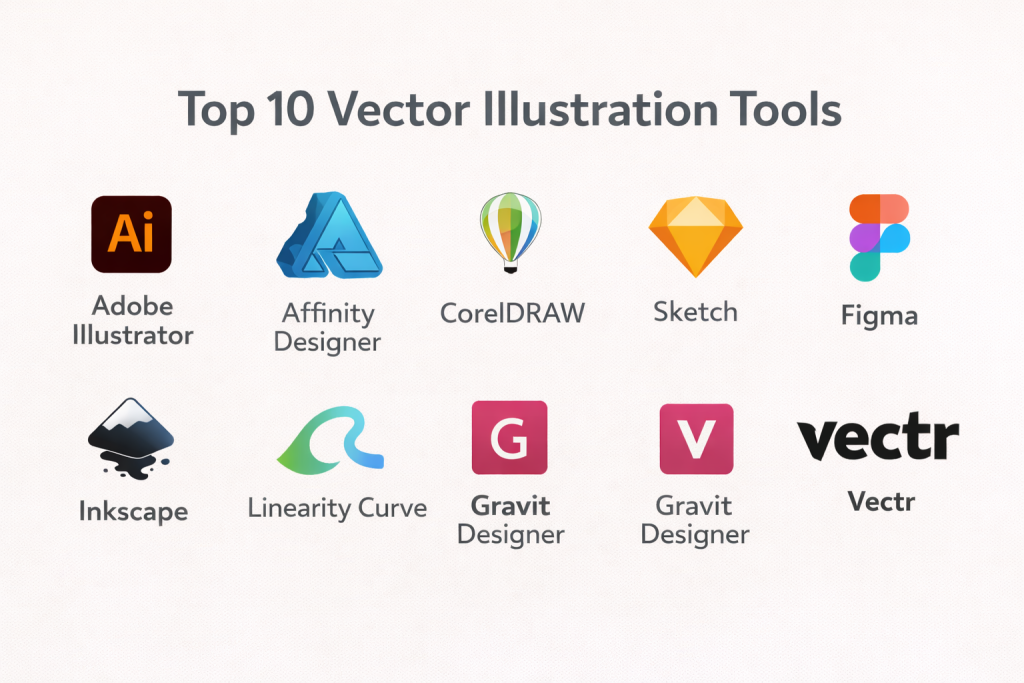
Top 10 Vector Illustration Tools
1 — Adobe Illustrator
A widely used professional vector design tool for logos, icons, illustrations, and print-ready artwork. Best for teams needing strong file compatibility and a mature feature set.
Key Features
- Precision pen tool and advanced path editing
- Robust shape builder and boolean operations
- Strong typography controls and text styling
- Gradients, patterns, brushes, and effects for illustration
- Artboards for multi-size designs and export sets
- Extensive export options for print and digital
- Broad plugin ecosystem and automation options
Pros
- Industry-standard compatibility for many workflows
- Deep feature set for complex vector illustration
Cons
- Subscription cost can be high for solo users
- Feature depth can feel overwhelming at first
Platforms / Deployment
- Windows / macOS
- Self-hosted
Security & Compliance
- Not publicly stated
Integrations & Ecosystem
Works well in multi-app creative workflows and common handoff pipelines.
- Common vector formats and print workflows
- Integrates with broader creative tool stacks (varies)
- Extensions and plugins for productivity and automation
- Asset libraries and shared resources (workflow dependent)
Support & Community
Large community, many tutorials, and strong ecosystem training resources. Support quality varies by plan.
2 — Affinity Designer
A professional vector design tool known for speed, clean UI, and strong value. Ideal for freelancers, agencies, and teams wanting modern vector features without a subscription-first mindset.
Key Features
- Pen tool, node editing, and boolean operations
- Symbols, assets, and reusable components
- Strong export presets for digital workflows
- Combined vector and raster workflows (workflow dependent)
- Artboards for multi-layout design
- Precision snapping and alignment tools
- Good performance on complex documents
Pros
- Strong value for professional capability
- Fast and responsive UI for daily design work
Cons
- Smaller plugin ecosystem than some long-established tools
- Some advanced print workflows may require extra checks
Platforms / Deployment
- Windows / macOS / iPadOS
- Self-hosted
Security & Compliance
- Not publicly stated
Integrations & Ecosystem
Strong file export flexibility and common design handoff patterns.
- SVG, PDF, and common vector exports
- Works well with typical design collaboration workflows
- Asset libraries for reusable brand elements
- Interoperability depends on your toolchain requirements
Support & Community
Good documentation and a growing community. Support varies by purchase channel.
3 — CorelDRAW
A long-standing vector design suite popular in print, signage, and production design. Useful for teams doing packaging, large-format output, and production-oriented vector work.
Key Features
- Vector illustration and page layout tools
- Strong typography and print production capabilities
- Color management workflows (varies by setup)
- Robust import/export for common print formats
- Tools for signage and large-format design (workflow dependent)
- Object management for complex documents
- Useful layout and multi-page capabilities
Pros
- Strong for print and production pipelines
- Mature feature set for professional output
Cons
- UI and workflows can feel different from modern SVG-first tools
- Collaboration features depend on edition and workflow
Platforms / Deployment
- Windows / macOS
- Self-hosted
Security & Compliance
- Not publicly stated
Integrations & Ecosystem
Commonly used in print shops and production environments.
- Print and export formats used in production workflows
- Works with device and output pipelines (varies)
- Supports typical vector import/export needs
- Integration depth depends on the production stack
Support & Community
Solid vendor documentation and a long-running user community, especially in print industries.
4 — Sketch
A design tool widely used for UI and product design that includes strong vector editing for icons and interface illustrations. Best for product teams creating vector assets as part of UI workflows.
Key Features
- Vector editing for icons and UI illustration
- Symbols and reusable component systems
- Artboards and responsive layout workflows (workflow dependent)
- Export presets for product and web assets
- Collaborative review and handoff workflows (workflow dependent)
- Good control for shapes, masks, and boolean operations
- Libraries for shared design systems
Pros
- Great for UI teams that need vector assets + design systems
- Smooth workflow for consistent icon sets and UI graphics
Cons
- Not a full print-first illustration suite
- Platform availability can be limiting for some teams
Platforms / Deployment
- macOS
- Self-hosted (with cloud collaboration features, workflow dependent)
Security & Compliance
- Not publicly stated
Integrations & Ecosystem
Strong ecosystem for product design workflows.
- Handoff workflows and design system libraries
- Export and asset pipelines for web/app production
- Plugins for automation and workflow extensions
- Integrations depend on team stack
Support & Community
Strong community and plugin ecosystem. Good learning content for UI-centric workflows.
5 — Figma
A collaborative design platform that includes vector editing and is widely used for UI design, icons, and lightweight vector illustration. Best for teams that need real-time collaboration and fast iteration.
Key Features
- Vector editing for shapes, paths, and icons
- Real-time collaboration and commenting
- Components, libraries, and design system workflows
- Version history and team file organization
- Export options suitable for product workflows
- Plugins for automation, icons, and productivity
- Cross-device access through a browser-first model
Pros
- Excellent collaboration for teams and client reviews
- Fast iteration and easy sharing workflows
Cons
- Heavy print production features are limited
- Performance can depend on file complexity and environment
Platforms / Deployment
- Web / Windows / macOS
- Cloud
Security & Compliance
- Not publicly stated
Integrations & Ecosystem
Figma has a broad ecosystem for product design workflows.
- Plugins for icons, automation, accessibility checks, and handoff
- Integration with common project workflows (varies)
- Asset libraries and components for scaling design systems
- Export pipelines for engineering handoff
Support & Community
Very strong community, abundant templates, and a large plugin library. Support varies by plan.
6 — Inkscape
A free, open-source vector editor popular for SVG work, illustration, and community-driven extensions. Best for budget-conscious designers and teams that want a capable SVG tool.
Key Features
- Pen tool and node editing for SVG creation
- Path operations and shape tools
- Gradients, patterns, and basic effects
- Strong SVG-focused workflow
- Extensions and community add-ons (varies)
- Useful import/export for common formats
- Works well for icons, diagrams, and basic illustration
Pros
- Free and open-source
- Strong SVG-first capabilities
Cons
- UI polish and performance can vary by system
- Some advanced workflows require workarounds
Platforms / Deployment
- Windows / macOS / Linux
- Self-hosted
Security & Compliance
- Not publicly stated
Integrations & Ecosystem
Great for SVG-based pipelines and community tooling.
- SVG export and web-focused assets
- Extensions for niche tasks (varies)
- Typical interoperability via common formats
- Integrations depend on your workflow
Support & Community
Large open-source community with many tutorials and forums. Formal support is limited.
7 — Linearity Curve
A modern vector illustration tool that focuses on clean UX and fast creation of vector artwork, often appealing to creators who want a simpler, modern workflow.
Key Features
- Vector drawing with pen and shape tools
- Reusable styles and components (workflow dependent)
- Export options for digital assets
- Templates and quick-start assets (workflow dependent)
- Good snapping and alignment controls
- Designed for quick illustration workflows
- Works well for social graphics and brand elements
Pros
- Modern interface that feels approachable
- Good for fast creation and lightweight illustration work
Cons
- Deep print production features may be limited
- Ecosystem and integrations may be smaller than older platforms
Platforms / Deployment
- macOS / iOS
- Self-hosted
Security & Compliance
- Not publicly stated
Integrations & Ecosystem
Focused on digital content workflows and clean exports.
- Exports for common digital formats
- Reusable brand assets and templates (workflow dependent)
- Workflow integrations depend on your stack
- Often used alongside UI and content tools
Support & Community
Helpful learning content and an emerging community. Support depth varies.
8 — Gravit Designer
A vector design tool designed for accessibility and cross-device work, suitable for simple vector illustration, icons, and marketing graphics.
Key Features
- Vector drawing tools for paths and shapes
- Templates and layout helpers (workflow dependent)
- Export options for common vector outputs
- Clean UI for fast learning
- Useful for icons and marketing assets
- Works across devices (workflow dependent)
- Basic asset management features
Pros
- Accessible for beginners and lightweight teams
- Good for basic vector needs and fast outputs
Cons
- Not ideal for very complex illustration workflows
- Advanced print controls may be limited
Platforms / Deployment
- Web / Windows / macOS / Linux
- Cloud
Security & Compliance
- Not publicly stated
Integrations & Ecosystem
Designed for straightforward vector work and portable access.
- Common export formats for digital use
- Templates and reuse workflows (workflow dependent)
- Integrations are typically lightweight
- Best for simple pipelines
Support & Community
Basic learning resources and support. Community size is moderate.
9 — Vectr
A simple vector editor focused on easy access and quick learning. Best for beginners, students, and teams who need basic vector creation without heavy complexity.
Key Features
- Basic vector shapes and path editing
- Simple UI for fast learning
- Useful for icons and lightweight illustrations
- Export options for common formats (workflow dependent)
- Works well for quick diagrams and visuals
- Basic collaboration/sharing features (workflow dependent)
- Minimal setup requirement
Pros
- Very easy to start with
- Good for simple icon and layout tasks
Cons
- Limited depth for advanced illustration
- Not suited for complex print workflows
Platforms / Deployment
- Web / Windows / macOS / Linux
- Cloud
Security & Compliance
- Not publicly stated
Integrations & Ecosystem
Vectr is typically used in simple design workflows.
- Basic exports for web and lightweight assets
- Collaboration features vary by workflow
- Integrations are limited compared to larger platforms
- Works best in simple pipelines
Support & Community
Beginner-friendly resources, modest community. Support is basic.
10 — Canva
A design platform known for templates and fast marketing content creation that also supports vector-style design workflows through shapes, icons, and editable graphics. Best for marketing teams and non-designers producing consistent visuals quickly.
Key Features
- Template-driven design with brand kits (workflow dependent)
- Simple shape and graphic editing for vector-like assets
- Large library of icons and elements (workflow dependent)
- Easy export and resizing workflows
- Collaboration, commenting, and approval flows (workflow dependent)
- Quick creation of social and marketing visuals
- Brand consistency controls for teams (workflow dependent)
Pros
- Extremely fast for marketing and social content
- Easy collaboration for non-designers and teams
Cons
- Not a precision vector illustration tool like dedicated editors
- Deep path editing and advanced vector controls are limited
Platforms / Deployment
- Web / Windows / macOS / iOS / Android
- Cloud
Security & Compliance
- Not publicly stated
Integrations & Ecosystem
Canva is built for content workflows and team collaboration.
- Integrations with common content workflows (varies)
- Team brand libraries and templates
- Export options for common marketing channels
- Ecosystem is template-and-workflow oriented
Support & Community
Strong learning resources for beginners and broad community usage. Support varies by plan.
Comparison Table
| Tool Name | Best For | Platform(s) Supported | Deployment (Cloud/Self-hosted/Hybrid) | Standout Feature | Public Rating |
|---|---|---|---|---|---|
| Adobe Illustrator | Professional vector illustration and print | Windows / macOS | Self-hosted | Deep vector tooling + broad compatibility | N/A |
| Affinity Designer | High-value professional vector work | Windows / macOS / iPadOS | Self-hosted | Fast performance + strong features | N/A |
| CorelDRAW | Print, signage, production design | Windows / macOS | Self-hosted | Production-ready print workflows | N/A |
| Sketch | UI teams creating vector assets | macOS | Self-hosted | Symbols and UI-focused vector editing | N/A |
| Figma | Collaborative vector design for product teams | Web / Windows / macOS | Cloud | Real-time collaboration + components | N/A |
| Inkscape | Free SVG-first vector editing | Windows / macOS / Linux | Self-hosted | Open-source SVG workflows | N/A |
| Linearity Curve | Modern vector illustration workflows | macOS / iOS | Self-hosted | Clean UX for fast creation | N/A |
| Gravit Designer | Lightweight cross-device vector design | Web / Windows / macOS / Linux | Cloud | Accessible vector design experience | N/A |
| Vectr | Simple vector editing for beginners | Web / Windows / macOS / Linux | Cloud | Very easy learning curve | N/A |
| Canva | Fast marketing visuals with brand consistency | Web / Windows / macOS / iOS / Android | Cloud | Templates + brand kit workflows | N/A |
Evaluation & Scoring of Vector Illustration Tools
Weights:
- Core features – 25%
- Ease of use – 15%
- Integrations & ecosystem – 15%
- Security & compliance – 10%
- Performance & reliability – 10%
- Support & community – 10%
- Price / value – 15%
| Tool Name | Core (25%) | Ease (15%) | Integrations (15%) | Security (10%) | Performance (10%) | Support (10%) | Value (15%) | Weighted Total (0–10) |
|---|---|---|---|---|---|---|---|---|
| Adobe Illustrator | 10 | 7 | 9 | 6 | 9 | 9 | 6 | 8.1 |
| Affinity Designer | 9 | 8 | 7 | 6 | 9 | 7 | 9 | 8.2 |
| CorelDRAW | 9 | 7 | 7 | 6 | 8 | 7 | 7 | 7.6 |
| Sketch | 7 | 8 | 8 | 6 | 8 | 8 | 7 | 7.5 |
| Figma | 7 | 9 | 9 | 7 | 8 | 9 | 8 | 8.3 |
| Inkscape | 7 | 7 | 6 | 6 | 7 | 8 | 10 | 7.3 |
| Linearity Curve | 7 | 8 | 6 | 6 | 8 | 6 | 7 | 7.1 |
| Gravit Designer | 6 | 8 | 6 | 6 | 7 | 6 | 7 | 6.7 |
| Vectr | 5 | 9 | 5 | 6 | 6 | 5 | 8 | 6.2 |
| Canva | 5 | 10 | 8 | 7 | 8 | 8 | 9 | 7.7 |
How to interpret these scores:
- The weighted total compares tools against each other in this list, not against every tool in the market.
- If you do print-heavy work, prioritize core features and export fidelity over ease.
- If you work in teams, integrations and collaboration may matter more than deep path editing.
- If budget is tight, price/value may outweigh a small drop in advanced features.
- Always run a small test: recreate one real asset you ship often (logo, icon set, poster) and validate export.
Which Vector Illustration Tool Is Right for You?
Solo / Freelancer
- If you want maximum industry compatibility and deep tools: Adobe Illustrator
- If you want strong pro features with great value: Affinity Designer
- If you want free SVG-first work: Inkscape
- If you mainly create marketing visuals quickly: Canva
SMB
- For brand assets + marketing with quick collaboration: Figma + Canva (different strengths)
- For a dedicated pro vector workflow without subscription focus: Affinity Designer
- For print-heavy needs: CorelDRAW
Mid-Market
- For product teams and design systems with strong collaboration: Figma
- For mixed print and production pipelines: Adobe Illustrator or CorelDRAW
- For UI teams on macOS: Sketch for consistent icon and component workflows
Enterprise
- For broad compatibility and standardized workflows: Adobe Illustrator
- For product design at scale: Figma (team workflows and libraries)
- For print/production departments: CorelDRAW where that pipeline is already strong
Budget vs Premium
- Budget: Inkscape, Vectr, and some Gravit Designer workflows
- Premium: Adobe Illustrator, CorelDRAW
- High value: Affinity Designer (strong capability-to-cost balance)
Feature Depth vs Ease of Use
- Feature depth: Adobe Illustrator, CorelDRAW, Affinity Designer
- Ease of use: Canva, Vectr, Figma (for team-friendly workflows)
Integrations & Scalability
- Strong team scalability: Figma
- Mature ecosystem and compatibility: Adobe Illustrator
- Product-team workflows: Sketch (macOS-first)
- Lightweight pipelines: Gravit Designer and Vectr for simple needs
Security & Compliance Needs
- Many tools do not publicly state detailed compliance in a simple way. For regulated environments, confirm SSO, MFA, access controls, and audit needs directly with vendor documentation.
- Cloud-first tools should be reviewed for account security, team permissions, and data handling policies.
Frequently Asked Questions
1) What is the difference between vector and raster illustration?
Vector uses paths and shapes that scale perfectly. Raster uses pixels, which can blur when enlarged. Logos and icons are usually better as vector.
2) Which file format is best for web icons and UI assets?
SVG is commonly preferred for web and UI because it scales cleanly and is lightweight. Export settings still matter for clean results.
3) Which tool is best for logo design?
Tools with strong pen, path editing, and export fidelity work best—many designers choose Adobe Illustrator or Affinity Designer, while Inkscape is strong for SVG on a budget.
4) Do I need a vector tool if I already use a UI design tool?
If you create only icons and simple illustrations, a UI tool may be enough. For complex illustration and print-ready assets, a dedicated vector editor helps.
5) What are common mistakes when creating vector artwork?
Too many nodes, messy paths, inconsistent strokes, and unoptimized exports. Clean geometry and consistent styles improve quality and editability.
6) Can these tools handle print work like packaging and brochures?
Some are stronger than others. Print-first suites and pro vector editors usually offer better control over export, color workflows, and production needs.
7) How do I keep brand consistency across many designs?
Use shared libraries, symbols/components, consistent color styles, and reusable templates. Centralize your brand assets and reuse them.
8) Is a free tool good enough for professional work?
Yes for many workflows, especially SVG-first designs. The trade-off is often polish, speed, support, and some advanced production features.
9) What should I test before committing to a tool?
Recreate a real deliverable you ship often: a logo set, icon pack, or poster. Validate export, typography, performance, and collaboration needs.
10) How hard is it to switch between vector tools?
Switching is usually manageable if you standardize on common formats like SVG and PDF. Complex effects and proprietary features may not translate perfectly.
Conclusion
Vector illustration tools are essential when you need scalable, editable designs that stay sharp everywhere. The “best” tool depends on your workflow: print production, product design collaboration, SVG-first web assets, or fast marketing content. Shortlist two or three options that match your priorities, recreate one real project end-to-end, validate export quality and team collaboration, and then standardize your libraries and templates for consistent, repeatable output.

Best Cardiac Hospitals Near You
Discover top heart hospitals, cardiology centers & cardiac care services by city.
Advanced Heart Care • Trusted Hospitals • Expert Teams
View Best Hospitals