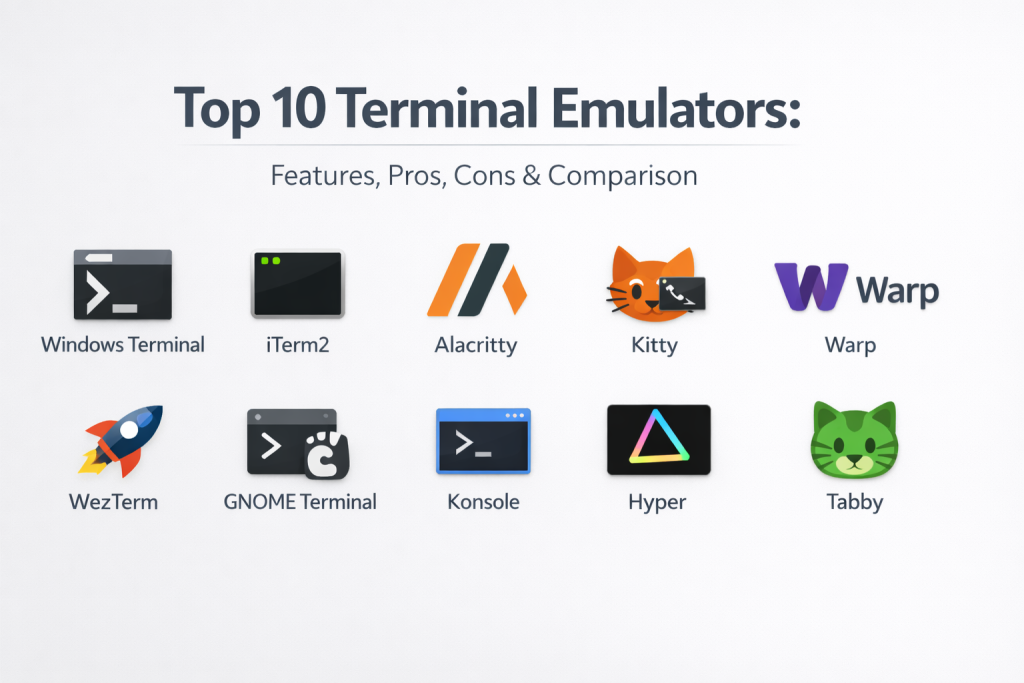
Introduction
A terminal emulator is a software application that replicates the functionality of a classic video terminal within a modern graphical user interface. It serves as the primary gateway for developers, system administrators, and DevOps professionals to interact directly with the operating system’s shell. By translating keyboard input into commands and displaying the resulting text output, these tools allow for high-speed file management, script execution, and system configuration. While the basic concept has remained unchanged for decades, modern emulators have evolved to include advanced features like GPU acceleration, split panes, and even artificial intelligence.
In the current professional landscape, the terminal is no longer just a black box for typing text. It has become a sophisticated productivity hub that supports complex workflows, including remote server management via SSH, container orchestration with Kubernetes, and local development environment control. Choosing the right emulator can significantly reduce eye strain through better font rendering, increase efficiency through keyboard shortcuts, and improve overall system responsiveness by offloading text processing to the graphics card.
Real-World Use Cases
- Managing multiple remote cloud servers simultaneously using split panes and tabbed interfaces.
- Executing high-frequency development tasks such as version control operations and build scripts.
- Automating system administration duties across diverse environments like Linux, Windows, and macOS.
- Visualizing log files and system metrics in real-time with high-performance text scrolling.
- Building and testing software inside isolated environments like Docker or the Windows Subsystem for Linux (WSL).
Evaluation Criteria for Buyers
- The speed of text rendering and how the software handles large amounts of data output.
- The ease of setting up themes, fonts, and custom keybindings to match a personal workflow.
- The ability of the tool to run across different operating systems without changing configuration styles.
- Support for advanced features like multiplexing, which allows for multiple terminal sessions in one window.
- The overhead the application places on the system’s processor and memory during heavy use.
- The availability of plugins or scripting hooks to extend the core functionality of the terminal.
- The quality of the documentation and the responsiveness of the developer community.
Best for: Software engineers, system administrators, DevOps specialists, and power users who spend a significant portion of their day working in a command-line environment.
Not ideal for: Casual users who rarely need to access system settings or individuals who prefer a purely graphical interface for all computer tasks.
Key Trends in Terminal Emulators
- Widespread adoption of GPU acceleration to ensure smooth scrolling even when displaying millions of lines of code.
- The integration of AI assistants that suggest commands and explain complex terminal errors in plain English.
- A shift toward configuration-as-code, where terminal settings are managed via simple text files like YAML or JSON.
- Improved support for modern font features such as ligatures and high-definition “Nerd Fonts” for better readability.
- The emergence of cloud-native terminals that allow for session syncing and collaborative command sharing.
- Enhanced security protocols that integrate directly with enterprise single sign-on and multi-factor authentication systems.
- Native support for displaying images and complex graphics directly within the terminal window using advanced protocols.
- A move toward writing core terminal components in memory-safe languages like Rust to improve both speed and security.
How We Selected These Tools
Our selection of the top ten terminal emulators is based on a detailed review of performance, reliability, and industry adoption. We prioritized tools that offer a clear advantage in speed, particularly those utilizing modern graphics hardware. We also looked for software that supports a wide range of operating systems to ensure consistency for professionals working in hybrid environments. The list includes a balance of minimalist, performance-focused tools and feature-rich applications that offer a more “IDE-like” experience. Finally, we considered the longevity of the projects and the strength of their respective communities to ensure that these recommendations remain relevant for long-term professional use.
Top 10 Terminal Emulators Tools
1. Windows Terminal
Microsoft’s modern terminal application has redefined the command-line experience for Windows users. It provides a unified host for PowerShell, Command Prompt, and various Linux distributions through WSL. Its design focuses on performance and high-quality text rendering, making it the definitive choice for anyone working within the Windows ecosystem.
Key Features
- A versatile tabbed interface that allows for multiple shells in a single window.
- High-performance text rendering using a GPU-accelerated DirectWrite engine.
- Support for custom themes, color schemes, and transparent backgrounds.
- Deep integration with the Windows Subsystem for Linux for a seamless experience.
- A powerful command palette for quickly accessing settings and features.
Pros
- The best integration available for developers working on Windows systems.
- Completely free and maintained with frequent updates from Microsoft.
Cons
- Only available for Windows users, limiting cross-platform consistency.
- Customization can be complex as it relies heavily on editing a JSON file.
Platforms / Deployment
Windows — Self-hosted
Security & Compliance
Integrates with Windows enterprise security features and standard OS-level audit logs.
Integrations & Ecosystem
It acts as a central hub for all Windows-based command-line tools. It easily connects with Azure Cloud Shell and various developer toolchains like Git and Node.js.
Support & Community
As an open-source project from Microsoft, it has an incredibly active development cycle and a massive community of users providing themes and extensions.
2. iTerm2
For macOS users, iTerm2 has long been the gold standard for terminal productivity. It is a feature-rich replacement for the default Terminal.app, offering advanced capabilities that cater specifically to power users who need deep control over their environment.
Key Features
- A unique split pane system that allows for horizontal and vertical layouts.
- A robust search function that highlights every instance of a word in the scrollback.
- Integration with the system clipboard and a history of previous copies.
- Trigger-based automation that can perform actions when specific text appears.
- Native integration with tmux for managing persistent terminal sessions.
Pros
- Packed with more productivity features than almost any other terminal.
- Highly stable and optimized specifically for the macOS hardware environment.
Cons
- Can be resource-intensive when multiple complex panes are open.
- Exclusive to macOS, making it unsuitable for teams requiring cross-platform parity.
Platforms / Deployment
macOS — Self-hosted
Security & Compliance
Uses standard macOS security protocols; licensing and updates are handled locally.
Integrations & Ecosystem
It features a deep “shell integration” that allows the terminal to communicate more effectively with the underlying shell for features like file transfers and command history.
Support & Community
A very mature project with exhaustive documentation and a loyal community of macOS developers who have used the tool for over a decade.
3. Alacritty
Alacritty is built with a singular focus: speed. Written in Rust and using the GPU for rendering, it is often cited as the fastest terminal emulator available. It follows a minimalist philosophy, leaving features like tabs and splits to external tools like tmux.
Key Features
- GPU-accelerated rendering via OpenGL for near-zero input latency.
- A minimalist design that stays out of the way of the user’s work.
- Cross-platform consistency with the same configuration across all systems.
- A simple YAML-based configuration file for easy version control.
- High-performance search and selection modes that use keyboard shortcuts.
Pros
- The absolute fastest rendering performance in the terminal category.
- Extremely lightweight and efficient on system memory and CPU.
Cons
- Does not include built-in tabs or split panes by design.
- Requires a secondary tool like tmux or a window manager for layout control.
Platforms / Deployment
Windows / macOS / Linux — Self-hosted
Security & Compliance
Not publicly stated; relies on standard open-source community audits.
Integrations & Ecosystem
Designed to be a “building block” in a larger developer environment. It integrates flawlessly with terminal multiplexers and shell-based automation scripts.
Support & Community
A strong following among performance purists and the Rust community, with very detailed GitHub-based support.
4. Kitty
Kitty is another GPU-accelerated terminal that balances extreme performance with a rich feature set. It is particularly known for its “kittens” system, which allows users to extend the terminal’s capabilities using Python scripts.
Key Features
- A powerful tiling system that allows for complex window and tab layouts.
- Support for a remote control protocol to manipulate the terminal via scripts.
- High-quality font rendering with full support for ligatures and symbols.
- The ability to display high-resolution images directly in the terminal window.
- A single, comprehensive configuration file for all settings and keybindings.
Pros
- High performance with more built-in features than Alacritty.
- Extremely scriptable, making it a favorite for technical power users.
Cons
- The configuration can be overwhelming due to the sheer number of options.
- Not as straightforward for beginners as GUI-based terminals.
Platforms / Deployment
macOS / Linux — Self-hosted
Security & Compliance
Standard open-source security; follows modern secure coding practices.
Integrations & Ecosystem
Its unique remote control feature allows for deep integration with local development environments and automated testing frameworks.
Support & Community
Highly active development with a community that focuses on technical excellence and high-end customization.
5. Warp
Warp represents a new generation of terminals that incorporate modern application design and artificial intelligence. Built in Rust, it aims to turn the terminal into a collaborative tool that feels more like a modern code editor than a traditional command-line interface.
Key Features
- An AI-powered command search that converts natural language into shell commands.
- A “blocks” based approach that treats every command and its output as a single unit.
- Collaborative “Warp Drive” for saving and sharing common commands with a team.
- Modern text editing features like multi-cursor support and easy selection.
- Real-time syncing of themes and configurations across different devices.
Pros
- The most modern and intuitive user interface in the terminal space.
- Built-in AI significantly speeds up the learning process for new developers.
Cons
- Requires a cloud login, which may raise privacy concerns for some users.
- Some traditional terminal workflows may feel different due to the block-based UI.
Platforms / Deployment
macOS / Linux — Hybrid
Security & Compliance
Uses secure cloud storage for synced data; enterprise tiers offer more robust controls.
Integrations & Ecosystem
It features deep integration with team workflows, allowing for shared command libraries and standardized developer environments across an organization.
Support & Community
Rapidly growing community with professional support channels and a focus on modern developer productivity.
6. WezTerm
WezTerm is a cross-platform, GPU-accelerated terminal and multiplexer that is configured using the Lua programming language. It is designed for users who want the performance of a Rust-based terminal with the feature set of a full-scale window manager.
Key Features
- Native multiplexing that handles tabs, windows, and panes without extra software.
- A Lua-based configuration system for highly complex and dynamic settings.
- Excellent support for Unicode, emojis, and font ligatures.
- Built-in SSH and serial client for remote system management.
- Consistent behavior and visuals across Linux, Windows, and macOS.
Pros
- Extremely powerful for users who are comfortable with basic scripting.
- Offers a “one-tool” solution for performance and window management.
Cons
- Using Lua for configuration can be a hurdle for non-programmers.
- The feature set can be overkill for users looking for a simple terminal.
Platforms / Deployment
Windows / macOS / Linux — Self-hosted
Security & Compliance
Not publicly stated.
Integrations & Ecosystem
Its programmable nature allows it to integrate deeply with shell prompts, system-wide automation, and custom developer toolchains.
Support & Community
A very helpful community on GitHub and Discord with excellent technical documentation for its Lua API.
7. GNOME Terminal
As the default terminal for many Linux distributions, GNOME Terminal is known for its simplicity and rock-solid reliability. It follows the standard human interface guidelines of the GNOME desktop, making it an excellent choice for those who value stability over extreme customization.
Key Features
- A clean and straightforward tabbed interface for managing sessions.
- Support for multiple profiles with different color schemes and fonts.
- Excellent accessibility support and internationalization for global users.
- Lightweight design that integrates perfectly with the Linux desktop.
- Reliable performance that works well on even older computer hardware.
Pros
- The most stable and predictable choice for standard Linux environments.
- Very easy to use for beginners who are new to the command line.
Cons
- Lacks high-end features like GPU acceleration or built-in tiling.
- Customization options are limited compared to power-user tools.
Platforms / Deployment
Linux — Self-hosted
Security & Compliance
Compliant with standard Linux enterprise security and data protection guidelines.
Integrations & Ecosystem
It is pre-installed on millions of systems, ensuring it works perfectly with every standard Linux tool and desktop utility.
Support & Community
Backed by the massive GNOME project, it has one of the largest support bases in the open-source world.
8. Konsole
Konsole is the powerful terminal emulator for the KDE Plasma desktop. It is famous for its extreme flexibility and the ability to save complex session layouts, making it a favorite for Linux administrators who need to manage many tasks at once.
Key Features
- A highly flexible layout system that supports both tabs and split views.
- The ability to bookmark frequently used directories and remote sessions.
- “Monitor for Activity” alerts that notify you when a long-running task is finished.
- Fully customizable keyboard shortcuts and toolbars.
- Support for transparent backgrounds and advanced terminal effects.
Pros
- Exceptional for managing multiple sessions and complex administrative tasks.
- Highly integrated with the KDE ecosystem for a consistent user experience.
Cons
- Can feel cluttered due to the vast number of available settings.
- Best suited for KDE users; may feel out of place on other desktops.
Platforms / Deployment
Linux — Self-hosted
Security & Compliance
Uses standard Linux security protocols; audit logs available via the OS.
Integrations & Ecosystem
It integrates seamlessly with other KDE applications like the Dolphin file manager and the Kate text editor.
Support & Community
Extensive documentation and a dedicated community focused on Linux desktop excellence.
9. Hyper
Hyper is an Electron-based terminal built using web technologies like JavaScript, HTML, and CSS. Its primary appeal is its infinite extensibility, allowing web developers to customize every aspect of the terminal’s appearance and behavior using familiar code.
Key Features
- An extensive plugin ecosystem for adding themes, icons, and features.
- A configuration system based entirely on standard JavaScript.
- Cross-platform support for Windows, macOS, and Linux.
- Built-in support for tabs and split panes for multitasking.
- High-quality rendering of text and emojis using web standards.
Pros
- The most visually customizable terminal for web developers.
- Extremely easy to extend if you know basic JavaScript.
Cons
- Higher memory and CPU usage compared to native Rust or C++ terminals.
- Can feel slower when handling very large amounts of text output.
Platforms / Deployment
Windows / macOS / Linux — Self-hosted
Security & Compliance
Not publicly stated.
Integrations & Ecosystem
Hyper thrives on its community-built plugins, which range from simple aesthetic changes to complex productivity enhancements.
Support & Community
A vibrant community of web-focused developers who share themes and plugins on social platforms and GitHub.
10. Tabby
Tabby (formerly Terminus) is a highly polished, cross-platform terminal hub that focuses on modern user experience and SSH management. It is designed to be a complete workstation for anyone who frequently connects to remote servers.
Key Features
- A built-in SSH client with an integrated connection and secret manager.
- A modern UI that includes professional themes and color schemes.
- Support for various shells including PowerShell, WSL, and standard Bash.
- Serial and Telnet protocol support for network hardware management.
- Extensible via a powerful plugin system for added functionality.
Pros
- The best choice for administrators who need a GUI-friendly SSH manager.
- Very polished look and feel that rivals modern professional apps.
Cons
- Like Hyper, its Electron-based core can be heavy on system resources.
- Not as focused on extreme low-latency performance as Alacritty.
Platforms / Deployment
Windows / macOS / Linux — Self-hosted
Security & Compliance
Includes secure storage for credentials and support for private key management.
Integrations & Ecosystem
It serves as a comprehensive hub for local and remote terminal work, integrating with various shells and cloud services.
Support & Community
A dedicated following of system administrators and network engineers who value organized session management.
Comparison Table (Top 10)
| Tool Name | Best For | Platform(s) Supported | Deployment | Standout Feature | Public Rating |
| 1. Windows Terminal | Windows Developers | Windows | Self-hosted | Unified Shell Host | 4.7/5 |
| 2. iTerm2 | macOS Power Users | macOS | Self-hosted | Deep macOS Features | 4.8/5 |
| 3. Alacritty | Performance Purists | Windows, macOS, Linux | Self-hosted | GPU-Accelerated Speed | 4.6/5 |
| 4. Kitty | Scripting Power Users | macOS, Linux | Self-hosted | Python Extensions | 4.6/5 |
| 5. Warp | Modern Team Collab | macOS, Linux | Hybrid | AI Command Search | 4.5/5 |
| 6. WezTerm | Cross-Platform Logic | Windows, macOS, Linux | Self-hosted | Lua-Based Config | 4.5/5 |
| 7. GNOME Terminal | Linux Beginners | Linux | Self-hosted | Stability & Simplicity | 4.3/5 |
| 8. Konsole | Linux Admins | Linux | Self-hosted | Session Management | 4.4/5 |
| 9. Hyper | Web Developers | Windows, macOS, Linux | Self-hosted | JS/CSS Customization | 4.1/5 |
| 10. Tabby | SSH & Remote Work | Windows, macOS, Linux | Self-hosted | Built-in SSH Manager | 4.4/5 |
Evaluation & Scoring of Terminal Emulators
| Tool Name | Core (25%) | Ease (15%) | Integrations (15%) | Security (10%) | Perf (10%) | Support (10%) | Value (15%) | Total |
| 1. Windows Terminal | 9 | 8 | 9 | 9 | 9 | 10 | 10 | 9.1 |
| 2. iTerm2 | 10 | 7 | 10 | 8 | 8 | 10 | 10 | 9.0 |
| 3. Alacritty | 7 | 5 | 8 | 7 | 10 | 8 | 10 | 7.8 |
| 4. Kitty | 9 | 4 | 9 | 7 | 10 | 8 | 10 | 8.2 |
| 5. Warp | 9 | 9 | 8 | 6 | 9 | 9 | 8 | 8.3 |
| 6. WezTerm | 9 | 4 | 8 | 7 | 10 | 8 | 10 | 8.0 |
| 7. GNOME Terminal | 6 | 10 | 7 | 8 | 6 | 9 | 10 | 7.4 |
| 8. Konsole | 8 | 7 | 8 | 8 | 7 | 9 | 10 | 8.0 |
| 9. Hyper | 7 | 8 | 9 | 6 | 5 | 8 | 10 | 7.4 |
| 10. Tabby | 8 | 9 | 9 | 8 | 6 | 8 | 10 | 8.2 |
The scoring above highlights that while minimalist tools like Alacritty dominate in pure performance, integrated solutions like Windows Terminal and iTerm2 offer a more balanced experience for daily professional use. A higher score in ease of use indicates a tool that can be picked up immediately, while a high core score represents deep technical capability.
Which Terminal Emulator Tool Is Right for You?
Solo / Freelancer
For an individual developer, Warp is a fantastic choice because its AI features act as a mentor, helping you find commands quickly. If you prefer a more traditional but extremely fast setup, Alacritty provides the best distraction-free performance.
SMB (Small to Medium Business)
A small team should consider Warp for its collaboration features or Windows Terminal if the company standardized on Microsoft hardware. These tools are easy to support and provide a high level of out-of-the-box productivity.
Mid-Market
Organizations at this level benefit from the cross-platform consistency of WezTerm or Kitty. These allow a team of developers using different operating systems to use the same configuration files and workflows.
Enterprise
In a large corporate environment, standardizing on the native tool for the OS—Windows Terminal for Windows and iTerm2 for macOS—is often the best path. These tools offer the most reliable integration with enterprise security and support infrastructures.
Budget vs Premium
Since all of these tools have a high-quality free version, the “cost” is actually in the time spent on configuration. GNOME Terminal is the budget choice in terms of time, while WezTerm or Kitty are premium in terms of the technical effort required to master them.
Feature Depth vs Ease of Use
If you need deep technical control and don’t mind writing scripts to get it, Kitty or WezTerm are the best options. If you want a tool that just works without any setup, GNOME Terminal or iTerm2 are better fits.
Integrations & Scalability
Windows Terminal and iTerm2 scale exceptionally well within their respective ecosystems. For those working across cloud and local environments, Tabby provides the best integration for managing complex remote connections.
Security & Compliance Needs
For users who handle sensitive data, tools like Tabby and iTerm2 offer better management of credentials and session data. Enterprises requiring strict audit trails should rely on the native security features of their operating systems.
Frequently Asked Questions (FAQs)
1. What is the advantage of a GPU-accelerated terminal?
A GPU-accelerated terminal offloads text rendering to the graphics card, which prevents the interface from lagging when you have thousands of lines of code scrolling quickly.
2. Do I need to be a programmer to use these tools?
No, but many advanced features like custom scripting or AI command suggestions are designed to make a programmer’s life easier.
3. Is Warp Terminal safe for company data?
Warp uses cloud syncing for its collaboration features, so companies should review its privacy policy; however, they offer enterprise tiers designed for high security.
4. Can I run Linux commands on Windows Terminal?
Yes, if you have the Windows Subsystem for Linux installed, you can run a full Linux bash shell directly inside Windows Terminal.
5. What is a terminal multiplexer like tmux?
A multiplexer is a tool that runs inside your terminal to manage multiple sessions, allowing you to disconnect and reconnect to a server without losing your work.
6. Why do some terminals use Rust or C++ instead of JavaScript?
Native languages like Rust and C++ are much faster and use fewer system resources than Electron-based terminals that rely on web technologies.
7. Can these terminals display images?
Some advanced terminals like Kitty and WezTerm have specific protocols that allow them to display high-resolution images directly in the window.
8. Are these tools free to use for commercial work?
Most of the tools on this list are open-source and free for both personal and commercial use, though some like Warp have paid tiers for teams.
9. How do I change the look of my terminal?
Most terminals allow you to change themes and fonts through a settings menu or by editing a configuration file in your home directory.
10. Which terminal is best for beginners?
Windows Terminal (for Windows) and iTerm2 (for Mac) are excellent for beginners because they provide a friendly interface with plenty of powerful features.
Conclusion
Choosing the right terminal emulator is about finding the balance between raw performance and the features that support your specific daily workflow. Whether you choose a minimalist speed-demon like Alacritty or a modern, AI-enhanced tool like Warp, the goal is to create an environment where the technology works for you rather than against you. By mastering these tools, you can transform your terminal from a simple text box into a high-powered command center that enhances your productivity and simplifies complex system management. As the industry continues to evolve toward more automated and collaborative development, staying updated on the latest terminal trends is essential. The tools we have discussed today represent the absolute best in modern terminal technology, providing the reliability and speed required for professional excellence. We encourage you to test several options to see which one feels most natural for your unique style and needs.

Best Cardiac Hospitals Near You
Discover top heart hospitals, cardiology centers & cardiac care services by city.
Advanced Heart Care • Trusted Hospitals • Expert Teams
View Best Hospitals